
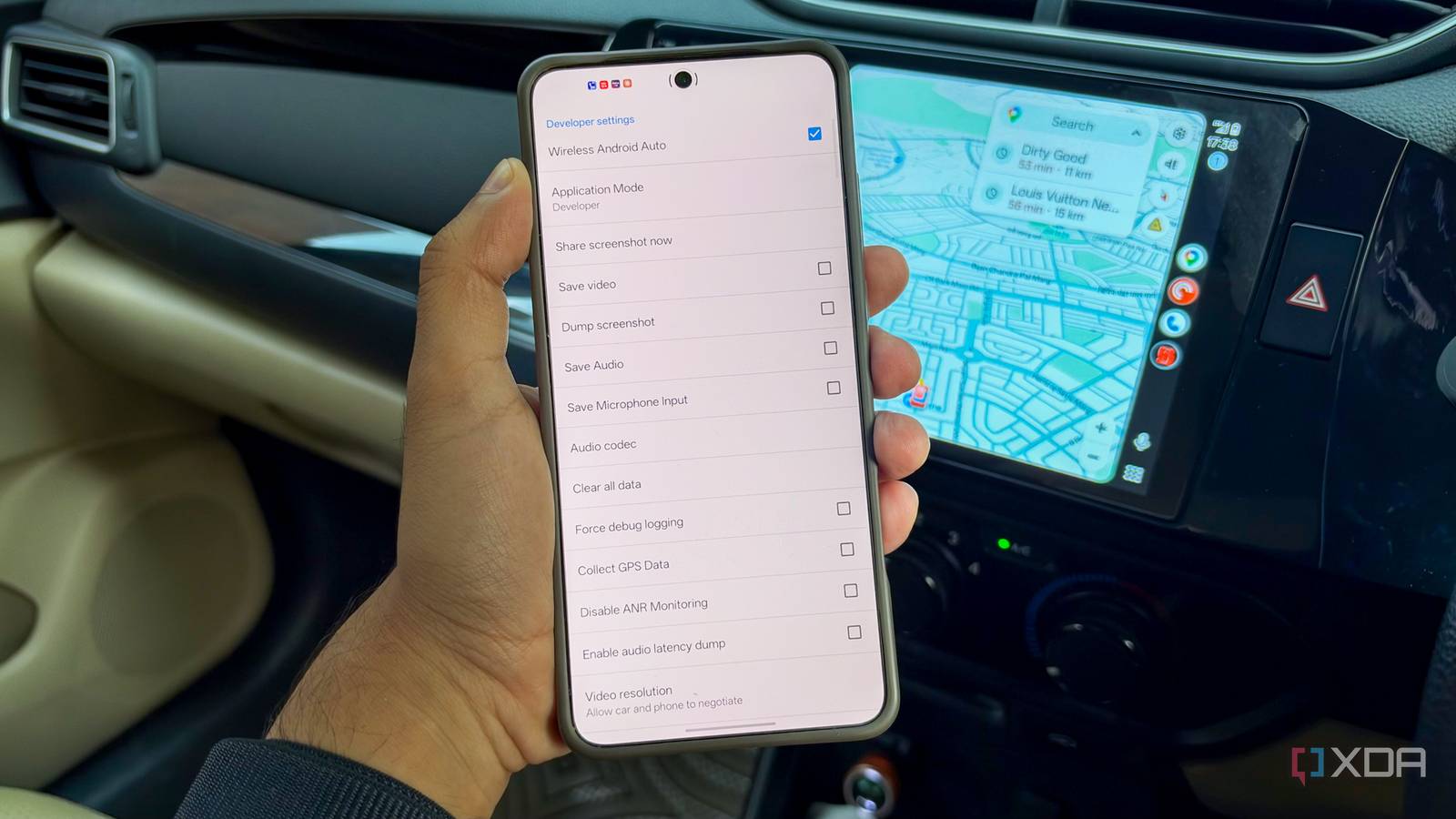
Published Oct 5, 2026, 8:30 AM EDT Dhruv Bhutani has been writing about consumer technology since 2008, offering deep insights into the personal technology landscape through features and opinion pieces. He writes for XDA-Developers, where he focuses on topics like productivity, networking, self-hosting, and more. Over the years, his work has also appeared in leading publications such as Android Police, Android Authority, CNET, PCMag, and more. Outside of his professional work, Dhruv is an avid fan of horror media spanning films and literature, enjoys fitness activities, collects vinyl records, and plays the guitar. Android Auto is constantly evolving, and Google keeps adding new features. However, even today, years later, some of the settings I find most useful are tucked away behind the platform's developer menu. These features might not be useful day-to-day, but if you're trying to do something specific or need to troubleshoot your Android Auto setup, they're essential. The Android Auto developer menu is chock-full of options you should and shouldn't touch, but four stand out because they solve problems I run into often enough, or have in the past. Before we get to the features, though, you'll want to know how to enable developer settings. That's easy enough. Scroll over to Settings on your Android phone and search for Android Auto. Tap it and scroll down to version. Keep tapping the version number till a pop-up tells you that you've enabled developer mode. Now tap the three-dot menu in the top right corner to open Developer options. That's it — you're good to go. Whether you're fixing a wireless Android Auto connection, display issues, or adding functionality Google won't provide, these developer mode settings can help. Here are the ones that you should know about. Wireless Android Auto toggle Use the developer toggle when wireless connections fail Credit: This feature lands squarely in the nice-to-have category when things break down, but it's saved my bacon a couple of times. As good and convenient as wireless Android Auto is, it is still a wireless video stream beamed from your phone to a screen in your car, and sometimes it just doesn't work. Once you've exhausted the standard pairing, disconnection, and repair routines, you might wonder why it still isn't working. That's when this toggle comes in handy. To access the menu, open the settings on your phone and look for Android Auto. Scroll down to the version number and tap it until Developer options are enabled. Once enabled, a three-dot menu with developer settings should appear in the top right corner. One of the options there is a toggle for Wireless Android Auto. Ideally, you'll want this one on. If it's off, turn it back on, as that's the root cause of your problem. If it is on and your phone still won't connect, it may be worth toggling it off and back on again. Like computers, turning a feature on and off can solve technical issues surprisingly often. Video resolution Force a higher or lower resolution when needed The next setting is something I again came across while diagnosing an issue with my Android Auto setup. You see, I use an aftermarket Android Auto unit in my car, and it doesn't always negotiate the resolution correctly with Android Auto on my phone. Too often, I'm left with a blurry, low-resolution image that makes it hard to read text. In most scenarios, this is completely out of your control. Or is it? Hidden under the settings is an option to control the video resolution for Android Auto. I've set it to Full HD to match my display's resolution and noticed crisper rendering because the automatic negotiation often defaults to a lower resolution. That said, you can also use it the other way around. If high-res rendering makes Android Auto lag or your phone overheat, you can reduce the max resolution to, say, 720p. This automatically reduces the rendering overhead. Unknown sources Expand Android Auto beyond the Play Store Credit: If you like dabbling in open-source and third-party apps that expand software functionality, you'll love this one. Android Auto limits the apps you can install and run to a curated list available on the Play Store. Generally, that's not an issue. But there's a world of third-party apps that add useful functionality. These aren't available on the Play Store. Think about things like YouTube playback on your car, or even a full-fledged web browser. Toggling on Unknown sources lets you install compatible apps from outside the Play Store to appear in Android Auto. I find it pretty useful because I keep experimenting with apps from GitHub. In fact, I recently wrote about an app called Fermata Auto that enabled YouTube playback on Android Auto. That wouldn't be possible without this setting toggled on. Take Screenshots Capture the car screen directly from your phone I find this last setting useful when writing about Android Auto. But it can be equally useful if you're trying to document an issue. If you're trying to point out specific issues with an app or an Android Auto feature, your only option is usually to take a screenshot. However, developer mode gives you an alternative. In fact, it gives you two. Once Android Auto is connected, the share screenshot now option can capture the Android Auto interface on your car's screen. You can then share the image using the standard Android share sheet, sending it via your preferred messaging app or even email. But that's not all. There's even a Dump screenshot option that immediately grabs whatever is on the Android Auto display and saves it as a screenshot to the phone instead of sharing it. An option worth exploring While Android Auto keeps improving and adding many of the features we've been asking for, some can't reasonably be accommodated. Things like sideloading apps or technical controls are beyond the purview of standard settings for most users. That's where developer settings come in. They may be designed to make testing and debugging easier, but even if you aren't a developer, they still have plenty of use cases.
Android Auto's best settings are still hiding where nobody looks, and they fix real problems
Full Article
Original Source
Read the full article at Xda-developers →KhanList aggregates and links to publicly available news content. We do not host full articles from third-party sources. Always verify important information with original sources.