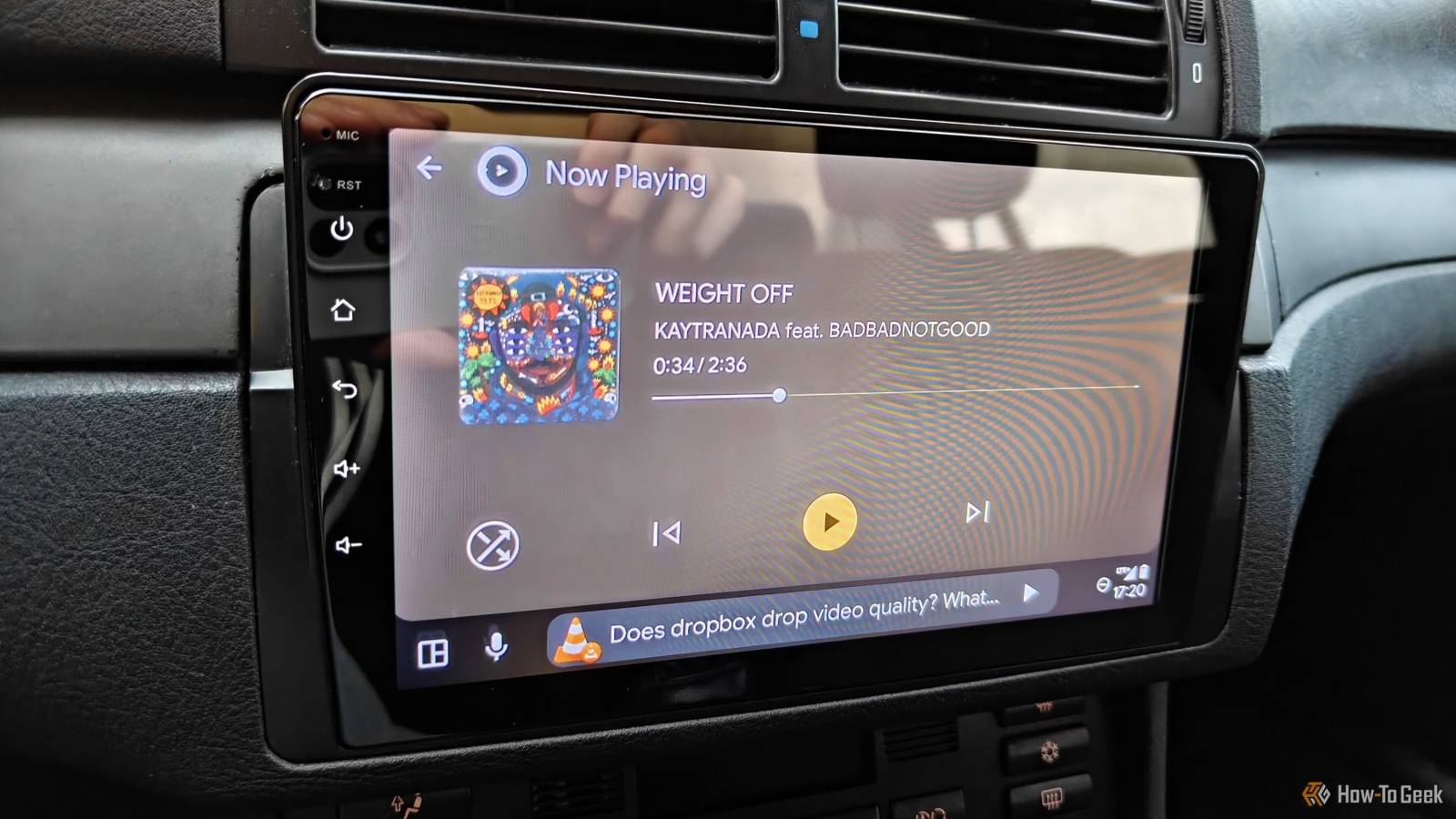
Credit: Ismar Hrnjicevic / How-To Geek Published Jul 28, 2026, 12:45 PM EDT Ismar is a Senior Author at How-To Geek. He previously worked as a writer, editor, and general manager at a content agency before joining the team in 2023. He began his writing career in 2021 after completing a BA in English Language and Literature. Beyond How-To Geek, Ismar has contributed to Red Stag Fulfillment and Authority Hacker. He has also worked on various SEO projects to help clients improve their search visibility. Ismar has been around Windows PCs since the age of three, so friends and family naturally chose him as the resident tech support. His projects often involve tinkering, such as disassembling mechanical keyboards and gaming mice to mod his beloved gear. He also enjoys pushing hardware to the max through overclocking while staying on a reasonable budget. An avid gamer, Ismar has logged thousands of hours across various genres, including first-person shooters, RPGs, racing games, and roguelites. When he is not at his desk, he is probably exploring other people’s phones to discover their quirks and features or experimenting with the latest AI tools. In his free time, Ismar enjoys spending time with his wife, working out at the gym, playing guitar and bass, cooking gourmet meals, and traveling. Above all else, he’s a proud cat owner. Many of us rely on Google Maps (or your navigation app of choice) running through Android Auto to get from point A to point B. It makes sense—navigation is one of the most fundamental features any modern car can offer, and it's only made better by Android Auto because it ditches the clunky built-in systems in favor of something familiar. Although navigation is undoubtedly the headline feature, it's actually far from the only thing Android Auto can do. Most of the time, if I already know where I'm driving, I don't even bother opening Google Maps. Instead, I switch the display to some other app that sometimes has nothing to do with driving at all. Fill every drive with downloaded tracks, streams, and long-form podcasts No trip feels complete without the right music to go along for the ride While Google Maps is undoubtedly the main reason I upgraded my car’s ancient stereo system with an aftermarket Android unit, the other core reason is just as important: I can finally play audio from my phone through my car speakers. Even though you can add Bluetooth functionality to pretty much any old car with a cheap cigarette lighter adapter, all that really does is turn your car into a glorified Bluetooth speaker. Android Auto gives you full media control through the touchscreen, and I tend to use that to its fullest extent. LENCENT Bluetooth Car Transmitter Brand Lencent Input Bluetooth, USB Don’t need Android Auto in your car? This FM transmitter turns any cigarette lighter into a Bluetooth audio hub for music and calls. It also adds USB charging, SD card playback, and hands-free calling so even older cars feel a bit more modern. I like having different options to choose from, which is why I use several apps dedicated purely to audio—and I switch between them fairly often. If I’m driving alone, I use the time to catch up on my favorite podcasts through Pocket Casts. For music, I like using BlackPlayer (and more recently Oto Music) to play and sing along to my favorite tracks. Unfortunately, not everyone has as immaculate a taste in music as I do, so I sometimes have to fall back to streaming via Spotify. Thanks to these music apps, even quick grocery runs feel more enjoyable compared to dealing with old-school AM/FM radio. Kill time in parking lots with mindless games A quick distraction when I’m stuck waiting around Credit: Ismar Hrnjicevic / How-To Geek GameSnacks is Google’s very own collection of simple, bite-sized HTML5 games that you can enjoy on your car’s infotainment screen. Of course, Android Auto only lets you access these games when your car is stationary, so don’t get any ideas while driving. This is by far one of my favorite apps, and I use it every opportunity I get. If I’m waiting for my wife to finish a quick chore, taking a break from driving when it’s too hot or too cold outside, or just trying to kill a few minutes while waiting, this is the app I always open. You might argue that I could just play something ten times better on my phone if I’m already parked, but most of the time I only have a couple of minutes at most. And if my phone is in my pocket because it’s just a short stop, I’m not going to waste time fumbling around in my seat to dig it out. On top of that, most of the games I have installed on my phone require more of a time commitment than matching a few threes or doing a 15-second drift in a virtual car. The app’s availability in the Play Store has been inconsistent, so if you can’t download it directly, you may need to sideload it instead. Reply to urgent messages with voice-controlled messaging Staying responsive doesn’t always mean touching your phone Credit: Ismar Hrnjicevic / How-To Geek Listening to and replying to messages using voice control is one of the most practical and underrated features in Android Auto. You can have Google Assistant (or Gemini) read out and send messages to your contacts completely hands-free, similar to how you might use voice control on your phone while cooking or doing dishes. Even with this feature, I try to avoid responding to messages as much as possible since I don’t want distractions while driving. But the reality is that I’m tethered to my phone for much of my daily communication. Sometimes I have no option other than to reply to urgent messages, which Android Auto makes significantly safer than doing it manually. Quiz 8 Questions · Test Your KnowledgeAndroid AutoTrivia ChallengeThink you know Google's in-car platform inside and out — put your Android Auto knowledge to the test!HistoryFeaturesConnectivityAppsSafetyBegin In what year did Google officially launch Android Auto to the public?A2012B2016C2015D2013Correct! Android Auto made its public debut in 2015, launching alongside compatible vehicles and as a standalone phone app. Google announced the platform at Google I/O 2014 but rolled it out to users the following year.Not quite — Android Auto launched in 2015. Google revealed it at Google I/O 2014, but actual public availability for both cars and the companion phone app came in 2015.Continue What was the primary connection method Android Auto required when it first launched?ABluetoothBWi-Fi DirectCUSB cableDNFC pairingCorrect! When Android Auto launched, a USB cable connection between your phone and the car's head unit was mandatory. Wireless Android Auto came later and requires specific hardware support on both the car and the phone.Not quite — the original Android Auto required a physical USB cable connection. Wireless connectivity was added later and isn't universally supported even today, requiring compatible hardware on both ends.Continue Which voice assistant is natively integrated into Android Auto for hands-free commands?AAmazon AlexaBBixbyCSiriDGoogle GeminiCorrect! Google Assistant was the built-in voice assistant for Android Auto until it was replaced by Gemini in late 2025.The correct answer is Google Gemini. Since Android Auto is a Google product, it naturally uses Gemini for voice commands — though Google Assistant was the default until 2025.Continue Which of the following app categories is NOT officially supported on Android Auto?ANavigationBSocial media browsingCMessagingDMusic streamingCorrect! Android Auto deliberately restricts social media browsing and similar visually complex apps to keep drivers focused on the road. Only categories like navigation, audio, and messaging apps with simplified interfaces are permitted.Not quite — social media browsing is not supported on Android Auto by design. Google restricts app categories to those that can be used safely while driving, such as navigation, audio streaming, and simplified messaging.Continue What minimum version of Android is required to run Android Auto on a smartphone?AAndroid 8.0 OreoBAndroid 9.0 PieCAndroid 6.0 MarshmallowDAndroid 10Correct! Android Auto requires Android 9.0 Pie or higher to function. Google set this baseline to ensure the platform has access to the permissions framework and APIs introduced in Marshmallow.Not quite — Android Auto requires Android 9.0 Pie as the minimum version. This ensures compatibility with the permission model and system APIs that Android Auto depends on to function properly.Continue What happened to the standalone Android Auto phone app in 2022?AIt was rebranded as Google Drive ModeBIt was discontinued and replaced by Google Assistant Driving ModeCIt merged with Google MapsDIt became a paid subscription serviceCorrect! Google discontinued the standalone Android Auto phone app in 2022 and replaced it with Google Assistant Driving Mode for phone-screen use. The car-display version of Android Auto remained separate and continued operating normally.The correct answer is that the standalone phone app was discontinued and replaced by Google Assistant Driving Mode. This change affected only the phone-screen experience — the version that projects onto your car's head unit remained intact.Continue Which feature does Android Auto use to help prevent distracted driving by limiting phone interaction?AAirplane Mode enforcementBScreen lock during motion detectionCA simplified, large-button interface optimized for glanceabilityDMandatory two-second delay on all touch inputsCorrect! Android Auto uses a purpose-built simplified interface with large buttons, limited app categories, and high-contrast visuals specifically designed for quick glances while driving. This reduces cognitive load compared to using a standard smartphone.Not quite — Android Auto's primary safety mechanism is its simplified, glance-friendly interface with large controls and restricted app categories. It doesn't lock the screen or enforce airplane mode, but rather redesigns the UI to minimize distraction.Continue Which of the following smartphones was among the first to support Wireless Android Auto without a USB cable?ASamsung Galaxy S8BGoogle Pixel 3COnePlus 7 ProDLG G7Correct! The Google Pixel 3 was one of the first phones to officially support Wireless Android Auto, announced alongside compatible 2019 vehicles. Google naturally prioritized its own Pixel lineup for early access to this convenient feature.Not quite — the Google Pixel 3 was among the first phones to support Wireless Android Auto. Google rolled out wireless support starting with its own Pixel devices and select 2019 model year vehicles before expanding compatibility more broadly.See My Score Challenge CompleteYour Score/ 8Thanks for playing!Try Again Fix my forgetfulness by turning off appliances in my smart home Turning the iron off from a distance when I’ve already left Credit: Bertel King / How-To Geek The very first smart home device I purchased was a smart plug, specifically to give my wife and me peace of mind when we’re in a rush and can’t remember if we unplugged the iron. Since then, my smart home setup has expanded to include several smart bulbs. All my smart home devices are Tuya-compatible, which allows me to use the SmartLife app in Android Auto to quickly turn everything off remotely when I’m already on the road. I’m currently in the process of migrating my setup to Home Assistant, which will give me even greater visibility and control over my smart home devices thanks to its epic integration with Android Auto. Stay ahead of the weather with live conditions Keep an eye on the weather ahead of you Credit: WetterOnline Despite having expanded my horizons far beyond Google Maps on Android Auto, I’m still kind of used to having a map in the corner of my eye while driving (maybe because so many driving games have mini-maps?). One of the map-adjacent apps that I’ve recently come across is Weather & Radar Forecast. The app has nothing to do with navigation; instead, it provides you with a real-time view of the weather in your broader area, which lets you know what sort of weather you might expect along your route as well as at your destination. You can track rain, snow, and storms in real time as you drive, which is both useful and just plain fun. It goes without saying that you’ll no longer get surprised by random rain splashes in the middle of a sunny day if you use this app. Android Auto can do a lot more than help you find your destination Android Auto is amazing for maps, but it’s far from the only trick up its sleeve. There are a bunch of apps with great Android Auto integration that you can mess around with to make the time you spend in your car a little more enjoyable and productive. The only thing I’m still sorely missing from Android Auto is Google Meet integration, which should hopefully come soon, as it’s already available on CarPlay.
Android Auto isn't just for maps—here's 5 other things I do with it
Full Article
Original Source
Read the full article at Howtogeek →KhanList aggregates and links to publicly available news content. We do not host full articles from third-party sources. Always verify important information with original sources.