
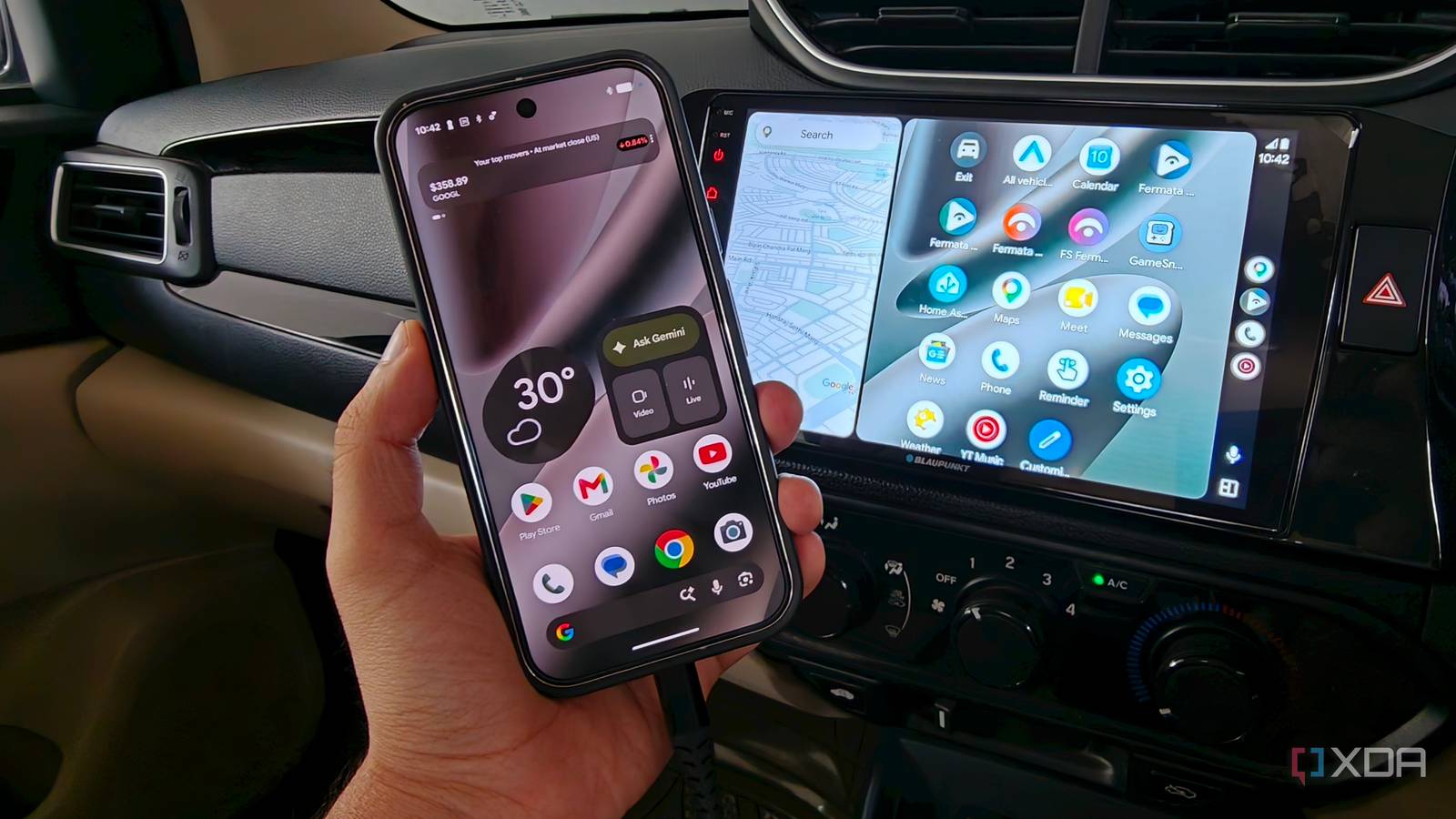
Published Aug 23, 2026, 11:30 AM EDT Dhruv Bhutani has been writing about consumer technology since 2008, offering deep insights into the personal technology landscape through features and opinion pieces. He writes for XDA-Developers, where he focuses on topics like productivity, networking, self-hosting, and more. Over the years, his work has also appeared in leading publications such as Android Police, Android Authority, CNET, PCMag, and more. Outside of his professional work, Dhruv is an avid fan of horror media spanning films and literature, enjoys fitness activities, collects vinyl records, and plays the guitar. As someone who uses Android Auto practically frequently, I've become acutely aware of its strengths and limitations. Every day, Google Maps handles navigation, Spotify takes care of music, and calls and messages are handled while I'm driving, all on my car's display. The problem is that all this background processing gives my phone a serious workout, and it needs adequate power to stay charged up. But, as it turns out, by the time I reach my destination, my phone has dipped into its power reserve rather than being fully topped up. In a bid to solve the problem, I blamed everything from the cable to my phone itself. Turns out the problem lay elsewhere. Here's how I fixed it. Why Android Auto drains your battery while driving Your car's USB port may not provide enough power The fact of the matter is that unless you've got a very recent car, your car's USB port just doesn't provide enough juice to keep your phone fully charged while it handles Android Auto's processing. I usually start my phone fully topped up, but by the time I arrive at my destination, my battery is much lower than I expected. The problem becomes more obvious on longer drives. A quick trip across town where I might not even be using navigation barely shows up as a blip on the battery bar. Even with navigation, losing a few percentage points isn't something I really notice. But if I'm driving for an hour or a few with Google Maps running continuously, Spotify streaming over mobile data, and the phone handling communication, that battery drain adds up quickly. That's because plugging the phone into the car doesn't necessarily mean it's getting enough power to offset what it is consuming. It might appear that Android Auto is running on the car's display, but it is the phone that is doing all the processing. Between maintaining the Wi-Fi connection with the car, location services for navigation, and cellular connectivity for streaming, that's a lot. Moreover, in warmer countries, battery drain can worsen due to the heat. If the phone gets too warm, there's a good chance it will throttle charging speed even further. All that to say, even if you're doing everything you can to keep the battery topped up, there's no guarantee it will do the trick. Why changing the cable didn't help Unlock more charging options with the 12V socket To begin with, I swapped out my cable. After all, Google itself recommends using a high-quality cable for maximum reliability. That recommendation would've made sense if charging reliability was the issue, but it's not. A poor-quality cable can cause Android Auto to disconnect or behave inconsistently. That's not the case here. Everything from Google Maps to even offline maps apps like Organic Maps works just fine. So, I stopped looking at the connection and started looking at the source instead. Turns out, switching to a 12V cigarette lighter port charger was all that was needed to fix my charging woes. The setup itself is incredibly straightforward. Since my phone's wired connection couldn't keep up with charging my phone, I've gone back to using wireless Android Auto, and I use my phone's USB port solely for charging through a charger connected to the car's 12V cigarette lighter socket. Android Auto handles navigation, calls, and more wirelessly, while the high-powered 12V charger keeps the phone powered. The difference is, of course, immediately obvious. For one, I can no longer see my battery level dip as I set off on a long drive. Moreover, using a 12V socket is particularly useful because I can choose a charger that meets my phone's demands. My OnePlus phone, for example, supports up to 80W charging, and OnePlus sells a charger that can keep up. If I wanted to charge at full speed, I could easily purchase said charger. Effectively, switching to the 12V socket for your charging needs opens up options, and you needn't be tied up by whatever your manufacturer equips the car with. The other big advantage of using the 12V socket has less to do with Android Auto and more to do with charging your devices. You could easily pick up a high-speed charger that can charge not just your phone but also your laptop if needed. Need to charge something even more demanding? 12V cigarette lighter ports let you use in-car inverters that can deliver up to 200W of power, expanding your options. A 12V charger solved my Android Auto battery drain Circling back to our initial problem, though, the solution to the ever-popular Android Auto battery drain issue has little to do with what you're doing on your phone or your USB cable. Sure, a recent model vehicle might come equipped with high-power USB ports, but most do not. Switching to wireless Android Auto and using your car's 12V power socket with a proper charger is the key to keeping your phone topped up while powering all your navigation, streaming, and communication needs.
Android Auto drains my phone faster than the car can charge it, and the fix wasn't a better cable
Full Article
Original Source
Read the full article at Xda-developers →KhanList aggregates and links to publicly available news content. We do not host full articles from third-party sources. Always verify important information with original sources.