
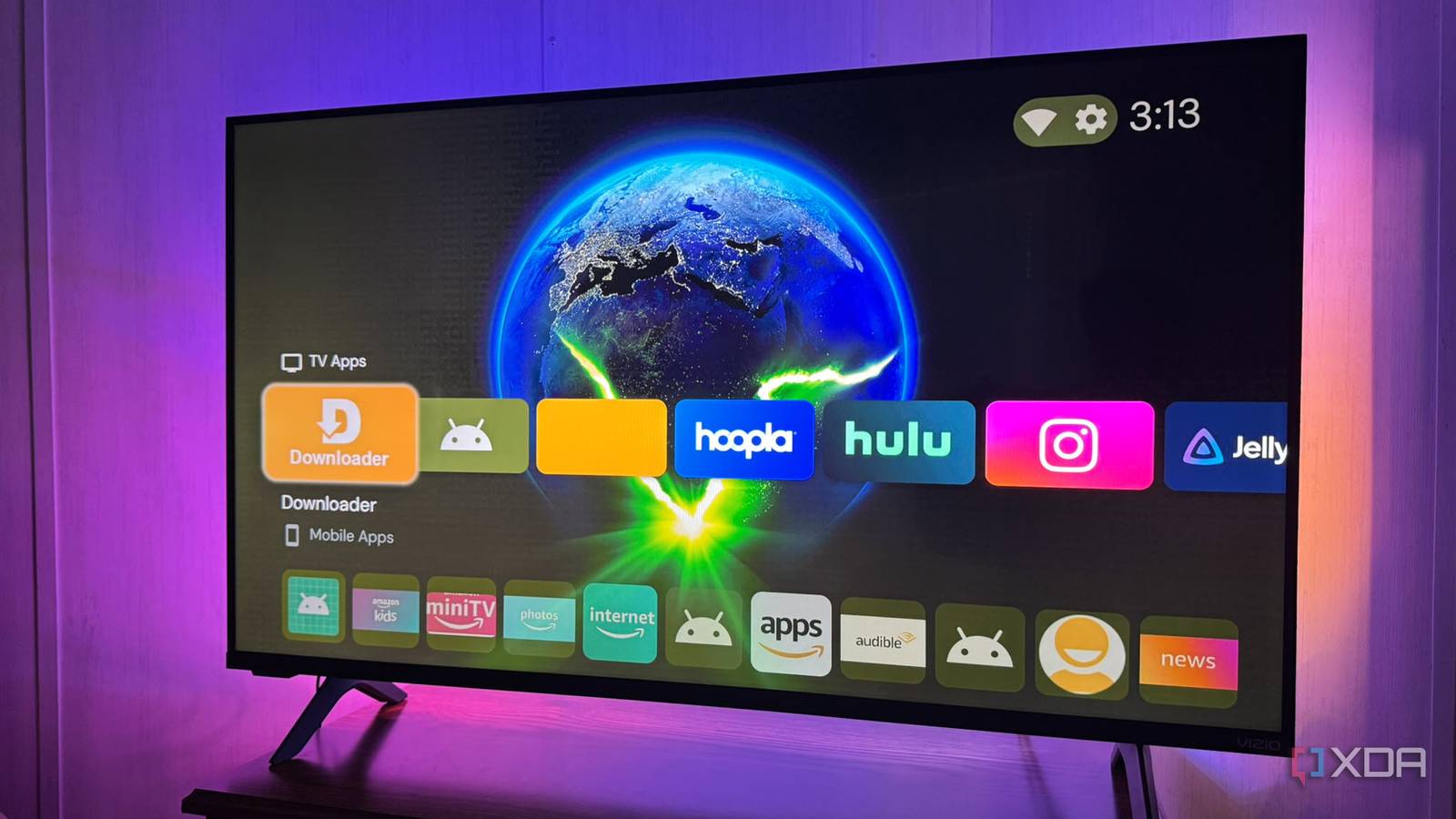
Published Nov 9, 2026, 8:31 AM EST Based in rural Minnesota, Brian Burgess worked in IT for 10 years before finding his passion for writing about consumer technology. Brian earned his degree in computer and network technology in 2000. He held various IT positions, including help desk support, router installations for IBM, database administration, and other associate network administration roles. He's been a personal technology journalist for 18 years and has written thousands of articles about Microsoft products and services, Android, iOS, streaming, and more. He has written for notable tech sites including XDA, InformationWeek, How-To Geek, Byte, groovyPost, and others. When he is away from the keyboard, you will hear him playing guitar, working outdoors, and watching Star Trek. If you want to keep using a Fire TV Stick that lets you install your favorite Android APKs, act quickly. Amazon's new streaming sticks are coming with the new, locked-down Linux-based Vega OS. It puts an end to installing Android APKs. I'm not entirely sure what Amazon or app developers will do next, so I am building my 4K Plus sideload-friendly stick to last. It's one of the last sticks still running Fire OS. Currently, the 4K Plus (2025) and second-generation 4K Max (2023) models are Amazon's last available Android-based sticks. Amazon said it's selling the remaining 4K Plus stock until it's gone. This leaves the pricier (and older) Max streaming stick on an island. Decluttering the home screen and changing settings Stop a UI from looking like Darth Vader's bathtub In the future, I don't need my interface full of junk I never use, getting in the way of apps I actually want. So, the first thing I did was declutter the stick by uninstalling unneeded apps. That not only gets them out of my way, but also frees up storage space on the stick for apps I do want. What's useful varies by person, but I remove anything I never use, like most streaming and Amazon apps. I enable Developer Options and APK installation. If you've never done it, open Settings, go to About, and press the Select button on the remote seven times until it says you're a developer. After that, allow apps from unknown sources — the key to installing APKs on a Fire TV Stick. With less clutter, alternative launchers look cleaner. I also turn on or off options in the Privacy Settings section, as available. I also turn off as many of the Fire OS user interface annoyances as possible. I turn off the banner ad that plays video and blaring audio at the top of the home screen. I also turn off interest-based ads and device usage data, Automatic Content Recognition (ACR), and individual app data collection and notifications. Sideloading Android apps And create an APK archive for easy rebuilding Once everything is secure and cleaned up as best it can be, I started installing the Android apps I want to use or that aren't available through the Amazon store. Downloader provides a convenient way to install occasional apps directly on the stick from the comfort of my couch using the remote. However, that method gets tedious if it's a new stick and I want several apps at once. Navigation is slower, and if you press a button too quickly, an ad could launch. Even on trusted sources like GitHub or APKMirror, the browser displays ads. For several apps, I will use ADB on my PC. I enable ADB on the Fire TV Stick, install Android SDK Platform Tools, and connect to the stick from a terminal window. That lets me download several current Android app APKs I know I want, or choose from ones I already have. If I forget an app or want to try something new, I use Downloader. Whatever installation path I choose, I'm more conscious of keeping an APK backup archive in case I need them later. It comes in handy when I need to rebuild my stick after a factory reset. Essential Android apps for a Fire TV Stick Build a stick with apps you use most For my sticks, I always sideload the essential apps I use most. I always install multiple launchers, like Projectivy and Arc, so I rarely need to use the default cluttered mess. Different launchers also give me a choice, which is the beauty of sideloading. Another must-have for me is to put Ariel Views on my sticks, so I have a more elegant screensaver for the televisions. What an essential Android app to sideload on a still-compatible Fire TV Stick varies by individual. For example, I install Kodi for local media playback and sharing. Sure, it's old, but I still find it useful, and Amazon removed it from the Android App Store way back in 2015. I also added F-Droid for specialty Android software and SmartTube for an improved YouTube experience on the stick. I start by installing apps I know I enjoy and use most. I also add a few apps I may not use, but want to have in case I do. For instance, tvQuickActions has come in handy in the past, but it doesn't necessarily work with all buttons on new Fire TV remotes. Sideloading the apps that are most important to you is what matters while you have the choice. Sideloading apps on Fire TV Sticks before Amazon cuts it off I'm not too worried about keeping my stick updated or the company sending code that stops Android-based Fire TV Sticks from sideloading. However, new device release cycles are phasing out consumer choice. I have streamingsticks with Vega OS, and the apps I want are nowhere to be found. So, I'm going to hang on to my old stick and sideload the apps I use most now. Amazon Fire TV Stick 4K Plus $30 $50 Save $20
Amazon's last cheap sideload-friendly Fire TV Stick is about to disappear, so I set mine up to last for years
Full Article
Original Source
Read the full article at Xda-developers →KhanList aggregates and links to publicly available news content. We do not host full articles from third-party sources. Always verify important information with original sources.