
Published Aug 26, 2026, 11:15 AM EDT Jade Bryan is a Feature Author at Android Police with over a decade of tech reviews and news reporting experience, stretching back to the Symbian era and the early days of Android. He covers the breadth of the mobile industry, specializing in operating system deep-dives, app testing, and hardware analysis. In his spare time, you can find him tinkering with his Android devices and wearables, seeking ways tech can improve daily life. He also enjoys playing MMORPGs, traveling, or feeding stray cats and dogs. Amazon rolled out one of the biggest updates to Fire TV OS a few months ago. It fully overhauled the Fire TV launcher, introducing a new design from the ground up along with better integration with Amazon services like Alexa+. But as much as I like the new look and the promise of a better experience, it's resulted in a mess, with more intrusive, bigger ads serving right in my face. Fortunately, there's an easy fix to stop or avoid them from intruding on your Amazon Fire TV, if not completely. I made my Fire TV launcher cleaner with these simple fixes. The problem with the new Fire TV interface Why the new UI feels heavier, not faster Beyond the new modern style on Fire TV and Amazon TV devices, the update was also supposed to offer faster, more optimized streaming performance. However, that's the opposite if you have a cluttered interface with a heavier layout, such as larger content tiles and more streaming recommendations. I've noticed that autoplaying videos slows down my Fire TV Stick 4K Max, especially when connected to spotty Wi-Fi. That's even worse on an older or clunky Fire TV Stick generation. The ads have become richer, too. Although they are more personalized, they have started creeping up to the top of the home section. Scrolling down, I get another full-sized ad displayed between the content recommendations and app rows. It feels like Amazon designed Fire TV to insert these intrusive personalized ads more easily, which can be useful at times but are quickly becoming frustrating. An adjustment had to be made. After tweaking several settings, I discovered which toggles to turn on or off to remove these ads and eliminate the clutter on my Fire TV. One of the biggest culprits slowing down and clogging my Fire TV is ads. Although they are slightly fewer than before, their positioning is now far more prominent. Most of the time I launch the Fire TV straight to the home screen, I am greeted by a top banner ad. There's also an equally large ad positioned in the middle of the page. There's no single switch to remove all ads entirely, but there are controls to reduce how frequently they appear, which proved effective on my end. To stop them from showing up, open Settings on your Fire TV. Select Preferences, and enter your PIN code if prompted. Next, choose Privacy Settings. Start by turning off Collect App Usage Data, which prevents Amazon from accessing your preferences, activity, and other personal data. After that's switched off, select Interest-based Ads, toggle it Off, and confirm. This prevents Amazon from displaying personalized ads across the interface. After turning off these two options, the ad clutter dropped significantly. Your Fire TV might still show occasional generic promos, but that's better than having targeted ads shoved in your face all the time. Disable featured autoplay content Free up system resources on older hardware Another way to free up system load when starting Fire TV is to turn off autoplay for content like featured videos and audio. With this feature enabled, the OS automatically fetches video streams in the background. This creates unwanted background processes and activity that cause severe lagging on older Fire TV Stick models with limited RAM. The good thing is that turning this off is straightforward. You can find the toggle under Preferences > Featured Content. When you're there, individually turn off Allow Video Autoplay and Allow Audio Autoplay, then confirm the action to save your changes. Organize your home screen Declutter the main app carousel You can also tame the heavy UI of your Fire TV. On the home screen, you can manage apps by removing or rearranging them without digging through the full app library. The home screen shows a carousel of apps installed on the device, which occupies valuable screen real estate. Although there's no option to hide this carousel, you can customize the order of the apps in the list. You can rearrange them by holding down the select button, located at the center of the D-pad. From there, you can move an app to the back or insert it between others. Here's how to do it: Select the app tile you want to adjust. Hold the center select button until the pop-up menu appears. Select Move. Navigate using the D-pad to reposition the app. Press the select button again to lock it in place. Notably, the menu includes a shortcut to move an app straight to the front for quick access. Uninstall unused apps Reclaim storage and prevent performance bottlenecks Alternatively, you can remove apps from the carousel if you prefer a minimalist look with fewer icons. You can also uninstall third-party apps like Instagram or games, which I suggest if you don't open them often. I started purging apps I haven't used in weeks. You can do this quickly by heading to the Apps section and managing each application individually. In addition to cleaning up your home screen, this frees up valuable internal storage space. Keeping ample free storage ensures your active apps have enough cache headroom, which helps optimize your Fire TV performance. Amazon would rather sell you a new streaming stick than fix its bloated OS I really like the fresh, modernized take of the new Fire TV OS UI, but it only benefits newer hardware with faster processors and larger RAM. Amazon should add an easy toggle to roll back to the classic layout, or at least give us granular customization controls for a minimalist, clutter-free experience, instead of treating our TV screens like ad space. Spending a few minutes tweaking these hidden settings is the only way to keep your older streaming stick running smoothly and clutter-free. 9/10 Operating System Fire OS Downloadable Apps Yes Resolution Up to 4K Amazon Fire TV Stick 4K Max 2nd gen offers a faster processor and bigger storage for more apps and games. Upgrade your TV for less.
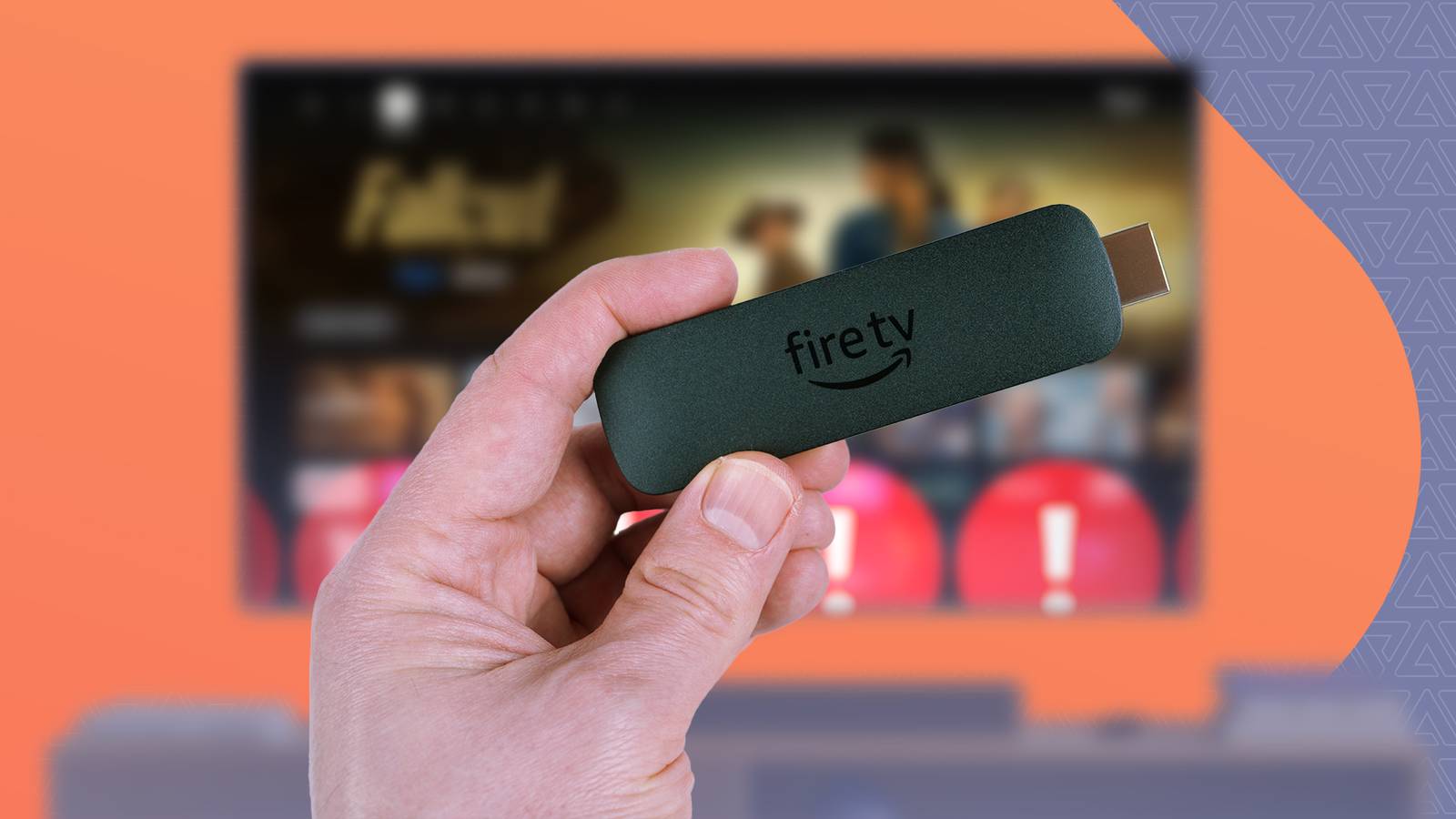
Amazon's Fire TV home screen updates are clogging older streaming sticks, but there's a fix
Full Article
Original Source
Read the full article at Androidpolice →KhanList aggregates and links to publicly available news content. We do not host full articles from third-party sources. Always verify important information with original sources.