
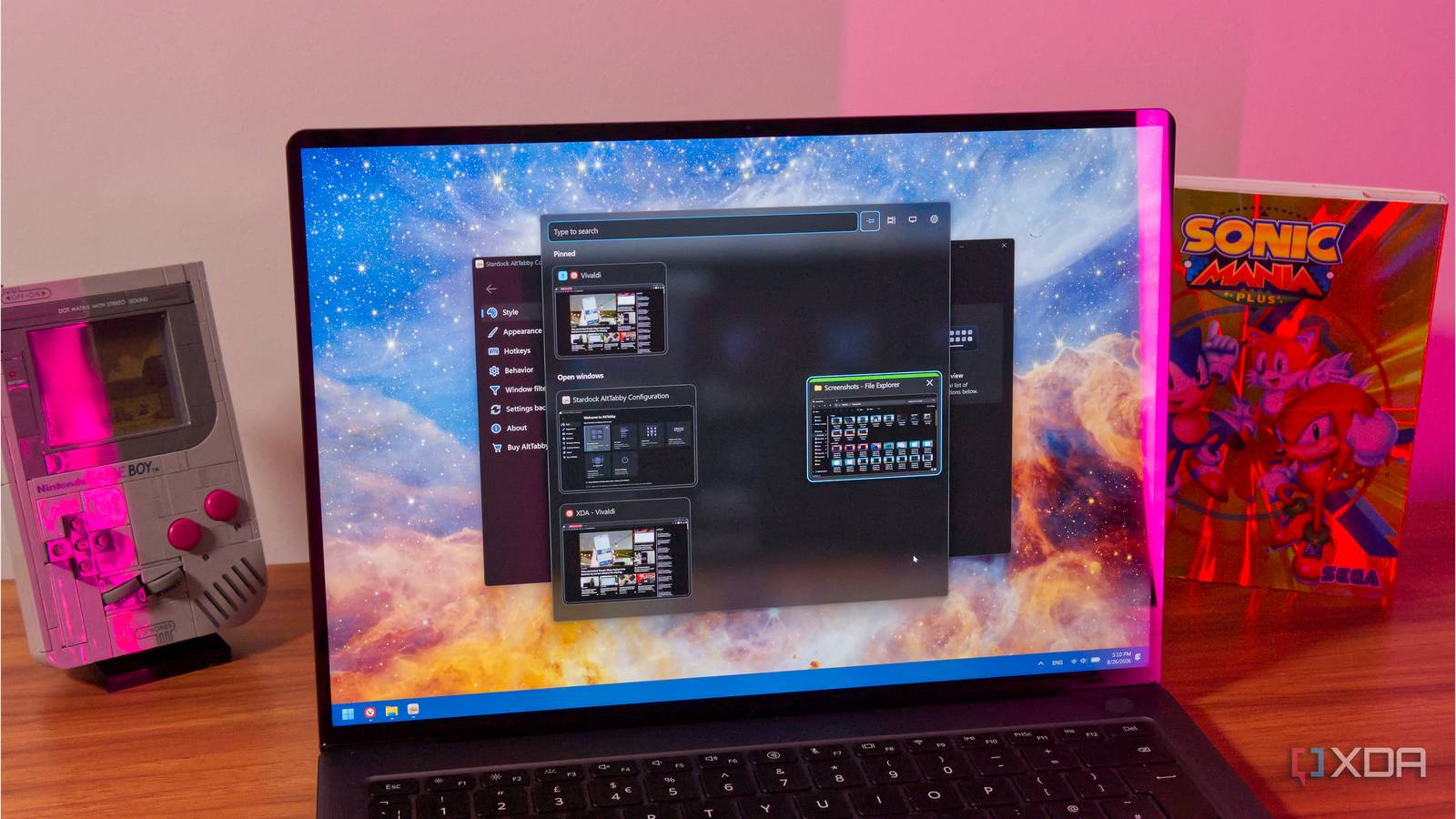
Published Aug 31, 2026, 9:00 AM EDT João has been covering the tech world for over 7 years, with a heavy focus on laptops and the Windows ecosystem. I also love all things tech and videogames, especially Nintendo, which he's always happy to talk about. Prior to joining XDA in 2021, he worked at Neowin: https://www.neowin.net/news/poster/jo%C3%A3o-carrasqueira/ Switching between your apps on Windows 11 is probably something you wouldn't think needs to change all that much. It's been the same general concept for years: you press Alt + Tab until the window you want is active. But Stardock, the company behind some popular Windows customization tools like Start11 and Fences, feels differently. AltTabby is the latest tool from the company, turning the window switcher into something far more customizable and capable than ever before. It has style and function Customizable, yet useful Offering endless customization options is usually what Stardock is all about, so of course, the company went beyond what anyone would have expected for this simple concept, and it's very rad. On a basic level, AltTabby lets you choose between a few different styles: one that uses thumbnails, somewhat similar to the default window switcher, two styles that simply use app icons (in slightly different layouts), a list style, and a carousel style with a bit of a 3D animation. That last one reminds me of Windows Vista, when Microsoft introduced a sort of 3D window switcher using the Windows + Tab hotkey, and I like it for that alone. For each layout style, you can also change options like the maximum number of columns, or the size of thumbnails, so there's a lot you can play around with. You can also tweak other settings, like choosing between a light or dark theme, or between acrylic, mica, or fully opaque styles. It's not just style, though. The list setting is good because it plainly shows you window titles, so it might be easier to find a specific window this way. And if that's not enough, you can use the search bar, which is built into the switcher, to find a specific one you want. For that to work, you also have to pin the window switcher, making it so that it only disappears when you click or press Enter to actively select a window. Another thing the app does well is integrate with some apps that support tabs, so those tabs appear as options in the window switcher. By default, tabs appear under each app, so you can select them that way, but there's also an option in the settings for recent tabs to appear as top-level windows, so you don't have to worry about sub-navigation. Tab detection should work for built-in Windows apps like Notepad and File Explorer, but also Chromium-based browsers. The app only specifically mentions Edge and Chrome, but it worked for me with Vivaldi, too. The switcher itself hides more options Pinned windows, labeling, and some things you wouldn't expect There's a bit more in terms of customization and usability hiding in the window switcher itself, and it's not immediately obvious just by browsing the settings. When the switcher is open, you can right-click a window to get more options for it, and there are a few useful ones. Most notably, you can pin a window to the top of the switcher, and this helps ensure that said window has a permanent position on your list. That matters because once the switcher is open, you can press numbers of your keyboard to switch to apps in the order they appear, and with pinned windows, their order is always the same. This essentially gives you a dedicated hotkey for that window which you can access at any time. Other options include the ability to assign a color label to specific windows, so they're easier to identify, or options for grouping windows of the same app, hide a given app from the list, and more. These even include options that aren't directly related to switching windows. For instance, AltTabby can ensure a selected window is always on top, so no other windows can overlap it. You can even change the transparency level of a window, if that's somehow useful to you. It's unnecessary, but it's the kind of "going the extra mile" mentality I expect from a Stardock tool. I don't need it, but I can see how someone might love it. But it goes deeper There's a serious level of control here Of course, there has to be a bit more to it, and there is. Hotkey customization is another thing that AltTabby does exceedingly well. By default, the app takes over the default Alt + Tab keyboard shortcut, but if you want, to can replace the Windows + Tab hotkey instead (or even do both). I actually found that, when using the default Alt + Tab combination, making changes to the settings caused a glitch where the native Windows 11 switcher would appear first, which made things confusing until I rebooted the system. As such, I prefer using the second option. But then you can create custom hotkeys, and that's where it gets really interesting. You can use a custom hotkey in place of the standard ones, but what's truly interesting here is creating hotkeys that can do something else. When you create a custom hotkey, you can make it so that it shows the window switcher in a specific style, different from your default. But you can also make it so that the window switcher only shows windows from the foreground app, rather than all your open apps. This way, you can have dedicated shortcuts that focus more on something specific, making it easier to stay in the flow. You can also set shortcuts to open directly into the search bar, so you can just type to search for the window you want right away. Is it worth paying for? Not for me When it comes to the features and execution of AltTabby, I frankly have no notes to point out with what I've tried. Stardock took a relatively simple concept and cranked it up to the max in every way I could imagine. The real question is whether this idea warrants the $10 ($8 during the ongoing beta period) for a lifetime license, and that's tricky. With software, there are almost always solutions that can do at least some of the same features and often for free. You can combine multiple apps if needed to get the feature set you want for managing your windows. Some could argue a search bar is all you need, and PowerToys with the Windows Walker extension can do that for free. Of course, AltTabby does a lot more, and I'm not aware of alternatives that do everything it does, but is that enough to pay $10 for it? For me, it isn't, because I've always been okay with how the basic window switcher works. But if you've been feeling like you could speed things up even more in your workflow, this could be just the thing you need, and the price tag wouldn't be hard to justify, especially considering it's good for up to five different computers. At the very least, I'd say it's worth checking out the free trial to see if it's worth it for you. It's good for 30 days, which is plenty of time to decide. AltTabby OS Windows 11 Released August 12, 2026
AltTabby makes Windows 11's window switcher do things I didn't think were possible
Full Article
Original Source
Read the full article at Xda-developers →KhanList aggregates and links to publicly available news content. We do not host full articles from third-party sources. Always verify important information with original sources.