
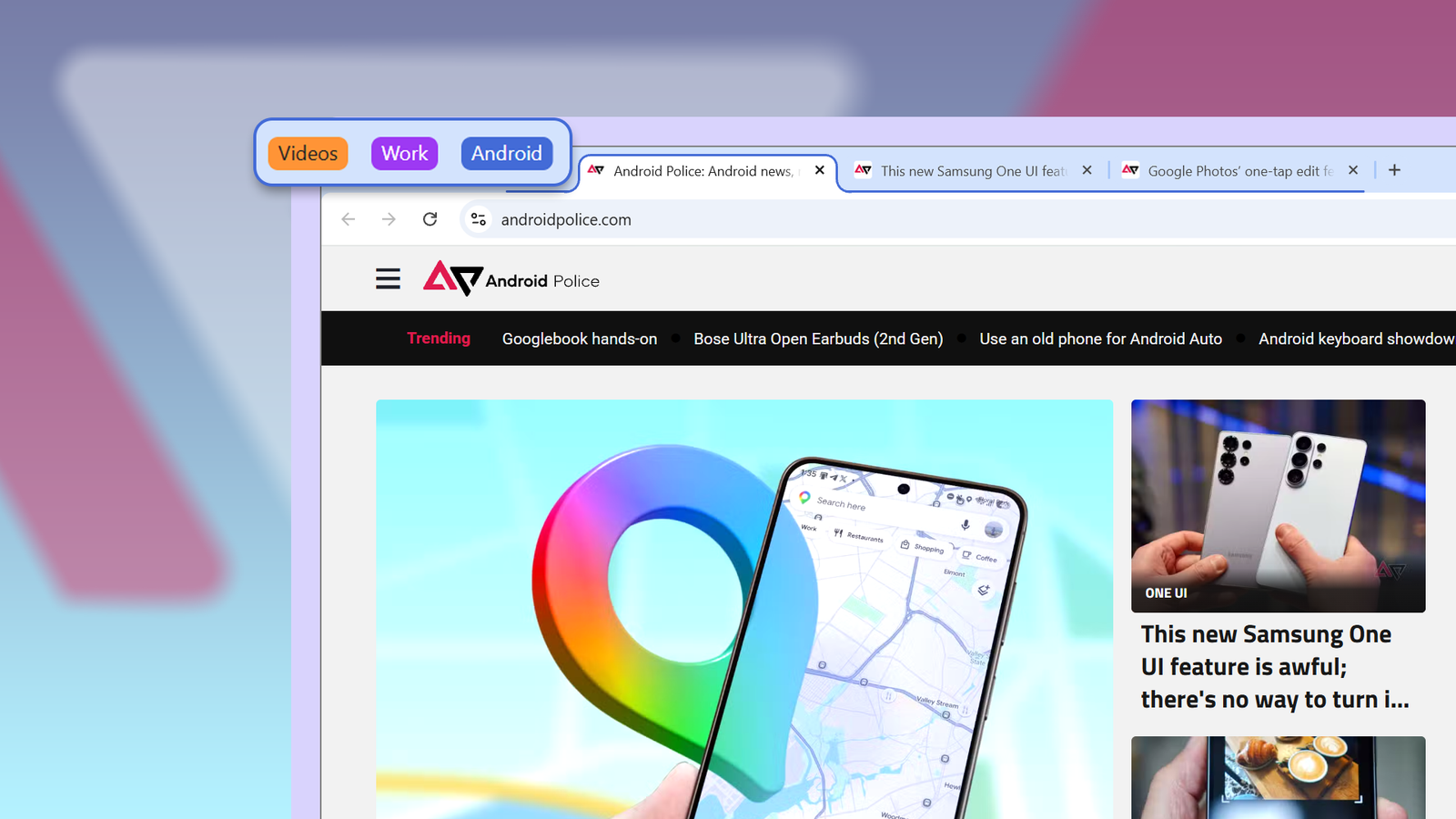
Published Sep 26, 2026, 8:15 AM EDT Dhruv Bhutani has covered the Android ecosystem since 2010, with a focus on smartphones, connected devices, and home networking. His reporting is informed by hands-on experience reviewing hundreds of smartphones and testing a wide range of smart home and audio products over more than a decade. He has attended Mobile World Congress eight times since 2011 and IFA Berlin five times, alongside regular coverage of launch events and industry briefings from companies including Google, Xiaomi, Oppo, and Qualcomm. This on-ground access and long-term exposure to product cycles inform how he evaluates hardware, software direction, and ecosystem shifts. First-Hand Experience Reviewed and tested hundreds of smartphones since 2009 Tested smart home, audio, and connected devices across multiple categories Attended Mobile World Congress (8 times, first in 2011) Attended IFA Berlin (5 times) Covered industry events including Qualcomm Summit and launch events from Google, Xiaomi, Oppo, and Vivo Career History CNET — Freelance Editor May 2024 – Present Android Police — Freelance Editor July 2023 – Present Android Authority — Contributor November 2022 – Present Android Authority — Editor January 2019 – October 2022 FoneArena — Editor February 2010 – January 2018 PhoneReport.info — International Correspondent February 2010 – May 2011 Nokia Mobile Talk — Writer June 2009 – October 2009 I've been using Chrome for over a decade, and I'd like to think I've discovered most of its secrets. However, despite my proficiency at maximizing the browser's capabilities, tabs remain outside my control. I usually have 20 to 30 tabs open, which makes me jump between unrelated projects and spend more time looking for the right tab than actually using it. That's until I discovered Tab Groups. It's given me a way to organize my workflow while largely retaining the way I work. Instead of trying to keep one giant collection of tabs under control, and generally failing to do so, Chrome lets me group them around what I'm using. It's made a huge improvement in my daily productivity. Tab Groups keep my multitasking under control Everything I need for research stays together Tab Groups sound like a basic organizational feature, and for what it's worth, it is. But after using it over the last few weeks, I've found it solves a specific problem in my workflow that's critical to how I work. I no longer have to close things because I'm context switching. Let me explain. My biggest issue with browser tabs is that I'm usually multitasking. I might be working on a self-hosting-related project, ideating videos, writing a blog post, or discovering some new albums. My Chrome tab bar gets so cluttered that I can barely see anything beyond favicons. I waste more time sifting through tabs than getting work done. Now, I create a Tab Group for each project. When I'm researching an article, I have a few pages open. Manufacturer specs, research docs, the usual Google search, and maybe even Gemini Notebook to pull that information together. Now they all sit inside a tab group. I name it so that I know exactly what the project is, and I can assign it a color for better visibility. Anytime I want to come back to that selection of tabs, I just click the tab group, expand it, and everything is right there as expected. When I'm moving on to other work, I can collapse it. The beauty of Tab Groups is that you don't close them out. When you collapse a Tab Group, the individual tabs are still active, just tucked away under the group. This ensures your work isn't closed just because you switched context for a moment. The same idea applies to projects that run across multiple days. For me, that's usually research for interesting topics to write about, and often technical deep dives. I don't have to bookmark every source anymore. Tabbing these into a working group lets me open and close them easily without cluttering my browsing experience. Saved Tab Groups make pulling out recurring tasks much easier From shopping to music discovery, Tab Groups help me organize everything Tab Groups aren't new to Chrome, and over the years, Google has worked to improve the experience. Part of that is the ability to save Tab Groups. By default, a Tab Group stays open in memory, but you don't always want that. There's a functional difference between grouping tabs that are open right now and keeping a collection of tabs for an ongoing project. I use the latter more often. Chrome lets me save Tab Groups, so I can close them and reopen them later without rebuilding the group from scratch. I follow several music blogs, and once a week, I scroll through them to discover new albums and artists. These blogs now sit in a Tab Group. I can tap one button and pull them all up without opening each website manually. These tab groups sync across devices if you turn on Chrome sync, so you get the same productivity benefits across all your touchpoints. Similarly, I use Tab Groups to save my favorite shopping websites. The convenience adds up over time, and being able to pop open your favorite websites with one click is extremely helpful. Part of that convenience is the color coding system. As I mentioned earlier, you can assign color codes to Tab Groups. Tab Groups gave my tabs some much-needed structure Now, before you think I've ditched regular tabs, I haven't. As I write this, I have a dozen or so tabs open on my browser. But that's a serious upgrade over the multiples I'd have opened earlier. I've not suddenly become hyper-organized. But since I started using Tab Groups, I have much more control over my tabs and, more importantly, tabs have much more structure. My projects and research stay together in one place, and I know where to go when I need something. After a decade or more of Chrome use, discovering this one feature might've been the biggest productivity upgrade I could've made.
After 10 years of Chrome chaos, one feature finally gave me control over my tabs
Full Article
Original Source
Read the full article at Androidpolice →KhanList aggregates and links to publicly available news content. We do not host full articles from third-party sources. Always verify important information with original sources.