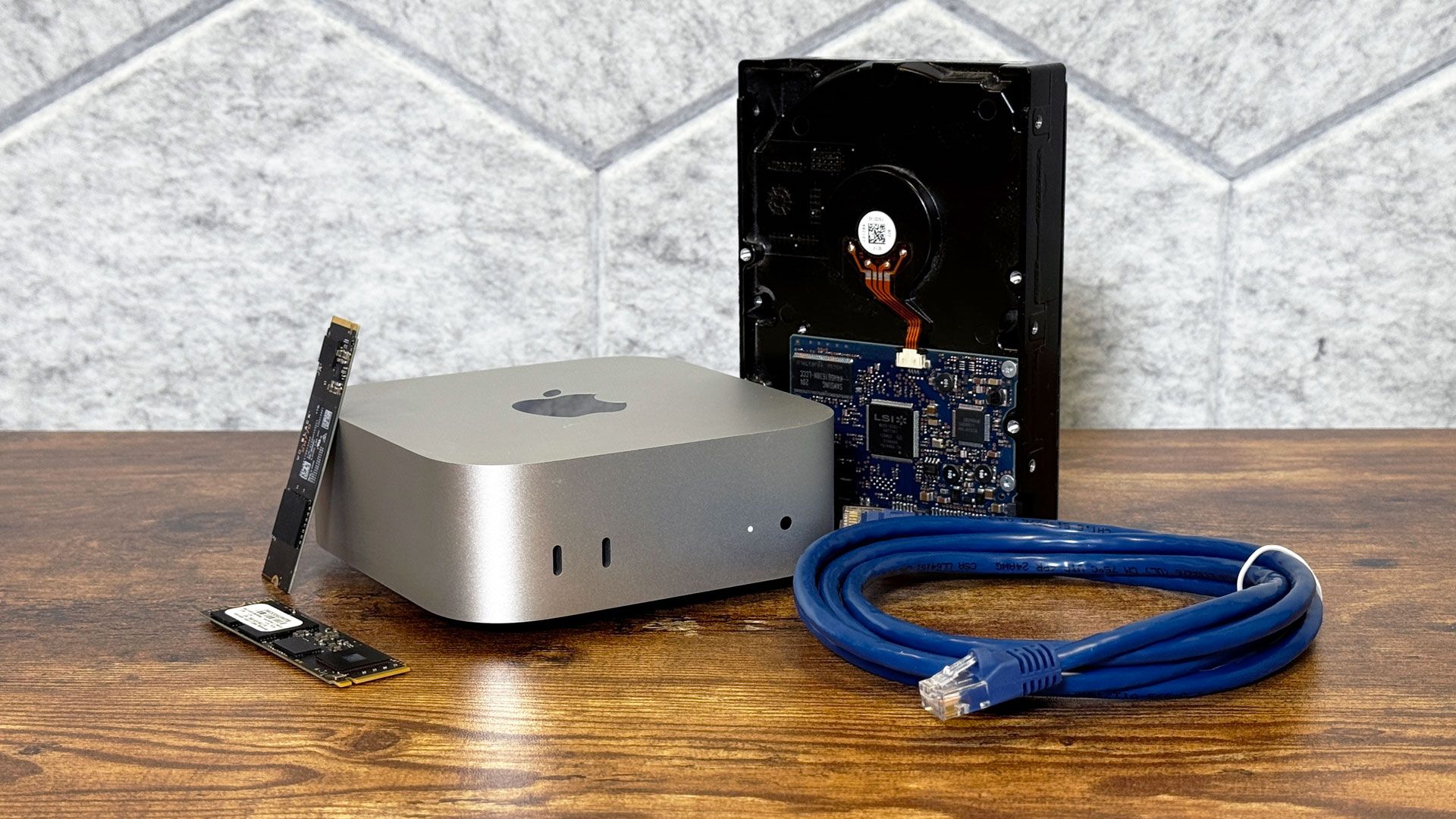
(Image credit: Tom's Hardware) When I had a kid, I found myself taking a lot more photos. When a baby lies on its back considering a ceiling fan for half an hour, you can suddenly find yourself with dozens of cute shots. And it doesn't stop when they grow up.At a certain point, this bounty of photos weighed on me. I would look at my photo library on my phone or computer and worry about what would happen if something went wrong. It was time for a backup methodology more advanced than plugging in an external drive a few times a month.At first, I thought about a NAS, which seemed like the obvious solution. But as I researched (and saw how expensive HDDs are these days), I opted for a mini PC. I was lucky enough to score a Mac Mini with M4, 16GB of RAM, and 256GB of storage on Apple's refurbished store a few weeks before the company raised its prices. The best time to buy it would have been at $399 on sale at MicroCenter. The second best time was when I did it.An M4 Mac Mini is overkill for my project. M1 would've done the job. Any number of older Intel- or AMD-based mini PCs would've been sufficient, and most homelabbers rely on Linux or even Windows for a reason. The M4 will future-proof this machine. It is, though, admittedly funny to me that one of the most powerful computers in my home is running headless in a closet.But the Mac has other benefits. For one, my home has a lot of Apple products in it. While I'm equally comfortable with Windows and macOS, my wife is exclusively in Apple's ecosystem. So when I realized I would want this system to back up her photos and documents too, making that easy was important. I'm able to access it from either my MacBook Pro or my custom-built PC over VNC or SSH on the command line. There are a few other benefits of using macOS if you have other Apple devices in your home.My overkill hardwareThe M4 Mac Mini is far more than this project needs. But on the plus side, it should see support for a long time. And frankly, getting one during the shortage was just kind of a thrill.The 256GB of storage is being used exclusively for the operating system and any applications. All of my actual data is on a series of external drives, most of which I already had lying around. That includes a 4TB PCIe NVMe SSD and 2TB PCIe NVMe SSD in enclosures (the former with Thunderbolt 3). But I also wanted a spinning hard drive for longer-term storage. For that, I opted for a Seagate FireCuda Vault X, which isn't the cheapest option, but can connect over USB-C bus power without the need for external power.Get Tom's Hardware's best news and in-depth reviews, straight to your inbox.All of this is hidden on the top shelf of a closet. This isn't the ideal space, but it's the only one that will work. I live in an apartment, and that closet is where the sole Ethernet connection comes in. I already had my router and modem there. I've hooked up the Mac Mini to the router, connecting it to my home network. My Mac Mini in my closet, hooked up to my modem and router. The hard drive can be seen, while the SSDs are in enclosures sitting further back, behind the system. Yes, I need better cable management. (Image credit: Tom's Hardware)The Mac Mini runs non-stop. That's good, because the power button is on the bottom, and I'd hate to have to pick it up every time I want to shut it off. (Also, I need a step-stool to reach that shelf.)Backups and redundancyThe SSDs and HDD are all connected to the Mac Mini via the system's USB-C ports. The Thunderbolt enclosure and the HDD are attached to Thunderbolt 4 ports on the rear (the latter to ensure it gets the wattage it needs), while the 2TB SSD in the USB-C enclosure is connected to a 10GB/s USB-C port on the front.I've put too much thought into each drive's purpose.The main drive is the 4TB USB-C drive, which has two volumes on it (unlike partitions, which macOS also allows, volumes are more flexible with free space). My main volume is for extra copies of important documents, my Apple Photo library, and also for backups of photos I keep outside of Apple's library (I have a tendency to clean house every few years). If I create any files I want to back up on my Windows PC, this is where I go to back them up on site. And lastly, I have a folder just to store files that aren't critical but that I might want to access from any machine. Why keep them on my laptop when I have terabytes of storage to play with?But the second volume, which is just a small portion of the drive, is also for excess data I don't want to keep on the internal drive. At the moment, that's largely dedicated to macOS content caching (see below).My 2TB SSD is for Time Machine backups. I can use macOS's built-in backup tool over the network to back up my laptop without plugging anything in.The HDD is a redundancy play. That's currently split in half — one volume as an alternate Time Machine destination (letting me switch between the SSD and HDD), and the other volume is a copy of my important documents and photo library, which is cloned each night using Carbon Copy Cloner.This is all in my home, of course, so if my computers and Mac Mini were in the same fire, much of my data would still be lost. Without an offsite backup, I would be in violation of the 3-2-1 backup rule (three backups on two storage devices, with one of them offsite). I keep many of my most important photos and files elsewhere in the cloud, in a mix of iCloud, Google Drive, and Dropbox. It's not a great system, and could use improvement, but it's better than nothing. If HDD prices were to go down, perhaps I could replace the Vault with another one and swap them once a month, keeping the other at a family member's home.Running headlessI could put a monitor on the top shelf of my closet, but I've opted for a better model: running the Mac Mini headless.Mostly, this meant setting up the Mini (with a monitor, naturally), to prepare it before booting it up. For me, this included removing a lot of the iCloud syncing it would normally do (I only want it downloading my original, full-sized photos from iCloud, but it doesn't need to get texts), preventing automatic sleeping, allowing for file and screen sharing on the network, and making security decisions that allow me to access the system and files remotely and securely while also deciding how often I want to have to take the thing down from the closet to log back in with a password.From another Mac, it's very easy to use virtual network computing (VNC) via the built-in screen-sharing utility. From Windows, I can still use a program like RealVNC to access the desktop. I also reduced motion and graphics, set a solid color background, and made other tweaks in an attempt to reduce the amount of data or lag I might see over a remote connection.There's also the option for SSH. I'm still working to be a bit more proficient at the command line, but you can do that either in macOS in the Terminal or Windows in the Command Prompt or PowerShell.I've also seen that some people swear by running the Mac Mini headless by using an HDMI dummy plug to force high resolutions when remoting in. But using Mac Screen sharing, I haven't particularly had a problem.Managing on the goTypically, I'm more than OK with having what amounts to a backup server accessible locally. But what if I need a file that I'm storing on the server and I'm not at home?For that, I've created a Tailscale network consisting of my laptop, the Mac Mini, and my iPhone. This gives each device a semi-permanent address I can access it through, as long as both are on the network.That makes it easy enough from a laptop. Unfortunately, iOS doesn't have the super-easy Screen Sharing tool that macOS does. So on mobile, I have the RealVNC mobile app, which can access the Mac Mini either through the local address or Tailscale. Using a virtual desktop on a phone's touch screen isn't ideal, but it's not nearly as difficult as I thought it would be.Mac benefits and drawbacksLet's be clear: macOS is not designed for servers (macOS Server was discontinued in 2022). I am very aware that home networking purists would much rather use their preferred Linux distribution, or even Windows. And that's OK!But if you have Apple devices in your own home, there are some benefits to having a Mac in your homelab.My favorite of these is content caching, which can keep copies of macOS or iOS updates, App Store updates, or data stored in iCloud in the cache, so that they can be sent to other devices on a local network more quickly. (Image credit: Tom's Hardware)For those who are using macOS, it's nice to be able to use Time Machine, and mount other drives in the Finder the way you would with a Thunderbolt or USB-C drive and just have it on the desktop.And yes, for management, the aforementioned Screen Sharing app is pretty solid, and it’s one less piece of software you need to worry about.Additionally, the machine is whisper-quiet, rarely uses more than 3% of the CPU (and often less), and is efficient enough that I've noticed no substantial change to my electric bill.The only real drawback for my use case is that while the M4 SoC will keep this project future-proof for a bit, adding RAM is impossible. I opted for the 16GB RAM / 256GB SSD model for budgetary reasons, but it's possible that, depending on what else I want to do with it, that could eventually hamper me down the line. It's especially the case if I ever want to get more into local AI.However, once I get more advanced, there are some applications that would run more easily if I had gone for a Linux device. Instead, I'll need Docker or VMs.What I need nextA project like this one is never truly finished. I have the Mac; I have it backing up my stuff (It ends up that after all this, I'm still working on getting my wife to back up her end). There's much more that I want to do down the line. Perfect, however, is the enemy of getting started at all.One good item for this project would be a small uninterruptible power supply in the case of a power outage. Another would be a dock. A number of third-party companies make docks specifically for the Mac Mini that can fit an SSD, which might be a good way of organizing my cable mess. But if I ever switch computers, that dock will likely end up being less friendly for cable management.There's also a whole bunch more I want to do with the Mac Mini. I don't have a ton of Smart Home equipment in my apartment, but what I do have is a mix of older Alexa-focused stuff. If I wanted to control that with Apple Home, I could try hosting Home Bridge. Or if I want to move to a more private system, I could install Home Assistant on the Mac Mini using a virtual machine.I could also toy with PiHole, though again, I would have to use Docker or a Virtual Machine. That would let me block ads across my network (while whitelisting the ones I want to support, of course).Further down my list are a Plex or Jellyfin server. I don't own that much physical media, but being able to access what I do have virtually could lead me to consider it among my subscription options. I could also use one of these to offload my MP3 collection from my laptop.But for now, the file server and backups have given me some peace of mind. My photo library certainly isn't getting any smaller. I just hope storage prices fall before I need another drive. Andrew E. Freedman is a senior editor at Tom's Hardware focusing on laptops, desktops and gaming. He also keeps up with the latest news. A lover of all things gaming and tech, his previous work has shown up in Tom's Guide, Laptop Mag, Kotaku, PCMag and Complex, among others. Follow him on Threads @FreedmanAE and BlueSky @andrewfreedman.net. You can send him tips on Signal: andrewfreedman.01
A Mac Mini server is running headless in my closet — it manages my photo library and handles my backups
Full Article
Original Source
Read the full article at Tomshardware →KhanList aggregates and links to publicly available news content. We do not host full articles from third-party sources. Always verify important information with original sources.