
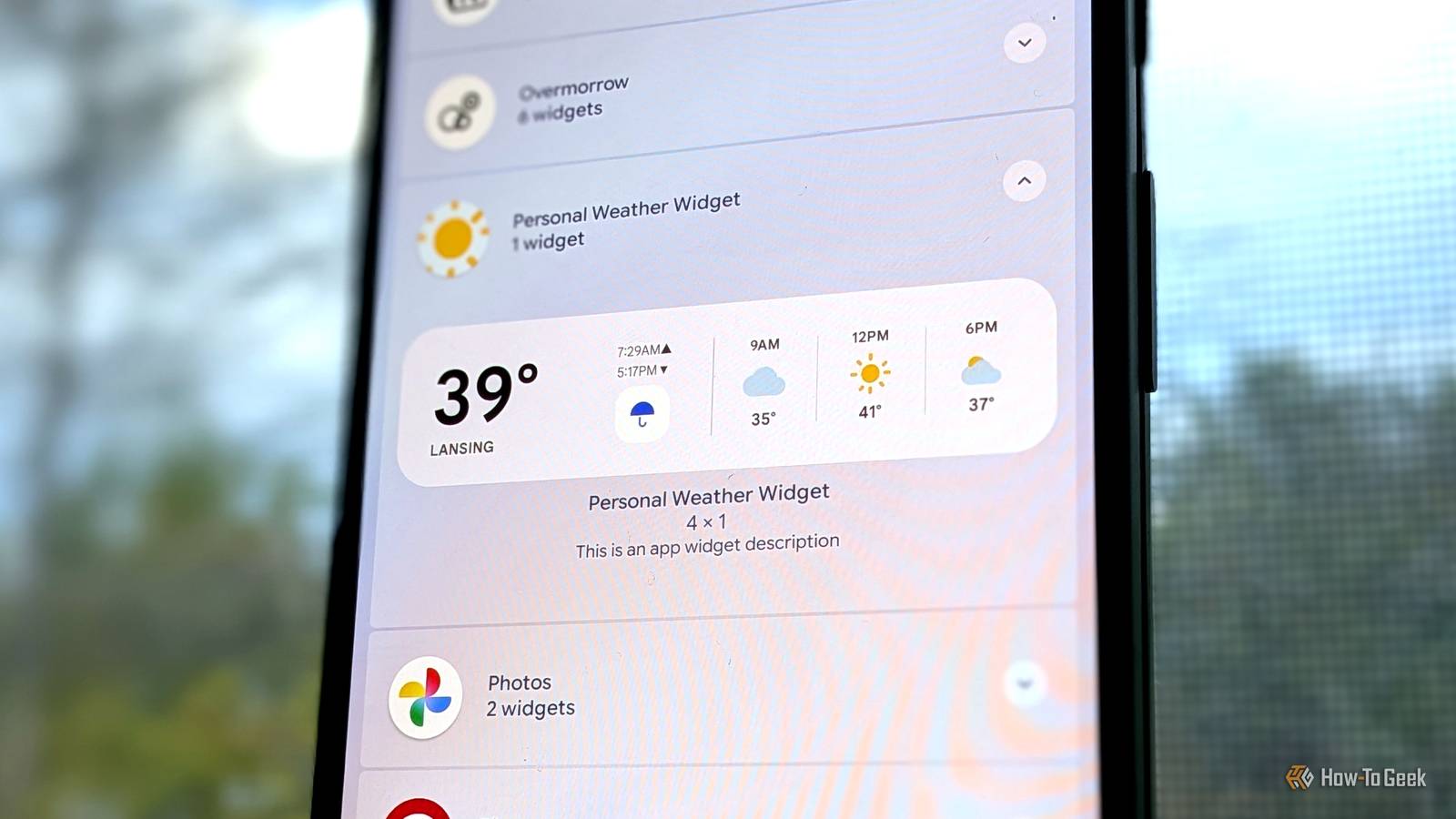
Published Nov 14, 2026, 1:00 PM EST Joe Fedewa has been writing about technology for over a decade. Android and the rest of the Google ecosystem have been a focus for years, as well as reviewing devices, hosting podcasts, filming videos, and writing tutorials. Joe loves all things technology and is also an avid DIYer and food blogger. He has written thousands of articles, hundreds of tutorials, and dozens of reviews. Before joining How-To Geek, Joe worked at XDA-Developers as Managing Editor and covered news from the Google ecosystem. He got his start in the industry covering Windows Phone on a small blog, and later moved to Phandroid where he covered Android news, reviewed devices, wrote tutorials, created YouTube videos, and hosted a podcast. From smartphones to Bluetooth earbuds to Z-Wave switches, Joe is interested in all kinds of technology. After several years of jailbreaking and heavily modifying an iPod Touch, he moved on to his first smartphone, the HTC DROID Eris. He's been hooked ever since. I’ve been a devout Android user for nearly two decades, but I never even toyed with the idea of building an app until this year. Google’s AI integration in Android Studio makes it accessible to anyone, and custom widgets are a great place to start. I say this as someone who started with a project that was probably a bit more than I could chew. My first idea was to create a Wear OS watch face, and while I ended up with something I’m really proud of, it took me a long time. Sometimes, it’s best to walk before you run. One interface at a time Widgets are the simplest apps After I made a watch face with the AI agent in Android Studio, I moved on to a phone app — and not just any kind of app. I decided to design a full-blown home screen launcher with webOS-style app previews and an integrated keyboard. It took a lot of time and troubleshooting to get the app to a reliable place. Don’t be like me. If you’re interested in vibe coding an Android app, but don’t know where to start, I would highly suggest a widget. Every Android widget is technically part of a larger app, but you don’t actually have to create anything more than just the widget. Android apps that are exclusively made to be widgets don’t appear in the app drawer. There’s nothing to open. In other words, you only have to worry about one interface: the widget. The watch face and launcher projects took several days, if not weeks. I spent a lot of time going back and forth with the AI agent, making small changes here and there. However, I was able to whip up a pretty nifty widget in less than an hour. Start with a picture Drawing instead of coding The absolute best thing about using an AI agent to build an app in Android Studio is that you can simply show it what you want. This can be a detailed graphic made in Illustrator or scribbles on a piece of paper that you took a photo of with your phone. In my case, I made the mock-up below. It’s best to pair the image with a text description. Here’s what my first command looked like: Here's an image of what I want the widget to look like. The current temperature is shown on the left in big, bold numbers with the text "RIGHT NOW" above it. The current city is listed below it. The sunrise and sunset times are listed with up (sunrise) and down (sunset) arrows. There's a box with an umbrella icon inside. The icon is faded when it's not raining, and fully opaque when it is raining. Then, the upcoming temperatures are shown with weather icons. The upcoming temperature is always 9am, 12pm, and 6pm, in chronological order. You’ll be surprised by how close it gets on the first attempt. In my case, the widget was about 70% of the way to being a finished product. It had all the elements, but it was the equivalent of painting a window on a wall — it didn’t actually do anything. This is where the conversation starts. I simply said, “I need it to be able to get weather information.” In just a few minutes, the AI agent had integrated the Open-Meteo API for real-time weather data and enabled tapping the widget to refresh. Now, I could have stopped here. The widget was fully functional after just two commands. But I wasn’t happy with the visuals. The spacing was wrong, I wanted the temperature to be bigger, the city name was cut off, and the forecast wasn’t in the correct chronological order. It took a decent number of commands (see the progression in the gallery above), but I now have a weather widget with the information that is most important to me: current temperature, whether or not I need an umbrella, sunrise/sunset times, and the temperature at times of day when I’m likely to go outside. Your own custom corner Honestly, it’s pretty incredible what you can create with a few commands and an AI agent at your side. Android’s new “Create My Widget” feature is making this easy for everyone, but the results, while impressive, are fairly generic. Vibe coding a widget gives you much more creative control with the same text inputs. You can do this, I promise!
A custom home screen widget is the easiest way to start vibe coding Android apps
Full Article
Original Source
Read the full article at Howtogeek →KhanList aggregates and links to publicly available news content. We do not host full articles from third-party sources. Always verify important information with original sources.