
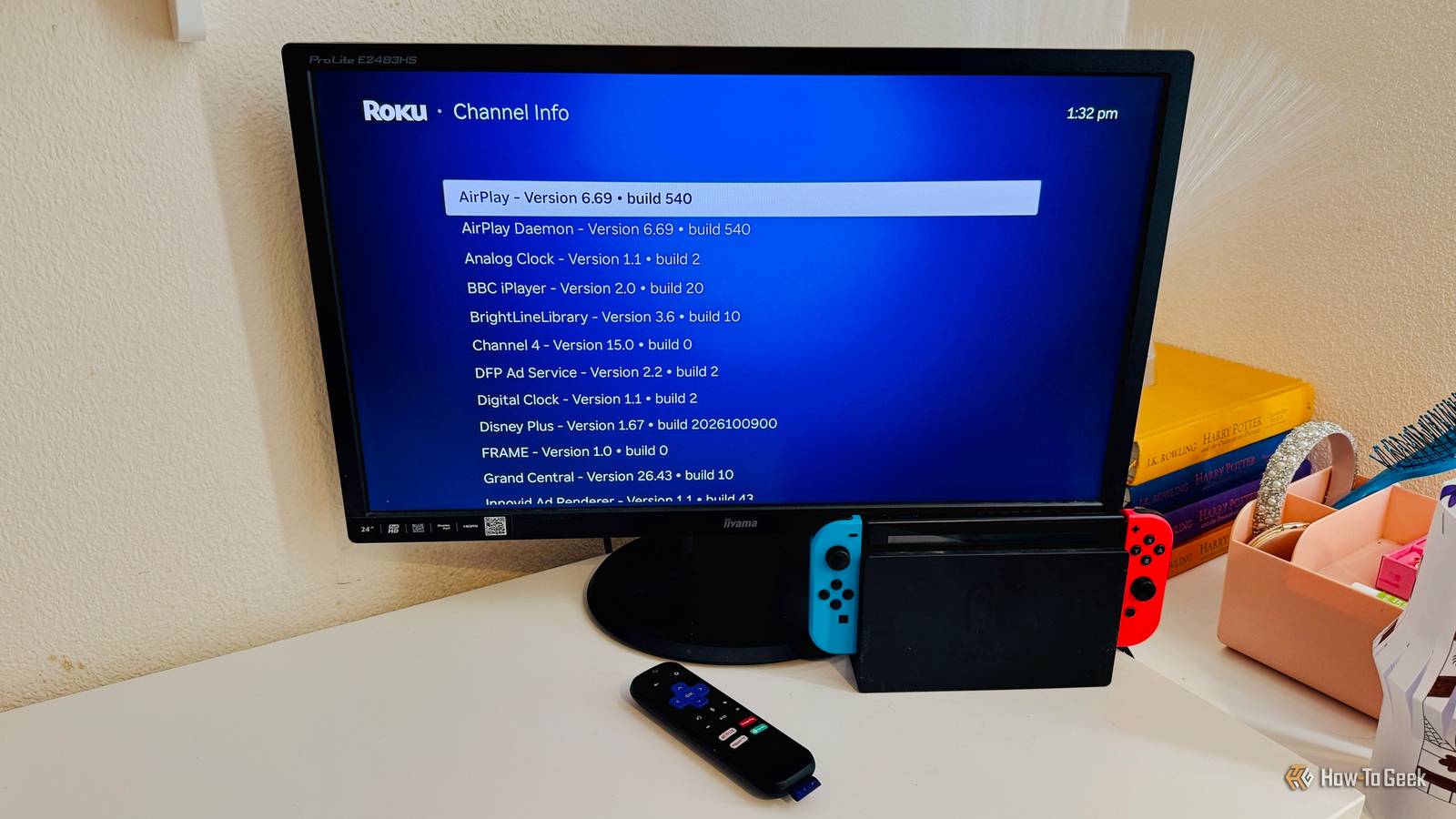
Published Oct 31, 2026, 6:00 PM EDT Adam has a degree in Engineering and has a life-long interest in technology. He has been writing for over a decade for various print and online publications, with a focus on consumer tech. He joined How-To Geek in 2024 while working at Pocket-lint. As well as being a long-term fan of Apple products, he also has a strong interest in smart home tech, running a Home Assistant server at home to automate all his smart home devices. He believes that the ideal smart home should work with minimal interaction from the user, with automations running as if by magic rather than requiring you to push buttons on a control panel. You can find more of his work on Muck Rack. There are plenty of settings that you can scroll through on a Roku TV or streaming device, but there are some hidden menus that offer even more options. You can access these secret settings by pressing a sequence of buttons on your Roku remote, although none of them will give you 30 lives. Restart your Roku without unplugging it Have you tried turning it off and on again? Buttons: Home x 5 > Up > Rewind x 2 > Fast Forward x 2 If your Roku keeps freezing or is behaving weirdly, you can try the old IT support trick of turning it off and on again. Often that involves getting your lazy butt off the sofa and rooting around behind a TV. You can restart a Roku directly from your remote instead. When I tried this with my Roku Streaming Stick, I didn't think it had worked, but after a moment or two, the Roku rebooted as expected. These button sequences were all tested and found to work on my Roku Streaming Stick, but may not work on all devices. You should use these hidden menus with caution, as some changes could cause your Roku to stop working as expected. The Wireless Secret Screen Diagnose Wi-Fi problems Buttons: Home x 5 > Up > Down > Up > Down > Up This shortcut opens the Wi-Fi Secret Screen, which has way more information than the standard Network screen. It includes the Wi-Fi channel, signal strength, signal-to-noise ratio, packet error rate, and more. You can also enable logging to help you diagnose Wi-Fi issues. There are options for dumping the kernel and register logs for more technical troubleshooting. Platform Secret Screen Find out what's going on under the hood Buttons: Home x 5 > Fast Forward > Down > Rewind > Down > Fast Forward The Platform Secret Screen has some useful measurements about your Roku device as well as some extra diagnostic menus. You can see things such as the Roku's temperature, the CPU speed, network details, and more. You can even see information about the remote, such as the model, firmware version, and battery level. You can also access sub-menus including the RF Remote Menu and IPv6 Secret Screen, and there's also an option to view live remote button presses to see if they're registering correctly. Some older guides online use the Play button instead of Down for this shortcut, but that didn't work on my Roku Streaming Stick. The shortcut shown above worked perfectly. HDMI Secret Screen Learn more about what your connected TV is telling your Roku Buttons: Home x 5 > Down > Left > Up x 3 These secret menus don't just contain information about your Roku; they can tell you about the connected TV or monitor, too. The HDMI Secret Screen includes information such as the manufacturer as well as the video formats supported by the TV or monitor. For example, I could see that the 1080p monitor in my kid's room that's connected to a Roku Streaming Stick supports 720p, 1080p, and 1080i, but doesn't support 4K at 30Hz, 4K at 60Hz, 4K HDR, or 10-bit YCbCr formats. Channel Info Screen Find out what's really installed on your Roku Buttons: Home x 3 > Up x 2 > Left > Right > Left > Right > Left The Channel Info Screen is a bit of an eye-opener. It provides information about all of the installed streaming apps, such as Netflix and Prime Video, including the versions and build numbers. However, you can also see components that don't appear as tiles in the Roku's menu, including Roku Browser, Roku Cloud, and a ton of other internal tools. You can't do anything other than see the list, but it's interesting to find out exactly what is installed on your Roku, including things that you may not have been aware of. Developer Settings Screen Enable developer mode Buttons: Home x 3 > Up x 2 > Right > Left > Right > Left > Right This hidden screen allows you to access the Development Application Installer. This is a tool that allows developers to test Roku apps on a real Roku device. Via this menu, you can enable the installer and restart the Roku. Developers can then upload files to the Roku through a web browser, although this doesn't mean you can just sideload an old Android APK, since Roku uses its own app platform. Secret Screen Learn how long your Roku has been running Buttons: Home x 5 > Fast Forward x 3 > Rewind x 2 There are two other secret screens you can access that are so secret, they're literally called Secret Screen. The first one provides information about the operating system and software. Some useful data includes the total uptime for your Roku device since it last restarted, and the total powered-on time over the device's lifetime. If your kids have been watching hundreds of hours of Netflix without your knowledge, this could be the evidence you need. Secret Screen 2 Secret Screen: The Sequel Buttons: Home x 5 > Up > Right > Down > Left > Up If you liked Secret Screen, then you'll love Secret Screen 2, that rare sequel that isn't worse than the original. This one includes some further options, such as changing the file format of screenshots and enabling auto-pairing for compatible wireless remotes. You can also cycle the image service your Roku uses, and there's an option to change the ad banner channel. These controls are for internal configuration, so it's unlikely you'll be able to remove all the ads from your Roku just by toggling some settings. Bonus tip: Skip long lists with Fast Forward and Rewind Stop wearing out your Down button This last point is a general tip. It's one I wasn't aware of, and I wish I'd known about it sooner. If you're in a menu with a lot of options, you don't have to keep spamming the Down button to get to the bottom of the page. You can use the Fast Forward button to page down through the list, making getting down to the option you want much quicker. The Rewind button will also take you back up the page again. Get more from your Roku These secret remote codes are unlikely to be things that you stumble upon by accident. They're not screens you're likely to want to access very often, but it's useful to know how to find them when you need them.
8 super-useful Roku shortcuts hiding in your remote (plus a bonus tip)
Full Article
Original Source
Read the full article at Howtogeek →KhanList aggregates and links to publicly available news content. We do not host full articles from third-party sources. Always verify important information with original sources.