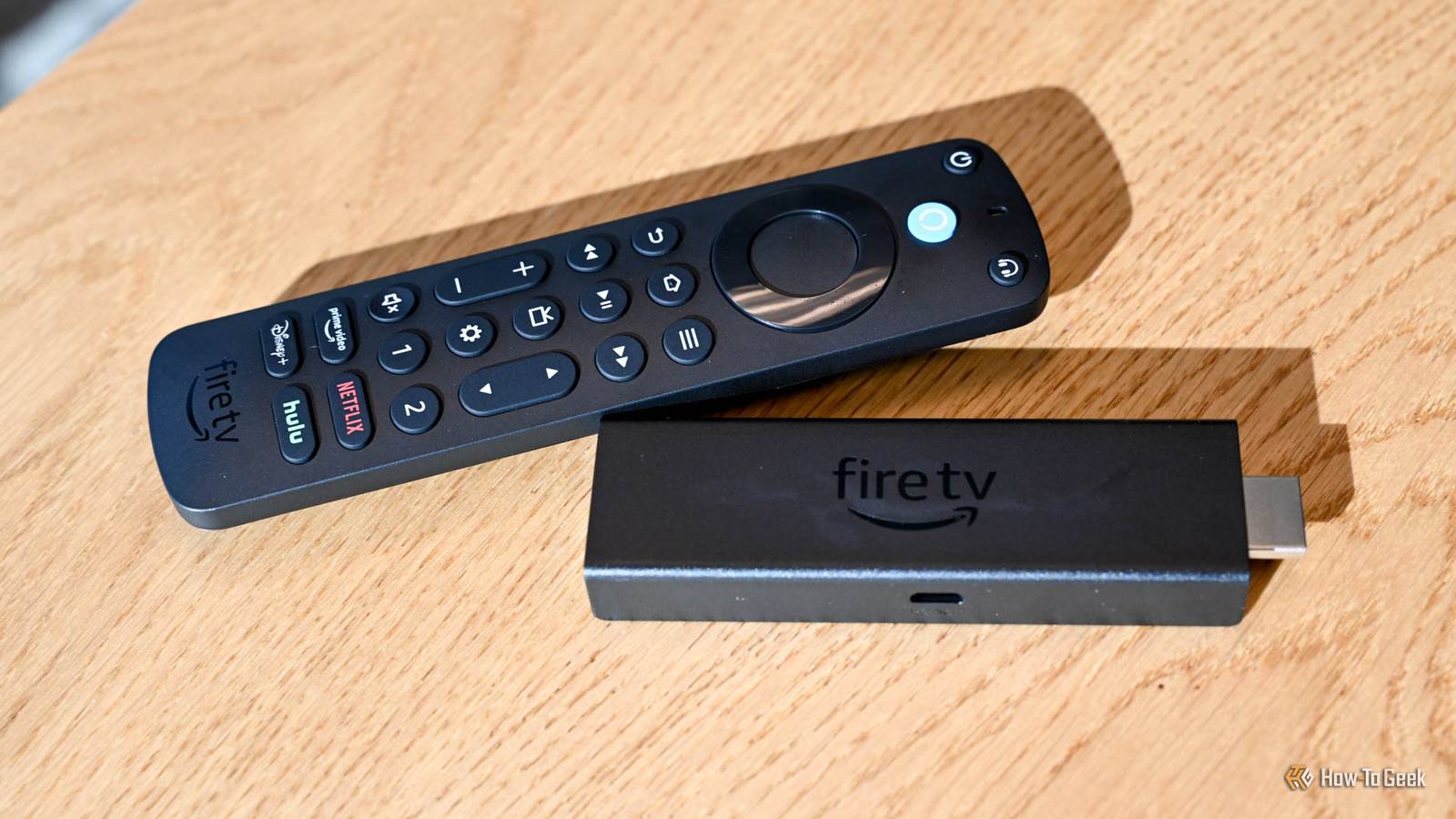
Published Jul 28, 2026, 12:15 PM EDT Andy is a senior writer and former Mac editor at HTG. He has over 20 years experience as a consumer tech journalist, and has covered everything from the old Palm Pilots to the original iPhone and Android devices, to the latest gadgets. He has written and edited for UK-based print publications like PDA Essentials and Android Magazine, and online at sites including MUO, Android Tips and Hacks, broadband.co.uk, and Envato. He has a passion for all things mobile and has been a keen Mac enthusiast since 2005. If your Fire TV Stick keeps rebooting, freezing, or buffering and feels like it's on its way out, it might not actually be broken. Different symptoms often have different causes, so the fix for a device that's buffering won't be the same as one that's stuck in a reboot loop. So before you throw it away and buy a replacement, check whether you can get it working properly again. Check the power supply If it won't turn on or keeps restarting Credit: Andy Betts / How-To Geek A common sign of a Fire Stick that's on its last legs is constant rebooting or not turning on at all. Reboot loops are far more likely to be caused by an inadequate power supply than hardware failure. If you've got your Fire Stick connected through your TV's USB port, swap it out for a wall adapter instead. Many TVs don't output enough power to keep a Fire Stick running consistently. Also, try a different USB cable and power adapter. Use the one that came with the device if you've still got it. Fire TV Stick 4K $24.99 $50 Save $25.01 A step up from the Fire Stick TV Lite is the Fire Stick TV 4K. It offers a Dolby Vision upgrade and TV controls on the Alexa remote. Fix overheating issues If it freezes, slows down, or randomly reboots Credit: Andy Betts / How-To Geek Overheating is another common cause of reboots or freezing. We usually keep our Fire Sticks neatly tucked away behind the TV, where there's poor ventilation. But because the devices pack their hardware into such a small enclosure, heat can build quickly. You can check it by touching it. Some warmth is expected, but if it's unusually hot, that might signify a problem. Quiz8 Questions · Test Your KnowledgeAmazon Fire TV StickTrivia challengeThink you know your streaming stick inside and out? Put your Fire TV knowledge to the test.SetupFeaturesHardwareAppsHistoryBeginIn what year did Amazon first release the original Fire TV Stick?A2012B2013C2014D2015Correct! Amazon launched the first Fire TV Stick in November 2014, offering a more affordable alternative to the full-sized Fire TV box. It plugged directly into an HDMI port and quickly became one of Amazon's best-selling devices.Not quite. The original Fire TV Stick was released in November 2014. It came out about seven months after the original Fire TV box and was positioned as a budget-friendly streaming option for cord-cutters.ContinueHow does the Amazon Fire TV Stick connect to your television?AUSB-A portBDisplayPortCComposite AV portDHDMI portCorrect! The Fire TV Stick plugs directly into an HDMI port on your TV. This is what gives it its distinctive stick shape, and it draws power via a separate Micro-USB or USB-C cable depending on the model.Not quite. The Fire TV Stick connects via HDMI, which is why it has that signature dongle shape. It also requires a power cable — either Micro-USB or USB-C — to function, as HDMI alone doesn't supply enough power.ContinueWhich voice assistant is built into the Amazon Fire TV Stick remote?AGoogle AssistantBSiriCAlexaDCortanaCorrect! Amazon's own voice assistant, Alexa, is integrated into the Fire TV Stick remote. You can use it to search for content, control playback, check the weather, and even control smart home devices.Not quite. The Fire TV Stick uses Alexa, Amazon's proprietary voice assistant. Pressing and holding the microphone button on the remote lets you speak commands, making it easy to find shows or control compatible smart home gadgets.ContinueWhat type of network connection does the standard Fire TV Stick use to stream content?AEthernet (wired)BBluetooth onlyCWi-FiDCellular LTECorrect! The standard Fire TV Stick relies on Wi-Fi to stream content. Unlike some competitors and the Fire TV Cube, the basic stick does not include a built-in Ethernet port, though adapters are available.Not quite. The standard Fire TV Stick uses Wi-Fi for its internet connection. If you need a wired Ethernet connection for a more stable signal, you would need a separate Ethernet adapter or consider upgrading to the Fire TV Cube.ContinueWhat is the maximum streaming resolution supported by the Fire TV Stick 4K Max?A1080p Full HDB2K (1440p)C4K Ultra HDD8K Ultra HDCorrect! The Fire TV Stick 4K Max supports streaming up to 4K Ultra HD resolution. It also supports HDR formats including Dolby Vision, HDR10+, and HLG, delivering excellent picture quality on compatible TVs.Not quite. The Fire TV Stick 4K Max tops out at 4K Ultra HD resolution. It also supports advanced HDR formats like Dolby Vision and HDR10+, making it one of the most capable streaming sticks in Amazon's lineup.ContinueWhich app store is used to download streaming apps on a Fire TV Stick?AGoogle Play StoreBApple App StoreCAmazon AppstoreDSamsung Galaxy StoreCorrect! Fire TV Stick uses the Amazon Appstore to download apps and games. Because it runs a forked version of Android, the Google Play Store is not available, though many popular streaming apps like Netflix and Disney+ are still offered.Not quite. The Fire TV Stick uses the Amazon Appstore, not the Google Play Store. While the device runs a modified version of Android, Amazon's ecosystem replaces Google's, so you browse and install apps through Amazon's own storefront.ContinueWhich of the following audio formats is supported by the Fire TV Stick 4K for enhanced surround sound?ADolby AtmosBDTS:X ProCTHX Spatial AudioDSony 360 Reality AudioCorrect! The Fire TV Stick 4K supports Dolby Atmos, which delivers immersive three-dimensional surround sound. You'll need a compatible soundbar or AV receiver to experience the full effect, but it's a significant audio upgrade over standard surround sound.Not quite. The Fire TV Stick 4K supports Dolby Atmos for immersive audio. While the other options are real audio technologies, Dolby Atmos is the surround sound format officially supported and promoted by Amazon on its 4K Fire TV devices.ContinueWhat feature introduced in the Fire TV Stick 4K Max (2nd generation) allows for faster app switching and smoother performance?ATurbo ModeBWi-Fi 6E supportCDual-core processingDCloud Boost technologyCorrect! The second-generation Fire TV Stick 4K Max introduced Wi-Fi 6E support, which provides faster wireless speeds and reduced interference compared to older Wi-Fi standards. This results in smoother streaming and quicker load times when your router also supports Wi-Fi 6E.Not quite. The headline new feature of the second-generation Fire TV Stick 4K Max was Wi-Fi 6E support. This next-generation wireless standard operates on the 6 GHz band, reducing congestion and enabling faster, more reliable streaming performance than previous models.See My ScoreChallenge CompleteYour Score/ 8Thanks for playing!Try Again The short-term fix is to unplug it and let it cool down. Longer term, move it away from behind the TV where heat can get trapped and find a new spot for it. Use an HDMI extender so you can position it somewhere that it can get more breathing room. Fix your Wi-Fi connection If streaming constantly buffers Credit: Amazon When constant buffering is the thing that makes you think your Fire Stick is broken, it might actually be a Wi-Fi issue instead. A simple fix is to restart both the router and stick and see if that improves things. If not, there are better fixes to try. First, check whether the problem is actually with the network by seeing if your other devices are working okay. Next, make sure the Fire Stick is getting a good connection to your router. As with the heat issue, keeping it stuck away behind the TV can disrupt the signal and mean it doesn't get as strong a connection as you need, especially when streaming high-bitrate video, like 4K movies. Try to move either the stick or the router so they're closer to each other. Also, consider switching between the 5GHz and 2.4GHz networks, depending on how far apart the devices are. If they're near each other, 5GHz can be the better option. If none of that works and you still suspect Wi-Fi is the cause, consider using an Ethernet adapter instead. This will give you a much more reliable internet connection. Ethernet Adapter for Amazon Fire TV Devices Input Ethernet Output USB-C Take advantage of the speed and reliability of a wired internet connection with your Amazon Fire TV device. Free up storage space If it's slow or apps keep crashing Fire Sticks will often slow down and start crashing when they run short on storage space. They come with low storage to begin with and don't just use it to keep content and apps. They need it for temporary files, caching, and general housekeeping. Once the space starts to get limited, that's when problems will arise. Check how much space you have in Settings > My Fire TV > About > Storage. There are lots of things you can do to free up space on your stick, including clearing the app caches, deleting apps you no longer use, and removing content that you've downloaded and no longer need. Check your HDMI connection If you get a black screen or no signal Credit: Lucas Gouveia / How-To Geek | RightFramePhotoVideo / Shutterstock If there are no signs of life from your Fire TV Stick at all, then that's an obvious worrying sign. But it might be an HDMI issue. Try a different HDMI port on your TV or even another TV, if you've got one. On top of that, remove any HDMI switches or splitters that you might have connected. Just plug the device directly into your set and see what happens. Don't ignore the obvious solutions either. Check, for example, that your TV input is correct. It might sound silly, but sometimes the silly solutions are the most useful. Reset the remote and Fire TV Stick If controls don't work when you press them When your Fire TV Stick isn't responding, it might be an issue with your remote control. You should get a warning when the batteries run out, but you can sometimes miss it, and low-powered batteries can cause the remote to perform erratically. Changing the batteries is the first step. Make sure to re-pair your remote when you've done that. You can also try a different remote. If you don't have a spare one lying around, install the Fire TV app on your phone. It detects the Fire Stick on your network and lets you use it as a remote control. If it works, you'll know the remote is the problem. Restart the Fire Stick, then reset and re-pair the remote. As a last resort, you might need to factory reset the stick. Check whether it is actually too old If none of these fixes have helped, it might be that your Fire TV Stick has reached the end of its useful life. It might not be broken as such, but older models might struggle with newer apps and updates, and Fire Sticks do have an expiration date. General slowness, long loading times, and dropped support ultimately mean a replacement is the only realistic fix.
6 things to test before throwing away your "broken" Fire TV Stick
Full Article
Original Source
Read the full article at Howtogeek →KhanList aggregates and links to publicly available news content. We do not host full articles from third-party sources. Always verify important information with original sources.