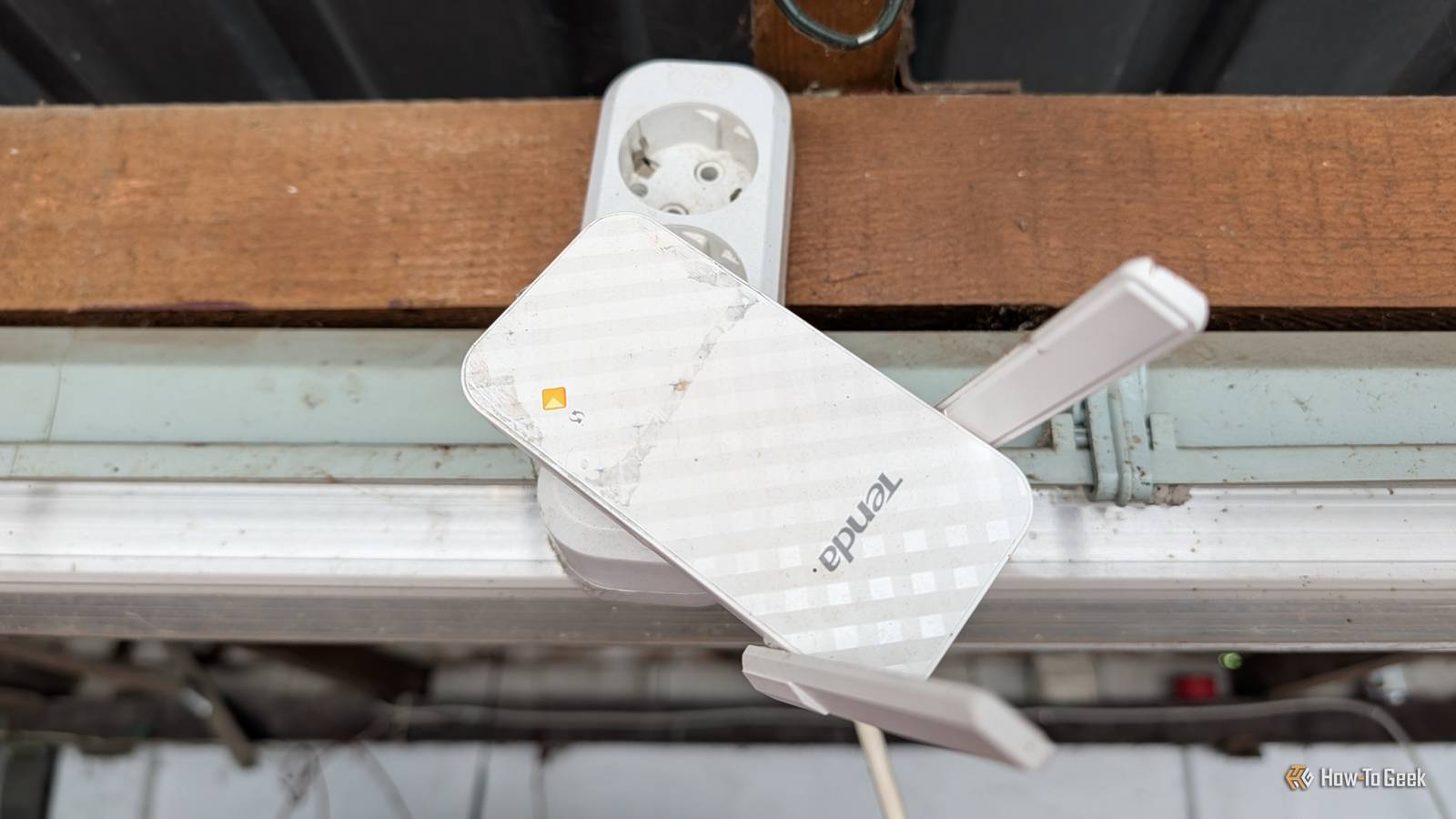
Published Aug 12, 2026, 4:00 PM EDT Monica J. White is a journalist with over a decade of experience in covering technology. She built her first PC nearly 20 years ago, and she has since built and tested dozens of PCs. PC hardware is her main beat, and graphics cards and the GPU market at large are her main area of interest, but she has written thousands of articles covering everything related to PCs, laptops, handhelds, and peripherals. From GPUs and CPUs to headsets and software, Monica's always willing to geek out over all things related to computing. Outside of her work with How-To Geek, Monica contributes to TechRadar, PC Gamer, Tom's Guide, Laptop Mag, SlashGear, Whop, and Digital Trends, among others. Her ultimate goal is to make PC gaming and computing approachable and fun to any audience. Monica spends a lot of time elbow-deep in her PC case, as she's always making upgrades, testing something, or plotting out her next build. She's the go-to tech support person in her immediate circle, so she's never out of things to do. Whenever she has spare time, you'll find her gaming until the early hours and hanging out with her dog. Wi-Fi extenders are marketed as a way to expand your Wi-Fi coverage, so it's no wonder people think of them as a dead-zone fix. They're inexpensive to buy, and once you plug one in, you'll usually see an instant improvement in your signal strength. I totally get the appeal. But whenever someone tells me they're getting a Wi-Fi extender, I always say the same thing: it probably won't fix that dead zone, and it might even drag down your whole network. Here's how they really work, and what can go wrong. It cuts your speed in half, guaranteed The walkie-talkie problem nobody warns you about Unlike your dual-band or tri-band Wi-Fi router, most cheap extenders only have one radio, which they use to talk to both your router and your devices. These radios can only do one thing at a time, so the extender has to sit and listen to what your router says before switching to broadcast mode to talk to your devices. This makes them about half as fast as multi-radio routers that can receive and broadcast at the same time -- and that's the best-case scenario, before you add in walls, distance, and everything else fighting for the air. It piles lag onto everything you actually care about Streaming survives it, your video calls do not Credit: Bertel King / How-To Geek It's not just your speed that suffers. Every time data takes the scenic route through the extender, it picks up a slight delay. This isn't noticeable for stuff like browsing or streaming, since videos buffer ahead of time. But for Zoom calls or online gaming, the added latency manifests as stutters and freezes that will totally ruin your experience. An extender can be great for temporarily expanding coverage in a situation where any connection is better than none, but as a 'permanent fix' for a part of your house where you want a strong and stable connection, it's really not up to the job. If you put it in the wrong place, it will interfere with everything Even your actual router Credit: Bertel King / How-To Geek An extender isn't smart; all it does is rebroadcast whatever it receives. If it's a little too far from the router, it won't be able to receive the signal well enough. But once you put it closer, all it does is contribute to an already overloaded network. All the devices already waiting their turn to transmit will just make the extender even slower. The 'sweet spot' is about halfway between the router and the dead zone, but before you even buy an extender, it's worth checking where your router is. Good router placement can make such a huge difference that you might not need the extender at all. Your phone will keep jumping to the extender This is called the "sticky client" problem Credit: Cory Gunther / How-To Geek Phones have a habit of clinging to whatever network they connected to first, even if there are better options. So if you connected to the extender in the spare room and then moved downstairs, your phone (or tablet or laptop, actually) might stay clinging to the extender and totally trash your connection. If all your gear is top-notch and configured in just the right way, you might be able to avoid this, but even when you do everything right, some devices just make really bad band choices. And I don't mean the kind of "band choices" that involve listening to a band that likes to tell you to look at this photograph. Quiz 8 Questions · Test Your KnowledgeHome networking & Wi-FiThink you know your routers from your repeaters — put your home networking know-how to the ultimate test.Wi-FiRoutersSecurityHardwareProtocolsBegin What does the '5 GHz' band in Wi-Fi offer compared to the '2.4 GHz' band?ALonger range but slower speedsBFaster speeds but shorter rangeCBetter wall penetration and faster speedsDLower interference but identical speedsThat's right! The 5 GHz band delivers faster data rates but loses signal strength more quickly over distance and through walls. It's ideal for devices close to the router that need maximum throughput, like streaming 4K video.Not quite — the 5 GHz band actually offers faster speeds at the cost of range. The 2.4 GHz band travels farther and penetrates obstacles better, which is why smart home devices and older gadgets often prefer it.Continue Which Wi-Fi standard, introduced in 2021, is also known as Wi-Fi 6E and extends into a new frequency band?A802.11acB802.11axC802.11beD802.11nCorrect! 802.11ax is the technical name for Wi-Fi 6 and Wi-Fi 6E. The 'E' variant extends the standard into the 6 GHz band, offering a massive swath of new, less-congested spectrum for faster and more reliable connections.The answer is 802.11ax — that's Wi-Fi 6 and Wi-Fi 6E. Wi-Fi 6E adds support for the 6 GHz band, giving it far less congestion than the crowded 2.4 GHz and 5 GHz bands. 802.11be is actually the upcoming Wi-Fi 7 standard.Continue What is the default IP address most commonly used to access a home router's admin interface?A192.168.0.1 or 192.168.1.1B10.0.0.1 or 172.16.0.1C255.255.255.0 or 255.0.0.0D127.0.0.1 or localhostSpot on! The vast majority of consumer routers use either 192.168.0.1 or 192.168.1.1 as the default gateway address. Typing either into your browser's address bar will bring up the router's login page — just make sure you've changed the default password!The correct answer is 192.168.0.1 or 192.168.1.1. These are the most common default gateway addresses for home routers. The 255.x.x.x addresses are subnet masks, and 127.0.0.1 is your own machine's loopback address, not a router.Continue Which Wi-Fi security protocol is considered most secure for home networks as of 2024?AWEP (Wired Equivalent Privacy)BWPA (Wi-Fi Protected Access)CWPA2 with TKIPDWPA3 (Wi-Fi Protected Access 3)Excellent! WPA3 is the latest and most robust Wi-Fi security protocol, introduced in 2018. It uses Simultaneous Authentication of Equals (SAE) to replace the older Pre-Shared Key handshake, making it far more resistant to brute-force attacks.The answer is WPA3. WEP is completely broken and should never be used, WPA is outdated, and WPA2 with TKIP has known vulnerabilities. WPA3 offers the strongest protection, and if your router supports it, you should enable it right away.Continue What is the primary difference between a mesh Wi-Fi system and a traditional Wi-Fi range extender?AMesh systems only work with fiber internet connectionsBRange extenders create a seamless single network while mesh systems create separate SSIDsCMesh nodes communicate with each other to form one seamless network, while extenders create a separate networkDMesh systems are always wired, while extenders are always wirelessExactly right! Mesh systems use multiple nodes that talk to each other intelligently, handing off your device seamlessly as you move around your home under one SSID. Traditional range extenders typically broadcast a separate network and can cut bandwidth in half as they relay the signal.The correct answer is that mesh nodes form one intelligent, seamless network. Range extenders are actually the ones that often create separate SSIDs (like 'MyNetwork_EXT') and can significantly reduce speeds. Mesh systems are far superior for large homes with many devices.Continue What does DHCP stand for, and what is its main function on a home network?ADynamic Host Configuration Protocol — it automatically assigns IP addresses to devicesBDirect Hardware Control Protocol — it manages router firmware updatesCDistributed Hosting and Caching Protocol — it speeds up web browsingDDynamic Hypertext Communication Protocol — it secures data transmissionsPerfect! DHCP (Dynamic Host Configuration Protocol) is the unsung hero of home networking. Every time a device joins your network, your router's DHCP server automatically hands it a unique IP address, subnet mask, and gateway info so it can communicate without manual configuration.DHCP stands for Dynamic Host Configuration Protocol, and its job is to automatically assign IP addresses to devices on your network. Without it, you'd have to manually configure a unique IP address on every single phone, laptop, and smart device — a tedious nightmare!Continue What is 'QoS' (Quality of Service) used for in a home router?AEncrypting all traffic leaving the routerBPrioritizing certain types of network traffic over othersCAutomatically switching between 2.4 GHz and 5 GHz bandsDBlocking malicious websites using a DNS filterThat's correct! QoS lets you tell your router which traffic gets priority. For example, you can prioritize video calls or gaming over a family member's file download, ensuring your Zoom meeting doesn't freeze just because someone is downloading a large update.QoS — Quality of Service — is actually about traffic prioritization. By tagging certain data types (like VoIP calls or gaming packets) as high priority, your router ensures latency-sensitive applications get bandwidth first, even when the network is congested.Continue What does the 'WAN' port on a home router connect to?AOther computers in your home network via EthernetBA wireless access point for extending Wi-Fi coverageCYour modem or ISP-provided gateway to the internetDA network-attached storage (NAS) deviceCorrect! WAN stands for Wide Area Network, and the WAN port is where your router connects to the outside world — typically to your cable modem, DSL modem, or ISP gateway. The LAN ports on the other side connect to devices inside your home network.The WAN (Wide Area Network) port connects your router to your ISP's modem or gateway — essentially your entry point to the internet. The LAN (Local Area Network) ports are for connecting devices inside your home. Mixing them up can cause your network to not function at all!See My Score Challenge CompleteYour Score/ 8Thanks for playing!Try Again It won't work well with the rest of your gear Credit: Corbin Davenport / How-To Geek Most of the cheaper extenders work by creating a second network, and thanks to that sticky client tendency, you'll end up needing to manually switch networks quite frequently. This is super annoying, because even when you know you need to do it, you will still forget, and it will still take you way too long to realize why your connection has deteriorated so badly. It gets even worse with smart home setups. If your devices end up on the extender while the hub is connected to the router, they might not be able to see each other at all. The extender is probably not good enough for the router it's supposed to be 'helping' So it's just dragging everything down instead Credit: Adam Davidson / How-To Geek Grabbing an extender as a fix for a dead zone is basically someone reaching for the easy solution and hoping it works, so they don't have to start properly investigating the issue. And when people do this, they usually also want to keep things cheap. The result: everyone ends up with cheap, old extenders that just aren't good enough. Many will still be running Wi-Fi 5, while your router will likely be running Wi-Fi 6, 6E, or 7, which means you're running your speedy modern connection through an outdated piece of tech that can't keep up. There are fancy ones that avoid most of the problems covered here, but let's be honest, if you grabbed one in a rush, you more likely went cheap. Try fixing the root of the problem instead of patching over it In other words, turn your attention to your router Credit: Patrick Campanale / How-To Geek Whether you've already got a Wi-Fi extender plugged in or you're just thinking of getting one, my advice is the same: check your router placement. It needs to be out in the open, off the floor, and away from metal shelving, mirrors, and microwaves. Placement really makes a huge difference, so it's always worth adjusting and running some tests. If your ISP box also broadcasts its own Wi-Fi next to your router, shut it off so it doesn't interfere. These are just small tweaks, but in the right situation, they'll do a lot more than a cheap extender. If you have a genuinely big house and need a special setup, you'll be much better off with a proper mesh system (which will work best with each node wired up with Ethernet cables). So, are extenders always a problem? No, but a cheap extender is never going to give you a super strong connection, so if you're looking for a way to permanently improve the signal in a part of your house, an extender probably isn't what you want. If you're willing to spend more money, you will get better results—but that money would probably be better spent elsewhere (like that mesh system I mentioned). Either way, if there's a chance that the extender is messing with the rest of the network, my advice is to get rid of it, check your router placement and other classic problems, and then start looking into more permanent solutions if you need them. UGREEN Cat 8 Ethernet Cable This high-speed Cat8 cable supports transfer speeds up to 40 Gbps and a bandwidth of 2000 MHz. Features shielded twisted pairs (F/FTP), pure copper, gold-plated connectors for anti-interference. Durable cotton-braided jacket withstands 10,000+ bends. PoE-supported (except 65ft).
6 reasons your Wi-Fi extender is ruining your entire network
Full Article
Original Source
Read the full article at Howtogeek →KhanList aggregates and links to publicly available news content. We do not host full articles from third-party sources. Always verify important information with original sources.