
Many of my colleagues at Android Police prefer open source alternatives, such as OsmAnd, to Google Maps. I never tried any of them, and I didn't use navigation apps other than Here Maps back when I used Windows Phone. (Here Maps is now known as HERE WeGo on Android, iOS, and the web.) I'm not proud of not trying enough rival navigation apps, but that's mostly because I travel a lot less and because Google Maps is just that good. My limited interaction with Google Maps over the years also meant I took more time to discover some of its hidden gems. The ones that excited me the most were gestures. It felt like a serious discovery because you can't see gestures on your screen, unlike every other feature on Google Maps. Most people overlook them because they're not visible. Not every one is useful, but some are genuinely handy and can take the map experience to a new level. Here are six brilliant Google Maps gestures most people overlook. Double tap to see more details Tapping is easier than using a zoom button Credit: Lucas Gouveia / Android Police | BongkarnGraphic / Shutterstock Google Maps doesn't have a zoom-in or zoom-out button. Instead, the navigation app has gestures, which are a better system when it comes to precision and control. Google Maps supports multiple zoom gestures, but the easiest is the double-tap gesture. The best part is that you don't have to enable anything. All you do is double-tap a location in the map view, and it'll zoom in on the area, showing nearby places. This is better than zooming with a pinch gesture because you can use your thumb to double-tap. It allows for better one-handed usage. I use this when I need to use a small-scale zoom on Google Maps while walking. Two-finger tap zooms in even quicker But you'll need both hands for this one Credit: Sanuj Bhatia / Android Police While a double-tap can zoom into places, you can use two fingers instead of one to zoom out quickly. One is using the pinch gesture, but you can also use a two-finger tap to zoom out. A single two-finger tap zooms out by one level. Tapping repeatedly with two fingers zooms out further. This isn't a replacement for the pinch gesture because it doesn't allow you to zoom out by exactly the amount you want. Tapping performs only a fixed-step zoom in or out. I rate this higher than the pinch gesture for safety reasons. Since you'll need both hands to use a two-finger double-tap, your phone is less likely to slip out of your hands. One-hand zoom keeps you from losing your grip It's all in your thumb Credit: Lucas Gouveia/Android Police One-hand zoom is one of my favorite features in Google Maps. It gives you the same precision and control as pinch gestures, without compromising your grip. One-hand zoom works pretty simply. All you do is double-tap, keep your thumb on the second tap, then slide up to zoom out and slide down to zoom in. I use this gesture instead of pinch when I need more control over zooming without losing my grip. The one-handed zoom comes in handy when you are in a crowded place, walking, or driving. However, it might take some practice to build muscle memory. So try it as much as you can, because if you don't, you're unlikely to remember it when you need it most. If you know this but haven't used it, you are better off changing the habit. Two-finger rotate aligns the map with your direction of travel No more looking at an upside-down map Credit: Lucas Gouveia / Android Police I don't need this very often, but this is another excellent gesture in Google Maps that everyone should learn to quickly align the map view with their direction of travel. The two-finger rotate gesture is easy to use. All you do is place two fingers anywhere on Google Maps and rotate them clockwise or counterclockwise to change the map's orientation. Google Maps remembers the orientation when you quit the app and shows the same perspective when you reopen it. However, don't use the two-finger rotate gesture again to go back to the previous orientation. Instead, tap the compass icon in the upper-right corner of the map view. As useful as it is, don't use this with one hand. In addition to the loose grip, you also can't rotate two fingers properly while holding the phone with the same hand. Two-finger swipe up or down to tilt the map You'll see where you're going Credit: Lucas Gouveia / Android Police You can't use this with one hand, but it is an excellent feature when you visit an unfamiliar place using navigation mode in Google Maps. It allows you to tilt or return the map to flat. Hold your phone with one hand, and use two fingers of the other hand to swipe down to tilt and swipe up to return to flat view. Google Maps remembers the view you used before you quit the app. When you reopen it, Google Maps opens to the last one you used. I like to keep the view tilted because it shows what's coming ahead instead of where I am, and it feels more natural. However, when you search for places, Maps automatically switches to the top-down view. You'll need to use the two-finger swipe again to tilt the map. Long-press to drop a pin Send your location to a friend Credit: Lucas Gouveia / Android Police Not every spot has a name on Google Maps, and that means searching for locations isn't always helpful, especially when you want to share it with someone else. In that case, the long-press gesture comes in handy. When you long-press an unnamed location in Google Maps, it automatically drops a pin and shows you the nearest location, along with options to get directions from your current location, Share, Save, Start, and more. I used this a few times when I visited villages to share exact locations with my friends. Although limited in functionality, you can also use this gesture to drop a pin when in offline mode. In that case, it'll show you the coordinates of the pinned location. After dropping a pin, you can measure the distance from a place to the pinned location. This works offline, too. Google Maps can do more than navigation I don't use Google Maps only for navigation, and neither should anyone. Google Maps packs plenty of excellent features that help you with better planning for the places you want to visit next. You can also use Google Maps to go back in time and check the places you visited on a given day. Google Maps' Timeline feature, which is available under the profile icon, can help you find the days and routes you took to travel. Timeline is off by default. To save your travel history, tap your profile picture and go to Your Timeline > More > Location & privacy settings to turn on Location and Timeline (and optionally enable encrypted cloud backup). You can also create a personal database of places that you trust, avoid crowds using the times graph, and more. To use Google Maps beyond navigation, you won't need to dig into Settings and enable anything. These features are easily accessible, so all you have to do is learn how to use them smartly.
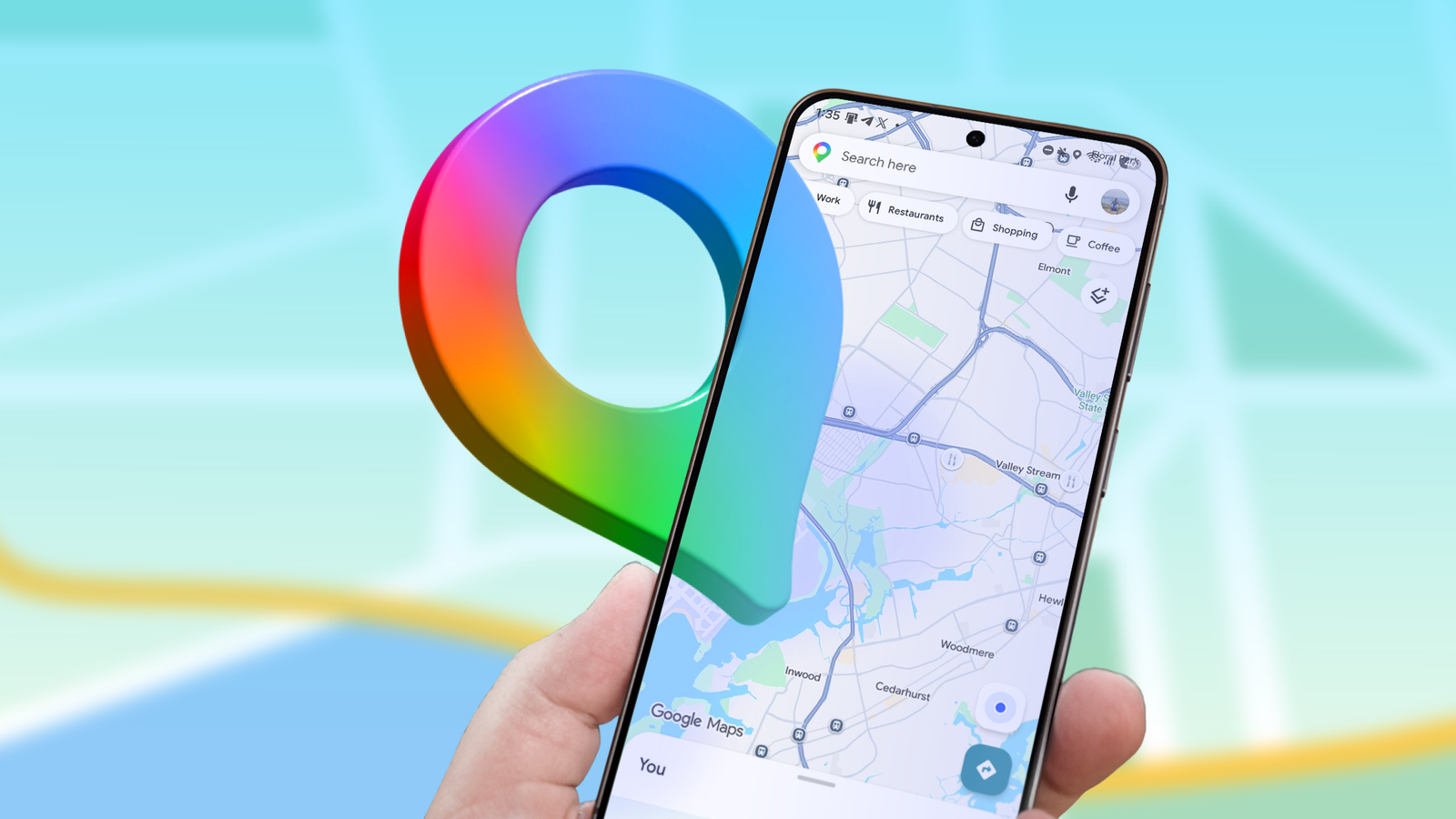
6 invisible Google Maps gestures that let Android users zoom, tilt, and drop pins with ease
Full Article
Original Source
Read the full article at Androidpolice →KhanList aggregates and links to publicly available news content. We do not host full articles from third-party sources. Always verify important information with original sources.