
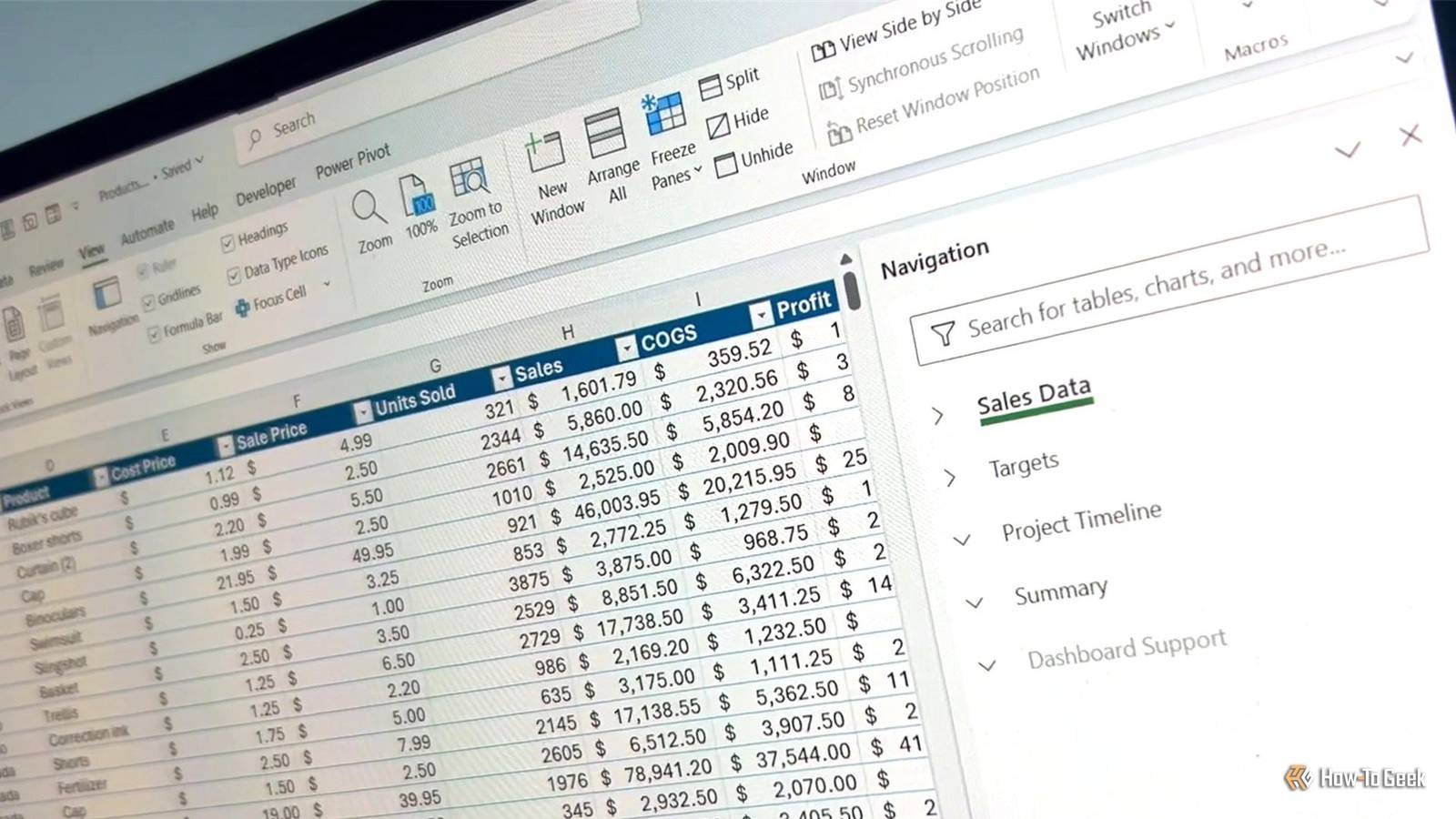
Published Oct 24, 2026, 7:00 AM EDT Tony Phillips is an experienced Microsoft Office user with a dual-honors degree in Linguistics and Hispanic Studies. Prior to starting with How-to Geek in January 2024, he worked as a document producer, data manager, and content creator for over ten years, and loves making spreadsheets and documents in his spare time. Tony is also an academic proofreader, experienced in reading, editing, and formatting over 3 million words of personal statements, resumes, reference letters, research proposals, and dissertations. Before joining How-To Geek, Tony formatted and wrote documents for legal firms, including contracts, Wills, and Powers of Attorney. Tony is obsessed with Microsoft Office! He will find any reason to create a spreadsheet, exploring ways to add complex formulas and discover new ways to make data tick. He also takes pride in producing Word documents that look the part. He has worked as a data manager in a secondary school in the UK and has years of experience in the classroom with Microsoft PowerPoint. He loves to encounter problems in Microsoft Office and use his expertise and legal-level training to find solutions. Outside of the Microsoft world, Tony is a keen dog owner and lover, football fan, astrophotographer, gardener, and golfer. I've watched plenty of people (and I've been one of them) navigate a big Excel workbook by scrolling, squinting at tab names, and hoping for the best. It works, but it's slow. Excel has several lesser-known navigation tools that get you to the right sheet, cell, or result much faster. Jump between sheets without endless clicking Skip the tedious scrolling with a right-click trick When a workbook has more worksheets than fit along the bottom of the window, finding the right one becomes a chore. Ctrl+Page Up and Ctrl+Page Down move you between adjacent sheets, but what if your sheet is several tabs away? Right-click the sheet navigation arrows in the bottom-left corner to pull up a list of your worksheets. Double-click the one you want, and you're there. It beats clicking the arrows and watching the tabs crawl past. For an even quicker way to switch between distant sheets, go to View > New Window to open a second window of the same workbook, then show a different worksheet in each. Alt+Tab flips between them, and any changes you make in one appear in the other. Use the Navigation pane to find your way around Search instead of hunting If you're using Excel for Microsoft 365, the Navigation pane makes getting around a big workbook much easier. Go to View > Navigation, and you'll see every worksheet and the objects inside them, including named ranges, tables, charts, and shapes. Click an entry to jump straight to it. You can also search by keyword, which is handy when you remember what something's called but not where you put it. Find a value across the entire workbook Track down data in seconds with Ctrl+F If you know the value you want but not which worksheet it's hiding on, Find can search the entire workbook. Press Ctrl+F to open the Find and Replace dialog, then select Options to reveal the search settings. Change the Within setting to Workbook, type your search term, and click Find All. Excel lists every match with its worksheet name, cell address, cell name (if it has one—see the next section), value, and formula. Click any result to jump to that cell. It's great for tracking down a customer, project number, or other entry that turns up in several places. You can also leave the dialog open while you work and hop between matches without searching again. Jump straight to any cell Excel has its own version of bookmarks If you already know where you're headed, don't scroll. The Name Box, to the left of the formula bar, lets you jump directly to a cell. Type a reference such as J702 and press Enter. You can also jump to another worksheet by entering Summary!B15, or 'Summary Sheet'!B15 if the sheet name contains spaces. For cells you revisit often, create your own bookmarks with defined names. Select the cell, click the Name Box, type a memorable name such as TotalRevenue, and press Enter. Whenever you want to return, pick that name from the Name Box drop-down. To manage your defined names in one place, go to Formulas > Name Manager. From there, you can create, edit, and delete names, as well as check which cells or ranges they refer to. You can also use the Name Box drop-down menu to jump to tables in your workbook. Giving tables meaningful names makes them easier to identify in the list. Revisit recent destinations Go To lets you retrace your steps The Go To dialog is another place to type a cell reference and jump straight there. Press F5 or Ctrl+G to open it, enter a reference, and press Enter. It also doubles as a breadcrumb trail. In my testing, the recent-reference list tracks where I was before jumping around with Go To or the Name Box, with the latest location at the top. It even listed references to other open workbooks, so you can get back to a cell in a different file. After wandering around, I can reopen the dialog and double-click a recent reference to get straight back to where I started. Hyperlink worksheets together Build shortcuts into your workbooks If your workbook has a summary sheet and several detail sheets, hyperlinks can connect them so you don't have to hunt for the right tab. Select the cell where you want the link, press Ctrl+K, and choose Place in This Document. Then pick a destination sheet and, if you need to, a specific cell. If you've already entered the link text in the cell, Excel can use that as the display text. You can also pick a defined name as the destination, which keeps working if you rename the sheet. For example, you could link each project name in a register to its own sheet, so anyone using the workbook can click a name and jump to the details. Add a return link to the register on each detail sheet, and the trip back is just as easy. You can also use the HYPERLINK function to create clickable links with friendly labels, such as: =HYPERLINK("#'Projects'!A1","Go to projects") The function is especially useful when you want to generate links from cell values or create lots of them with a formula, rather than setting up each hyperlink individually. It's a practical option for shared reports and dashboards, where a few well-placed links make the whole file easier to navigate. A little less scrolling goes a long way The bigger your Excel workbooks get, the easier it is to waste time finding the right sheet, cell, or piece of information. These six navigation tricks help you get where you need to be without endlessly scrolling or clicking through tabs. Of course, large workbooks can bring other frustrations, especially when years of accumulated formatting, old worksheets, and unused content start weighing them down. Clearing out that hidden clutter can make a difference when a workbook takes forever to load.
6 Excel navigation tricks that save you from endless worksheet scrolling
Full Article
Original Source
Read the full article at Howtogeek →KhanList aggregates and links to publicly available news content. We do not host full articles from third-party sources. Always verify important information with original sources.