
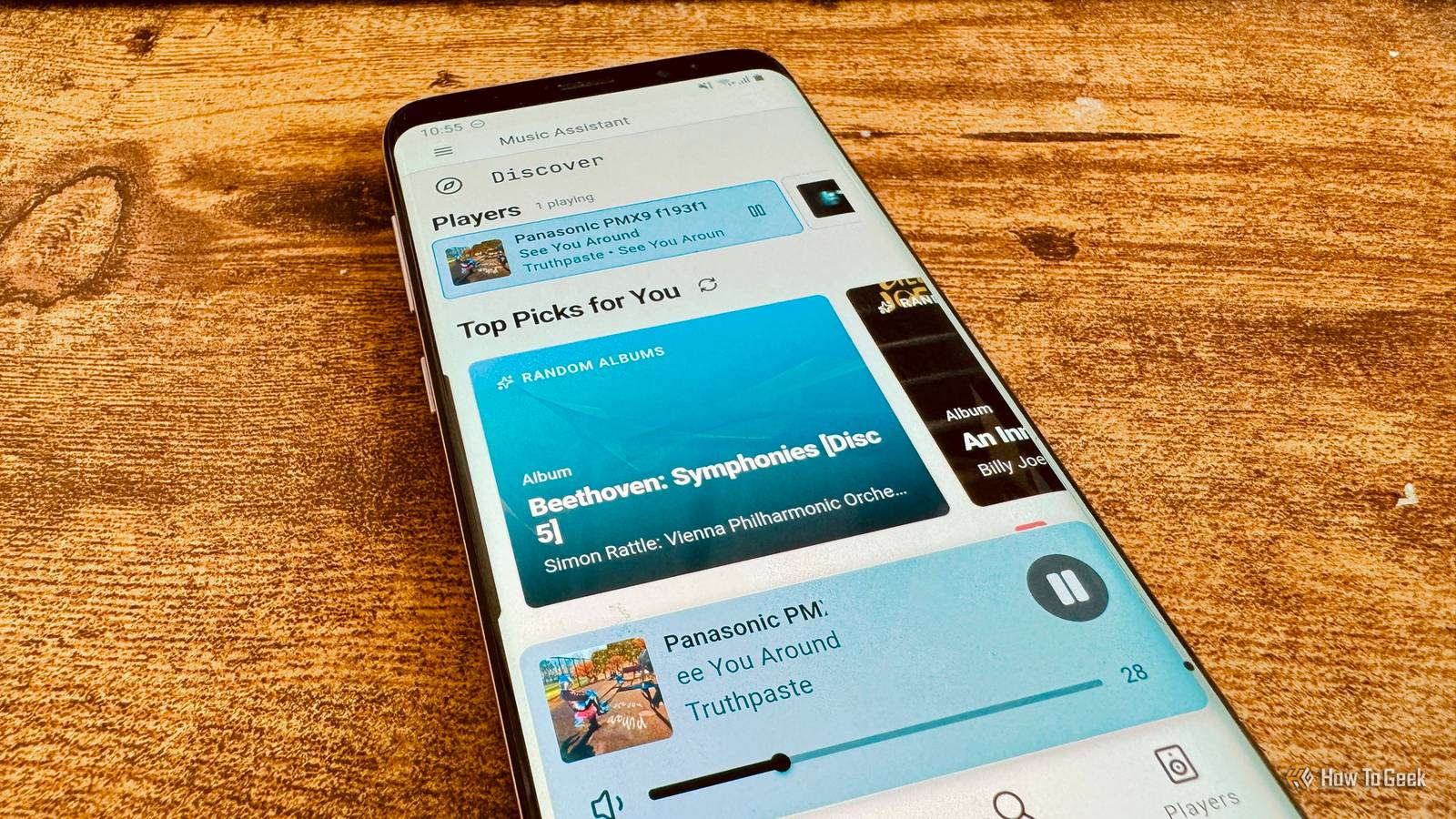
Published Sep 19, 2026, 9:00 AM EDT Adam has a degree in Engineering and has a life-long interest in technology. He has been writing for over a decade for various print and online publications, with a focus on consumer tech. He joined How-To Geek in 2024 while working at Pocket-lint. As well as being a long-term fan of Apple products, he also has a strong interest in smart home tech, running a Home Assistant server at home to automate all his smart home devices. He believes that the ideal smart home should work with minimal interaction from the user, with automations running as if by magic rather than requiring you to push buttons on a control panel. You can find more of his work on Muck Rack. If you have an old Android phone or tablet lying unused in a drawer, you're wasting its potential. Old devices can work really well as dashboards. There are plenty of ways to use your Android device to display information in your home. Replace Android's launcher with Home Assistant Turn your phone or tablet into a dedicated smart home dashboard If you use the free and open-source Home Assistant smart home software, then you'll already know that you can use it to create your own custom dashboards. These dashboards can contain smart home controls, feeds from your security cameras, graphics showing things such as your energy usage, controls for media playback, and much more. If you've created a beautiful dashboard, you want somewhere you can access it easily. An Android phone or tablet makes a great choice, since you can run the Home Assistant Companion app directly on the device. You can then display your dashboard on the phone or tablet and interact with it using the touchscreen. It's even possible to replace the default launcher with Home Assistant, so that the app opens when you press the Home button and automatically launches when you restart the phone. Open the Home Assistant Companion app, select Settings, and tap Companion app. Scroll down to the Device home screen section and toggle Allow as home app on. Tap Change home app, and select Home Assistant as the default home app. Use your phone as a security camera monitor Keep an eye on your home with a glance Credit: Adam Davidson / How-To Geek Security monitors aren't much use if you never look at what they're showing. Even if your cameras are set up to send alerts when motion is detected, you still need to look at the camera feed to see exactly what is going on outside your home. You can view the stream from security cameras on your phone or tablet, but you don't want your daily-driver phone to be constantly displaying the view from your video doorbell. That's where an old phone can be a better choice. You can leave the video feed running on the device so that you can see exactly what is happening with a glance, without having to worry about finding and opening the right app. An Android tablet is even better, as there is room to display multiple feeds at once. There are plenty of free apps that you can use to get your video feed to display on your phone, such as the tinyCam Monitor app. Create a family information dashboard Apps such as DAKboard can give you a family planner for free Credit: Adam Davidson / How-To Geek If you've ever lusted after one of those incredibly expensive dedicated family-calendar displays that people mount in their kitchens, then the good news is that you don't need to spend a fortune to set up a family information dashboard. You can set up your own with a free app and an old Android phone or tablet. The DAKboard Android app allows you to turn your old phone or tablet into a DAKboard display; you can even run it on an Android TV. Using the web app, you can configure your dashboard to display things such as calendar events, weather, family photos, reminders, chores, and more. You can use the core features of DAKboard for free. If you want more customization, there are subscriptions starting from $6 per month. Make a dedicated music controller Use your phone to play music on the speakers around your home Credit: Adam Davidson / How-To Geek If you've ever tried to play music through a smart speaker using voice commands, you'll know how frustrating it can be. The voice assistant may often mishear what you say and play something completely different. Even if the voice assistant hears you correctly, it may play a completely different song with the same name. With an old phone or tablet, you can set up a dedicated music controller that ensures you never need to shout obscenities at Alexa ever again. You can use the touch controls of your dashboard to choose the music you want to play, pause it, skip songs, and more. Your music dashboard can even display beautiful album artwork. There are different ways to set up a music controller dashboard, depending on the devices you want to control, but one of the most powerful options is Music Assistant. You can use Music Assistant to control a wide range of different devices, with support for AirPlay, Sonos, Google Cast, DLNA, and more. You can access the Music Assistant UI through a browser on your Android device, giving you mobile-optimized, configurable media playback controls. Your phone already has everything you need Credit: Adam Davidson / How-To Geek All of the methods above make use of dedicated apps or software, but you can turn your Android phone or tablet into a useful dashboard using its native features. Your device's home screen is already a customizable dashboard platform, thanks to that often-overlooked tool: the widget. You can add widgets to your home screen to display all sorts of things from weather and calendar events to smart home data and reminders. You can then see the information you want just by glancing at your phone or tablet. Your old Android device doesn't need to be fast Even if your Android phone or tablet is getting old, you may still be able to put it to work as a usable dashboard. Its job is essentially to display information and respond to your taps, so even old devices are up to the task. It's a great way to put old tech to new use.
5 ways to turn your old Android phone or tablet into a 24/7 home dashboard
Full Article
Original Source
Read the full article at Howtogeek →KhanList aggregates and links to publicly available news content. We do not host full articles from third-party sources. Always verify important information with original sources.