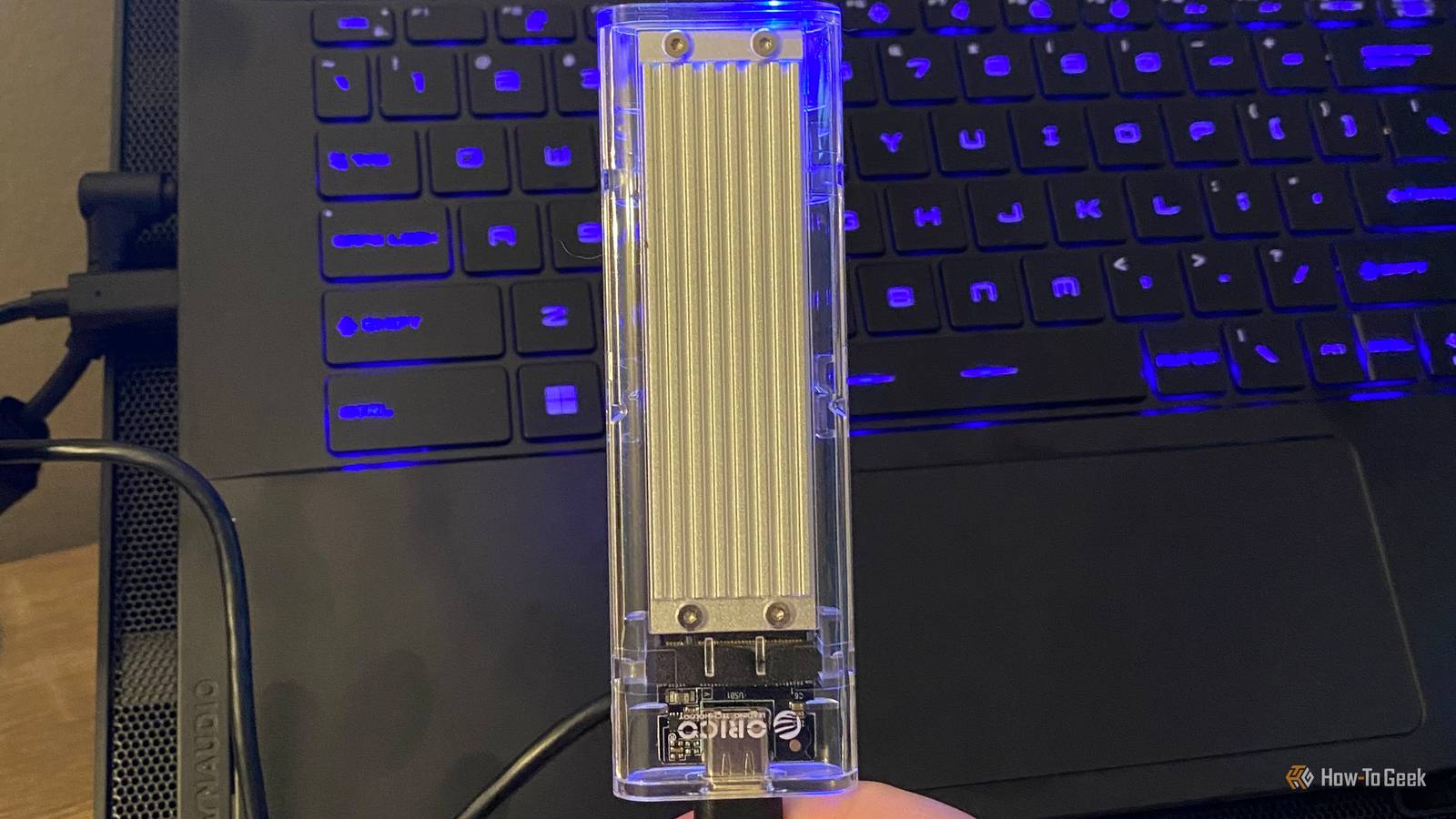
Published Aug 6, 2026, 2:45 PM EDT Sydney Butler is a technology writer with over 20 years of experience as a freelance PC technician and system builder and over a decade as a professional writer. He's worked for more than a decade in user education. On How-To Geek, he writes commerce content, guides, opinions, and specializes in editing hardware and cutting edge technology articles. Sydney started working as a freelance computer technician around the age of 13, before which he was in charge of running the computer center for his school. (He also ran LAN gaming tournaments when the teachers weren't looking!) His interests include VR, PC, Mac, gaming, 3D printing, consumer electronics, the web, and privacy. He holds a Master of Arts degree in Research Psychology with a minor in media and technology studies. His masters dissertation examined the potential for social media to spread misinformation. Outside of How-To Geek, he hosts the Online Tech Tips YouTube Channel, and writes for Online Tech Tips, Switching to Mac, and Helpdesk Geek. Sydney also writes for Expert Reviews UK. He also has bylines at 9to5Mac, 9to5Google, 9to5Toys, Tom's Hardware, MakeTechEasier, and Laptop Mag. So you have an internal SSD in your laptop, and you're running out of space. For some reason, upgrading the SSD inside the laptop isn't an option. Maybe it's not removable (I'm looking at you, Apple) or you just don't want to replace the SSD because it's too much hassle, or you don't need premium SSD storage in particular. Well, you'll be happy to knos Add a second internal SSD (if possible) Does he know about "second SSD"? Credit: Sydney Louw Butler/How-To Geek If, like me, you own a laptop that's not one of those thin-and-lite models, then there's a decent chance it has more than one M.2 slot. If that slot is empty, you can upgrade your laptop's storage without touching the SSD you already have. So, technically, you're not upgrading the SSD you have, you're adding a drive. This is the optimal solution in my book, since it's elegant and also gives you a neat solution to segregate data. In some cases, you may also have a 2.5-inch SATA drive bay, although that's pretty rare these days. In that case, you can also install a SATA SSD, which is still fast enough for most things and has the benefit of being much cheaper on a per-gigabyte basis than NVMe SSDs. USB SSDs (yes, even SATA) The options are rather universal Speaking of SATA SSDs, if you have a laptop with a modern USB 3 port, you're not leaving much if any performance on the table if you use one in a USB enclosure. Even if you have the slowest version of USB 3, it still aligns roughly with the performance of the average SATA III SSD. Anything faster than that, and you're not going to notice any difference, compared to internal installation. I have two 500GB USB SATA SSDs connected to my Windows laptop as Steam disks, and it's perfect for older games that can't take advantage of NVMe speeds. If you do want to have NVMe performance using an external SSD, you'll need a fast USB 3.2 Gen 2x2 port, which tops out at a theoretical 20Gbps, which gives you a (again, theoretical) 2.5GB/s and that's in line with the performance of a PCIe Gen 3 NVMe. However, check the enclosure to see the maximum speed it can support. USB4 and Thunderbolt enclosures can support 40Gbps and 80Gbps depending on the version, and so you can pick NVMe drives that match those speeds. However, unless you absolutely must have those transfer rates, a Gen 3 drive in a regular old USB 3 port will be more than good enough for most people, and those SSDs are much cheaper than the faster models. SanDisk Extreme PRO Portable SSD with USB4 Storage capacity 2 TB, 4 TB Compatible Devices Windows, Mac, Xbox Series S|X, PlayStation 5, a range of other USB-C devices A USB4 external SSD with a rugged casing made of silicone and aluminum. It comes in 2 TB and 4 TB capacities, and has a 5-year warranty. Brand SanDisk Transfer rate 3800 mb/s read, 3700 mb/s write DRAM 32 GB Warranty 5 years Dimensions 5.51 x 2.7 x .47 inches Weight .38 pounds A permanent low-profile USB flash drive Sacrifice a port, gain heaps of storage Credit: SanDisk There are now flash drives that are designed to be plugged into your laptop's USB port and left there. In particular, SanDisk has the "Extreme Fit" series of flash drives. These are more like mini SSDs, with around 400MB/s of performance and a shape designed to let you put it in a bag and open and close your laptop without ever removing the drive. As of this writing, the capacity goes up to 1TB. The only downside is that the larger sizes are rather expensive, but it's a nice middle ground between having an internal drive and having a USB drive handing off your laptop. It's certainly better than the solution of sticking an SSD to the back of your screen! Use an SD card (if you have a slot) Be honest, your SD slot is probably empty Credit: Patrick Campanale / How-To Geek If you have a laptop with an SD card slot, then you have an elegant solution for extra storage that you're not using. Even the slowest modern SD cards have speeds comparable to mechanical hard drives. So you can store media files and older games on an SD card and leave it plugged into your laptop. If you need to read a different card, it's simple enough to temporarily swap them out. I have a 512GB SD card permanently plugged into my laptop that I use for retro games predating the PlayStation 4 era. Think PlayStation 3 and Xbox 360 PC ports, DOS games, and, of course, emulation content. The biggest issue here is that SD cards aren't reliable enough to trust important data. But every GB of SD card storage I can use is a gig of SSD storage I can use for something more important. Mechanical hard drives are still great They're going to be spinning for decades to come Credit: Bertel King / How-To Geek The death of spinning mechanical hard drives has been announced very prematurely. Not only are these storage devices still very relevant, they've been improving by leaps and bounds. Packing more gigabytes, and increasing performance to almost SATA SSD levels in some cases. While I don't recommend running software from a mechanical drive, it's the optimal place to save your archival documents, project files, music, video, game backups, and anything else that doesn't need speed, but needs to be kept within easy reach. It's the cheapest and easiest way to add a few gigs of storage to your laptop, and there are plenty of portable drives that don't need additional power and are small enough to travel with you. You can also try cutting down on wasted storage If a new SSD, flash drive, SD card, or hard drive isn't a viable option, you could try pruning some files and applications that are wasting space on your laptop. Or, give Windows' built-in Disk Cleanup tool a whirl. You may find that dozens of gigabytes of cache files are eating up your drive.
5 ways to add storage to a laptop without upgrading its SSD
Full Article
Original Source
Read the full article at Howtogeek →KhanList aggregates and links to publicly available news content. We do not host full articles from third-party sources. Always verify important information with original sources.