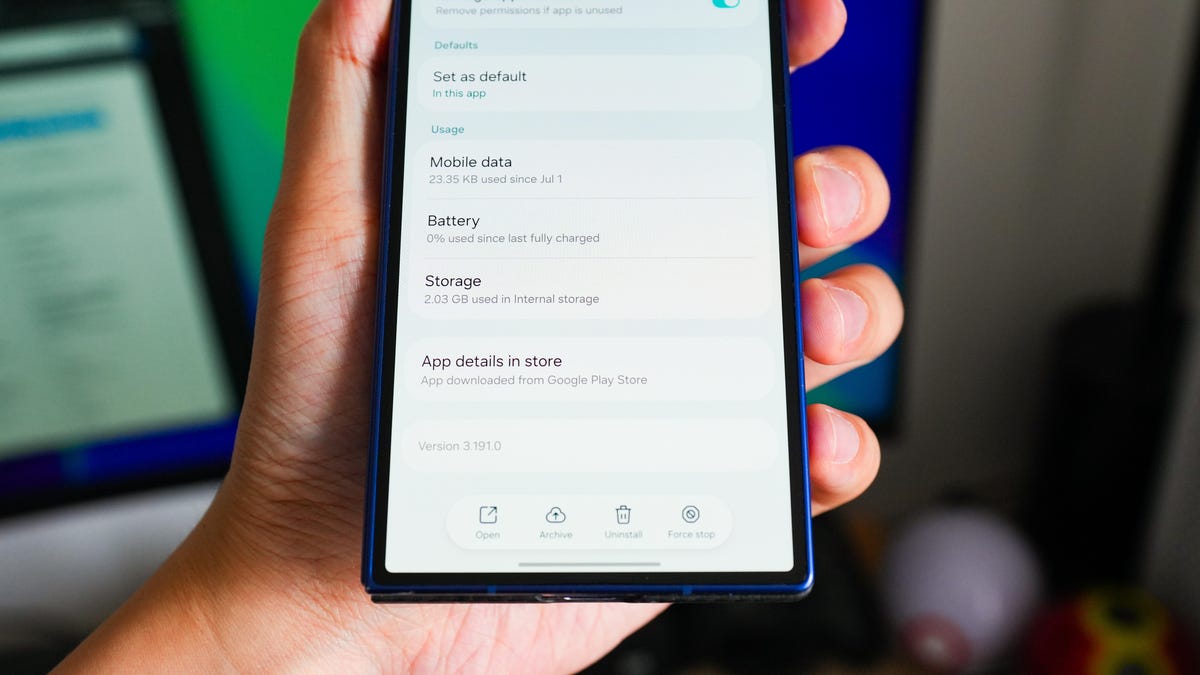
Kerry Wan/ZDNETFollow ZDNET: Add us as a preferred source on Google.ZDNET's key takeawaysIt's common for users to clear the cache when their phones slow down.There are other ways to refresh and reset your device.My go-tos include sideloading older app versions and speeding up system animations.Smartphone launch season is back, and I'm finding myself answering the question of "Should I upgrade?" from family and friends all over again. Typically, I would advise them to clear the cache of their popular apps and services first. The system-wide wipe helps remove excess (and temporary) files, making devices run a little smoother.Also: Slow Android phone? My 4-step refresh routine can speed it up fastBut sometimes, simply clearing your Android or iPhone cache isn't enough, as my mom's now seven-year-old Samsung Galaxy S10 is proof of. If you ever find yourself in a similar position, consider my other checklist of small tweaks that can make a big difference. For this list, I'll be focusing on Android phones, with advice applicable to models from Samsung, Google, and Motorola.1. Clearing app data (not cache) Kerry Wan/ZDNETClearing your app cache is one thing, but getting them to run like new may also require clearing app data. In a sense, this is like uninstalling and reinstalling an app without going through the friction of the Play Store; it'll reset the service to its initial state, likely requiring you to log in again, and hopefully remove any lingering bugs and glitches.You can clear any app's data by long-pressing the app on the home screen (or through the app settings), tapping "Storage," and then "Clear data."2. Hibernate (or uninstall) unused appsIt never hurts to pause or remove apps that you no longer use. Hibernating them can potentially speed up your phone -- and free up local storage. One way to do this is to go through your app drawer and remove services you use infrequently, if at all.Also: Android backups count toward your 15GB Google storage limit now - how to check your settingsYou can either hibernate them by opening the app settings and tapping "Force Stop," or uninstall them altogether. Force-stopping the app removes any background processing and activity until you reopen it. It helps that most Android phones automatically detect infrequently used apps and hibernate them for you. Just make sure to enable the feature in your device's storage or power management settings. 3. Animation scalingOne of the first things I do when setting up a new Android phone is reduce the animation scale in the phone's developer options. You can access the hidden menu by tapping your phone's build number (found on the system software page) seven times, or until the "Developer Options enabled" message appears. Screenshot by Kerry Wan/ZDNETNext, go into the developer options and scroll down until you find a section with Window animation scale, Transition animation scale, and Animator duration scale. Tap on each and change the value from 1x to 0.5x. This will cut the time it takes for all the animations of your phone, from the screen unlocking to apps opening and closing, in half -- and you'll likely notice the visual difference immediately.4. Sideloading APKsIt happens quite often when an app developer rolls out an update, only for the app to crash or bog down. The instability of new versions is common, as is the eventual patch that makes things run like normal again. If you'd rather not wait for the fix to come -- perhaps it's an app you frequently use, and the sudden battery drain is distracting -- then I'd suggest sideloading.Also: I sideloaded 3 apps into my Android Auto, and they've made my drives so much easierWhile most Android enthusiasts will sideload APKs of third-party apps and services -- likely niche ones that aren't readily available on the Play Store -- to experiment, you can also download older app versions that are more stable. I recommend APKMirror and APKPure for the most reliable selection of APK files. Just make sure to uninstall the existing app on your phone before sideloading the replacement.5. Consider a different launcher Kerry Wan/ZDNETAs with animation scaling, changing your phone's default launcher will also affect perceived speed. My colleague, Jack Wallen, and I have tested several Android launchers on the market, and one that stands out the most for its fluidity and customizations is Niagara Launcher. It's free to download and converts your Pixel or OneUI into a more minimal, zero-grid layout.Also: AIO Launcher is one of the coolest minimal Android launchers I've used - and it's freeMost third-party launchers offer deeper gesture support than your native one, too. In Niagara, you can swipe right on home screen apps to see quick actions, whether it's frequent contacts in Messages or opening a new tab in Chrome.BonusWhen in doubt, restarting your phone once every week can give it a much-needed reset. On Samsung models, you can even enable Auto Restart from within the Device Care menu (tap on "Auto Optimization" and then set a time and cadence for "Auto Restart.") If your phone doesn't have a built-in restart timer, consider setting a weekly reminder to restart it at night or in the morning. Keep in mind that after restarting your phone, notifications won't appear until you unlock it again.Featured
5 ways I speed up my Android phone beyond clearing system cache - all for free
Full Article
Original Source
Read the full article at Zdnet →KhanList aggregates and links to publicly available news content. We do not host full articles from third-party sources. Always verify important information with original sources.