
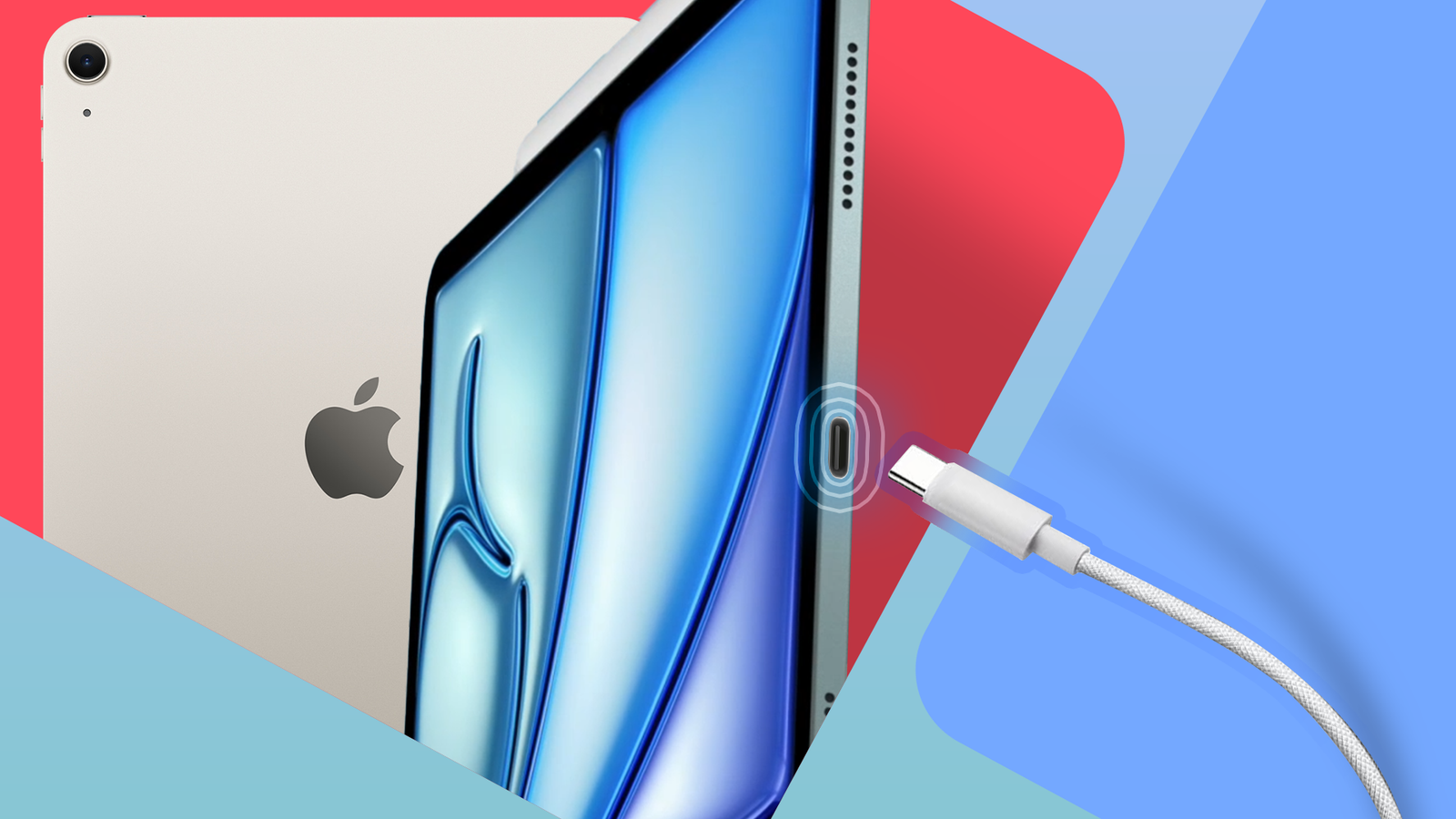
Published Sep 18, 2026, 12:00 PM EDT Sydney Butler is a technology writer with over 20 years of experience as a freelance PC technician and system builder and over a decade as a professional writer. He's worked for more than a decade in user education. On How-To Geek, he writes commerce content, guides, opinions, and specializes in editing hardware and cutting edge technology articles. Sydney started working as a freelance computer technician around the age of 13, before which he was in charge of running the computer center for his school. (He also ran LAN gaming tournaments when the teachers weren't looking!) His interests include VR, PC, Mac, gaming, 3D printing, consumer electronics, the web, and privacy. He holds a Master of Arts degree in Research Psychology with a minor in media and technology studies. His masters dissertation examined the potential for social media to spread misinformation. Outside of How-To Geek, he hosts the Online Tech Tips YouTube Channel, and writes for Online Tech Tips, Switching to Mac, and Helpdesk Geek. Sydney also writes for Expert Reviews UK. He also has bylines at 9to5Mac, 9to5Google, 9to5Toys, Tom's Hardware, MakeTechEasier, and Laptop Mag. Apple discontinued the last iPad with a Lightning port in 2024, so if you've bought a new iPad after that point, it will come with a lovely USB-C port, which is the only way to charge the tablet, given it lacks wireless charging features. However, is that all you can do with that port? Not by a long shot, so let me show you some of the neat ways you can expand what your iPad can do. While all currently-sold iPads offer USB-C, that doesn't mean you're getting USB 3.1 or Thunderbolt with all models. Some iPads with USB-C only offer USB 2.0 transfer speeds. So double check what speeds your model supports, and keep in mind that some of the functions I describe below won't work over USB 2.0 or at least won't work well. Connect external storage Great for transferring photos or videos With the advent of the new Files app and a standard USB connection option, it's become possible to connect an external storage device like a USB flash drive or an SSD to your iPad. You can even connect a mechanical drive, but you may need to use a powered USB hub in case the hard drive needs more power than the iPad can provide. Sadly, connecting a DVD drive doesn't work—I tried! While AirDrop and cloud storage over high-speed fiber are probably the best ways to perform most day-to-day file transfers, nothing beats the sheer speed of USB 3.1 or Thunderbolt, depending on what your specific iPad and storage combo supports. It's a great way to quickly copy large media files, or to simply view content on an external drive without copying it to your iPad first. Even better, many apps, such as LumaFusion, support working with files on external drives directly. This means that you can edit content on an external drive regardless of your iPad's internal storage. Record music with an audio interface And connect all your cool MIDI gear Your iPad already comes with an excellent music production app in the form of GarageBand, and there are many more in the App Store, but did you know you can connect all sorts of audio gear to your tablet too? I use a Focusrite audio interface with my iPad to connect microphones and instruments to GarageBand and record directly to my device. It's completely changed where I can simply set up and put down some song ideas or doodles. Of course, this also means you can easily connect USB mixing desks, or use an audio interface to connect the analog mics of your choice. A straight USB microphone is also likely to work, but in all cases the apps you're using need to support USB audio devices. So remember to check! Focusrite Scarlett 2i2 7/10 Manufacturer Focusrite Type Audio Interface The fourth-generation Focusrite Scarlett 2i2 adds high-quality converters and easy to use features like auto-gain to an already-useful interface. If you don't need the extra features some other interfaces provide, the sonics make this a great pick. Connect a hub Laptop-class I/O Credit: Sydney Louw Butler / How-To Geek Since the USB-C port on your iPad conforms to USB standards, it will work perfectly well with a USB hub device. This makes it easy to turn your iPad into something closer to a standard computer, with access to SD card readers, full-size USB ports, USB peripherals like mice and keyboards, and more. Yes, that's right, you can connect a USB mouse and keyboard to your iPad, with a pointer and everything! I use one of those iPad-specific hubs that clip on to the device, but pretty much anything with a USB-C connector will do. Connect to a monitor or TV One of the most overlooked iPad tricks Credit: Sydney Louw Butler / How-To Geek If you have an Apple Silicon iPad with a USB-C port, then you can connect it to an external monitor using a USB-C adapter to the display connection of your choice. If you have an iPad that doesn't use an Apple Silicon chip, then you can still connect a monitor using USB-C, but it won't act like an extended second monitor. Instead, your iPad's content will simply be mirrored. It's a pretty versatile solution, and it's how I watch classic Star Trek on streaming services using my CRT TV. Most people will, however, want to use the extended display feature for something boring, like creating a dual-screen setup using a computer monitor, or a portable USB-C monitor like the Plugable setup pictured above. Combined with a powered dock, you can turn your iPad into pretty much a regular computer, with only iPadOS itself limiting what you can do. Plugable 15.6-inch USB-C Portable Display Plugable's TAA-compliant portable monitor features USB-C connectivity with 100-watt PD passthrough and a 15.6-inch display. It's an excellent, super-compatible option for laptop, desktop, and tablet users alike. Serve as a portable monitor It just takes a bit of elbow grease As of iPadOS 17, iPads now support the UVC (USB Video Class) standard. The reason this feature was added was so that you could connect to an external webcam, which obviously has many uses. However, a side effect of this added support is that other UVC devices will also work with iPads that support USB webcams. For example, I bought this generic no-name USB capture device to test the feature out, and was able to use my iPad as an external monitor for my Nintendo Switch. I use the Orion app, which is the most user-friendly and feature-complete solution I've found so far. Of course, if you own a Mac or MacBook, you can already use your iPad as an extended display thanks to the SideCar feature, but did you know that if you connect your iPad to your Mac with a USB-C cable, then it will send data and power over a cable instead of Wi-Fi. This makes it easy to use your iPad as a second screen for your Mac anywhere, even without Wi-Fi, and it has the benefit of keeping your iPad charged. Credit: Sydney Louw Butler / How-To Geek I do this all the time as my mobile productivity solution. However, with an app like Orion and the right HDMI dongle, you could use your iPad as a portable monitor for anything besides a Mac. The future is bright Now that USB-C will be standard on iPads going ahead, it's likely the number of neat things you can do with that port will just grow over time. Especially considering that iPadOS is on a trajectory to make it more like macOS every year. Maybe one day an iPad will be the only computer you need. That day isn't today, but it's light years ahead of what these tablets could do 15 years ago!
5 useful things you didn't know you could do with your iPad's USB port
Full Article
Original Source
Read the full article at Howtogeek →KhanList aggregates and links to publicly available news content. We do not host full articles from third-party sources. Always verify important information with original sources.