
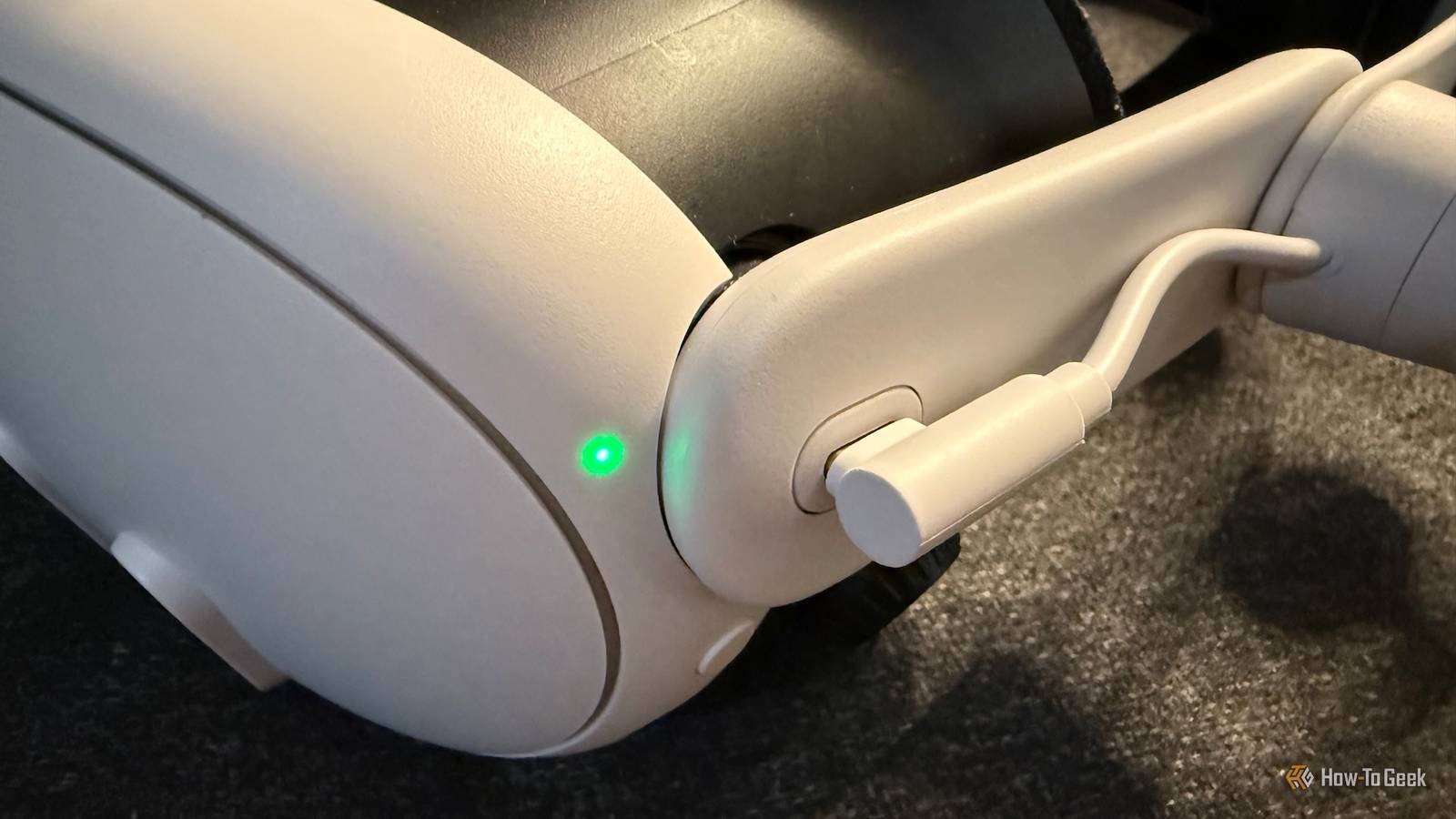
Published Aug 27, 2026, 10:36 AM EDT Sydney Butler is a technology writer with over 20 years of experience as a freelance PC technician and system builder and over a decade as a professional writer. He's worked for more than a decade in user education. On How-To Geek, he writes commerce content, guides, opinions, and specializes in editing hardware and cutting edge technology articles. Sydney started working as a freelance computer technician around the age of 13, before which he was in charge of running the computer center for his school. (He also ran LAN gaming tournaments when the teachers weren't looking!) His interests include VR, PC, Mac, gaming, 3D printing, consumer electronics, the web, and privacy. He holds a Master of Arts degree in Research Psychology with a minor in media and technology studies. His masters dissertation examined the potential for social media to spread misinformation. Outside of How-To Geek, he hosts the Online Tech Tips YouTube Channel, and writes for Online Tech Tips, Switching to Mac, and Helpdesk Geek. Sydney also writes for Expert Reviews UK. He also has bylines at 9to5Mac, 9to5Google, 9to5Toys, Tom's Hardware, MakeTechEasier, and Laptop Mag. If you have a Meta Quest 2 or later, then you know that it has a USB-C port. After all, that's how you charge it! However, you might not know that this little port has a few more tricks up its sleeve. While the exact capabilities of the port change with time and firmware updates, as of this writing four of these functions still work great, and one seems to be on the fence. Play PC VR games Get the real VR experience This was the feature that killed the original Oculus Rift S and ended Meta's PC-only line. Once Meta figured out that you could stream PC VR data over a USB-C cable, there was no need for the original headset family, and so the Quest line became the only VR line for the company. Now, even the wired connection is falling out of favor, with the advent of Air Link, which does the whole thing over Wi-Fi. That said, using a long USB-C cable still provides the best image quality, stability, and it has the added benefit of charging your headset, or at least preventing the battery from draining. Personally, I prefer to use the Steam Link Quest app, but you can't use that for your Oculus PC games, so having both options is good. If I'm playing a racing sim, or a flight sim, or any seated VR experience on PC, I'm going to opt for the cable option every time. Use USB headphones Pump up the jam Credit: Tim Brookes / How-To Geek The Meta Quest headsets have built-in speakers, so you don't need headphones, but they do make things much more immersive. There's already a headphone jack you can use, but you might not have known that the Meta Quest supports USB audio. Which means you can use a set of USB headphones instead of a normal analog connection. I like using the little AKG-tuned USB-C buds that came with one of my old Samsung Galaxy phones, but I've also used my big over-ear Logitech gaming headphones as well, and it all worked seamlessly. Apple EarPods Headphones with USB-C Connector Apple's default wired headphones use the Lightning cable, but they're no longer included with the iPhone. Let everybody see what you're doing In the beginning, casting what you saw in VR for other people to watch live either had to happen using a Chromecast or the Meta Quest mobile app. Now, however, if you have a Meta Quest 3, you can use a USB to DisplayPort cable to output to a monitor. If you want to output to HDMI, you'll need an active DP to HDMI adapter too. You can check the list of supported cable combinations on Meta's site. USB file access But only for some files Credit: Jerome Thomas / How-To Geek It used to be that you could plug your Meta Quest into a computer, and pretty much copy data to and from the device as you please, the same as you can with almost any Android device. However, at some point, Meta locked down the feature to focus entirely on media transfers. You can send images and video between your Meta Quest and Windows PC (or Mac if you install Android File Transfer), though Meta suggests using the USB-C cable that was included with your headset. Certain apps like Skybox VR let you watch content directly from a USB drive connected to your Quest. A pretty good thing if you have limited internal storage, and want to watch high-quality 3D movies! Plug in a USB Ethernet adapter Or maybe not? It's anybody's guess at this point Credit: Nick Lewis / How-To Geek I only found out about this possibility when doing research for this article, and it seems I missed the boat by a hair on it. Basically, someone figured out that you could connect a USB-C Ethernet adapter to a Meta Quest and then use the network over Ethernet instead of Wi-Fi. Just like you can with, for example, an iPad or an Android phone. The thing is, it seems that Meta has flip-flopped on allowing this, with some firmware revisions working with the Ethernet trick and others not. Certainly, I could not get it to work on my Quest 2 using Firmware v78, but apparently some people have had luck enabling it using an ADB command after putting the Quest into developer mode. Even though this doesn't seem to work reliably, I think it's worth mentioning so that everyone is aware of the possibility. It's a great way to make apps like Steam Link and Remote Desktop work at maximum quality and reliability compared to Wi-Fi, and of course Ethernet cables can be way longer than USB cables, so I really wish this would be something Meta officially allows at some point. Expect that things will change Meta has a track record of adding, removing, or changing what you can do with the USB port on the Quest, so I hope on average we'll get cool new features rather than losing the ones we already have. Then again, the way things are going, maybe future headsets won't have any ports at all, but for now we can still enjoy the (optional) benefit of wires.
5 things you can do with your Meta Quest USB port
Full Article
Original Source
Read the full article at Howtogeek →KhanList aggregates and links to publicly available news content. We do not host full articles from third-party sources. Always verify important information with original sources.