
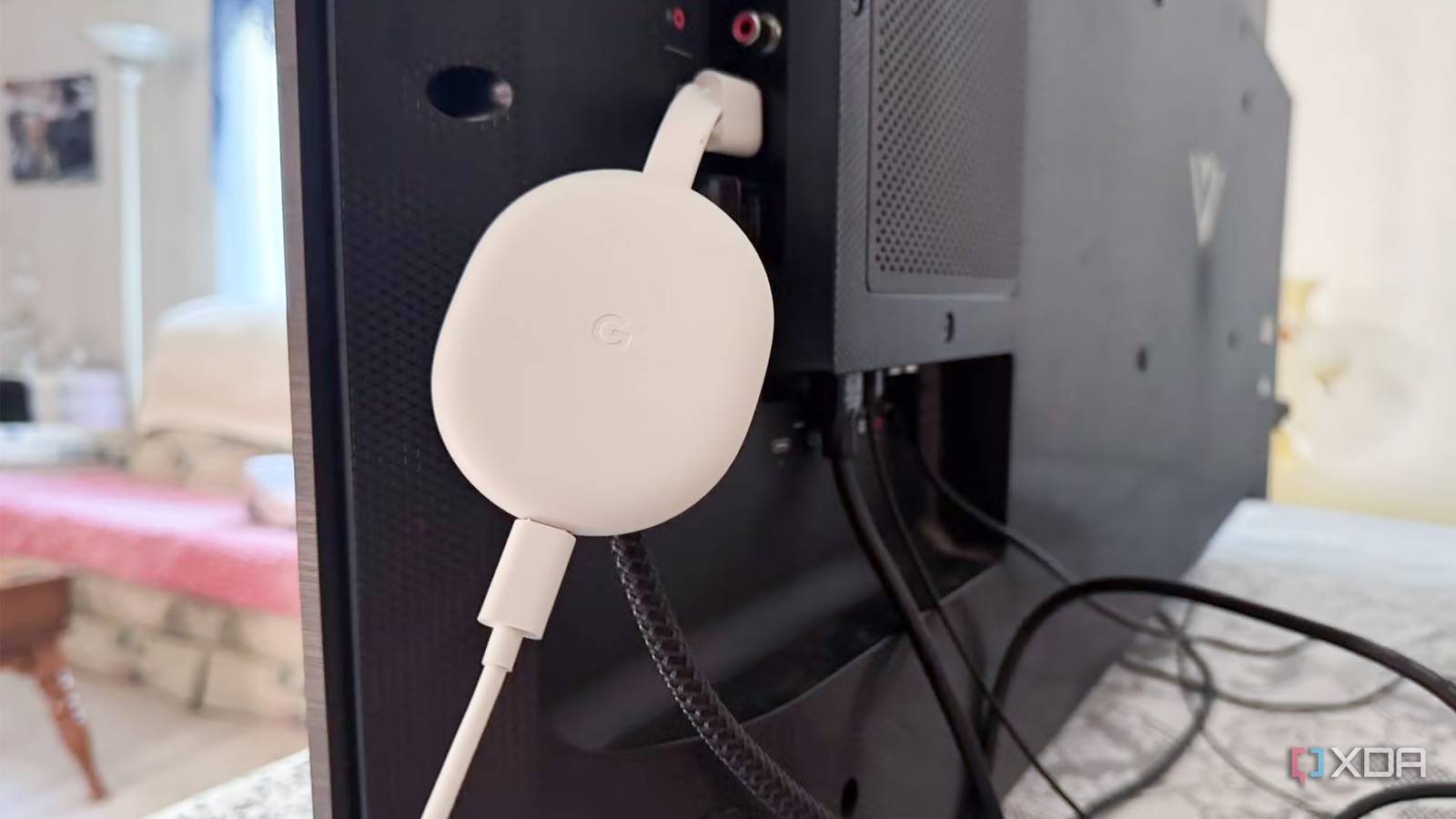
Published Aug 30, 2026, 3:00 PM EDT Based in rural Minnesota, Brian Burgess worked in IT for 10 years before finding his passion for writing about consumer technology. Brian earned his degree in computer and network technology in 2000. He held various IT positions, including help desk support, router installations for IBM, database administration, and other associate network administration roles. He's been a personal technology journalist for 18 years and has written thousands of articles about Microsoft products and services, Android, iOS, streaming, and more. He has written for notable tech sites including XDA, InformationWeek, How-To Geek, Byte, groovyPost, and others. When he is away from the keyboard, you will hear him playing guitar, working outdoors, and watching Star Trek. Many of us end up with old streaming sticks, dongles, and boxes that we replaced with the latest and greatest device. For me, one of those is the Google Chromecast. But before you stick it in a dusty drawer and forget about it, it's time to reimagine what that old device can do and turn it into something useful. Since Android TV is flexible, it's one of the easier devices to make into a dedicated device you can leave plugged into your TV. However, there's still life left in your old Chromecast, and here are some cool things you can do with it. Make your TV a digital photo frame Making must-see memories One cool thing I like to do with any old (or even new) streaming device is to turn my TV into a digital photo frame for personal photos. This works with almost any Chromecast. However, Google dropped the legacy authentication infrastructure required to access private photo albums on the first-gen dongle. It will likely only allow you to display generic art. Still, I was able to turn my first-gen Chromecast with Google TV into a frame using the Screensaver function. Create an album to share in Google Photos and point the Chromecast to it. Select the settings option to tweak how the photos display on the screen. I can also display photos on the big screen on the fly by opening Google Photos on your phone and using the Cast option to show them. Turn it into a retro gaming machine Finally, I got the high score If you remember pumping quarters into video game machines to get the high score or beat the final boss, retro-gaming space allows you to do just that. I turned my old Chromecast into a retro gaming machine so I could play the classics on the big screen. It's also fun to let my younger family members enjoy the glory days when we would kick pinball machines out of frustration. So, what would be better than playing the classics on your big screen? You can do just that by checking out our article about turning your Chromecast with Google TV into a retro gaming console. It takes some work to build your retro gaming Chromecast rig, but in the end, I found it worth every step. I can emulate old-school consoles like the N64, SNES, PSP, Atari, and many more. Keep in mind it takes a lot of space on your Chromecast, so you will likely end up uninstalling quite a few apps. RetroArch OS Windows, macOS, Linux, Android, iOS, Others Make your phone's display huge A 55-inch phone screen Sometimes getting the largest phone display isn't enough. If you want to take your phone's screen size to the next level, cast it to the Chromecast to display on the TV. Since Android phones have a built-in Cast feature, I can cast my phone's display to my Chromecast connected to my TV when I want more screen real estate. It also works well when I need to show others what I'm doing. For instance, I might be looking at a web page in Chrome, and I'll cast it to the big screen so it's easier for them to see. I open the Quick Settings menu and press the "Cast" button. I can open individual apps or mirror the entire screen, so everything on my phone is visible. I may put my phone in landscape mode to improve visibility for a true large-display experience I control from the palm of my hand. Make it a big screen dashboard Easily see data at a glance I used to have an Amazon gadget that turned my Fire tablet into an Echo Show, but I mainly used it as a dashboard-like device to keep an eye on things. It was helpful, but the display was too small. I don't need something like that when I can plug my Chromecast into a spare HDMI port on my TV and see the weather, news, calendars, bus schedules, stock tickers, and more from the big screen. Install the Dakboard app on your Chromecast. Create a free account and add your location for weather and news, link your calendar, to-do lists, RSS feeds, and more. The free account is limited, but it may be enough for the general information you need. If you like it, the service offers a paid monthly plan with more attractive dashboard displays and additional options. A soundbar music player Hear tunes while the TV is off Soundbars are great for enjoying crisp audio while watching movies or shows. However, it doesn't need to remain dormant when the movie action stops and the TV is off. If your soundbar has an HDMI port, plug the Chromecast into it to listen to music from your favorite artists. It is a good way to ensure the soundbar is used for more than watching TV. When the TV is turned off, open Spotify, Tidal, or your favorite music streaming service and use the Cast option to play your tunes through the soundbar. You can also listen to your favorite podcasts this way. Many apps, like Pocket Casts, include a Google Cast feature to stream the show through the speaker. Depending on your setup, you might need to hide some wires, though. Getting more from your old Google Chromecast Your old Google Chromecast still has a lot of life left, and you can repurpose it in many ways. I have used many of my old devices to do a single task, and they do it well. If I wear out one thing, I try another. Eventually, they do lose support and may lose the ability to perform the assigned task. Luckily, there are other possibilities. So, until it completely dies, you can likely still use your old Chromecast for something.
5 things I did with my old Chromecast instead of leaving it in a drawer
Full Article
Original Source
Read the full article at Xda-developers →KhanList aggregates and links to publicly available news content. We do not host full articles from third-party sources. Always verify important information with original sources.