
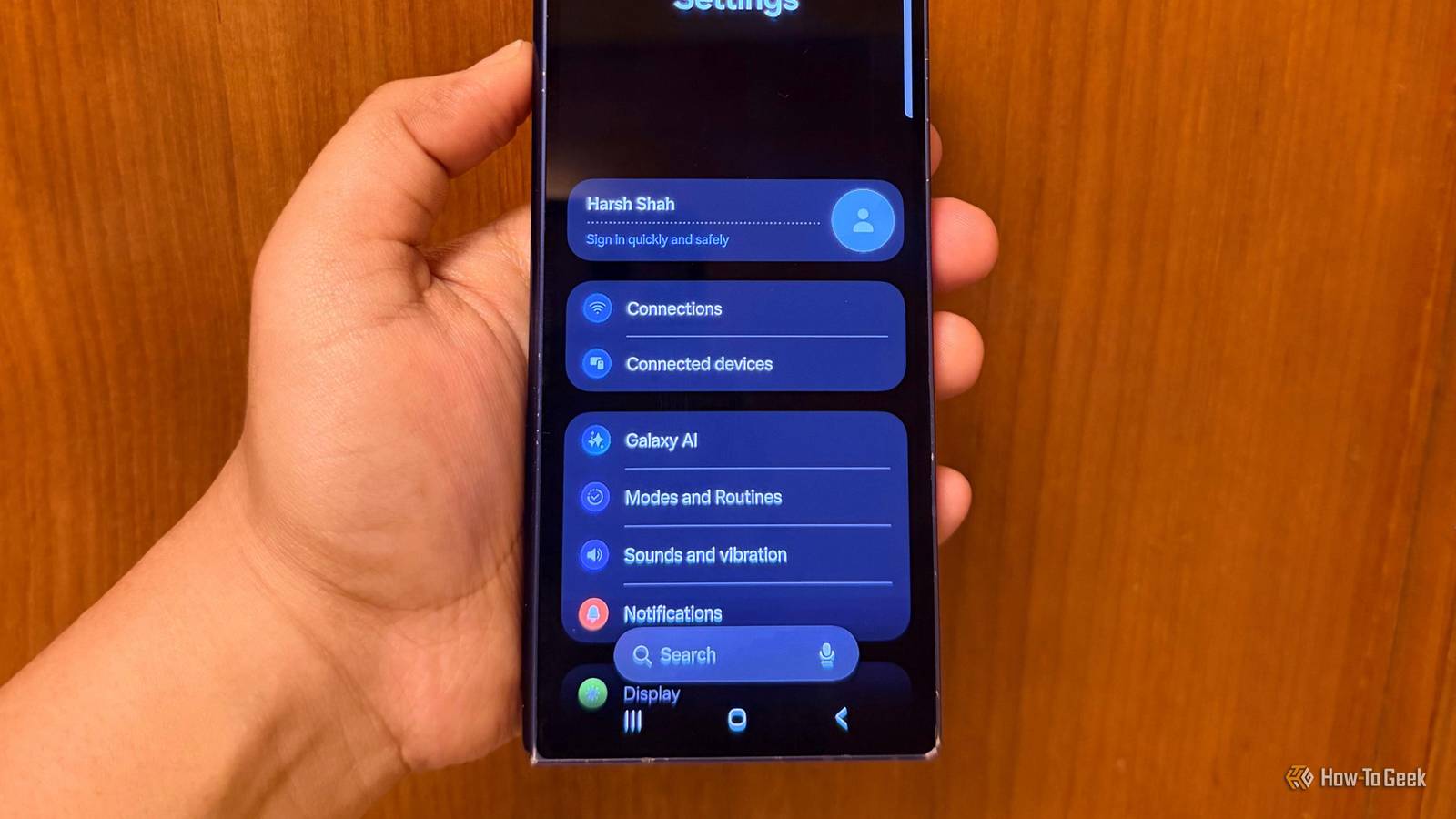
Published Oct 12, 2026, 9:00 AM EDT A Computer Engineer turned tech-savvy. Sanya is part of the How to Geek team, and she covers Android, Samsung, Google, apps, and everyday technology, combining hands-on experience with thorough research. She helps readers understand technology without getting lost in technical jargon. Getting a new Samsung phone is exciting, but I never use it straight out of the box. Before installing my usual apps or showing it off to my friends, I head into Settings and make a few changes. Some are small tweaks that make everyday tasks faster, while others fix things that have annoyed me on previous Galaxy phones. My love for Samsung isn’t going anywhere, but the default setup doesn’t always work the way I want it. With so many options buried in Settings, it’s easy to miss useful features. Since I upgrade my phone every two years, I’ve made a habit of changing these five settings first. They take a little time to adjust, but it’s worth it. I protect my phone first Before installing any apps, this is always my first step. I install plenty of apps, from photo editors and games to random tools I find useful. But I don’t want to leave my phone open to unnecessary risks. That’s why Auto Blocker is one of the first settings I enable. Auto Blocker helps block app installations from unauthorized sources and protects against certain USB-based commands and other potential threats. It’s particularly useful if you tend to download apps without checking where they come from. Of course, it doesn’t protect against every threat, but it adds an extra layer of security. I go to Settings -> Security and privacy -> Auto Blocker and enable it. If you usually download apps from the Google Play Store or Samsung Galaxy Store, keeping Auto Blocker enabled is a sensible starting point. I stop people from peeking at my phone Keep my notifications private I get around 500 notifications a day, whether it’s a bank OTP for my shopping carts, a WhatsApp message from my husband, or an Instagram alert about someone’s latest post. I don’t want to miss these notifications because they’re useful, but I also don’t want people around me reading my messages when my phone is lying on the table. That’s why I hide sensitive notification content on my new Samsung phone. I can still see when a message arrives without displaying the entire conversation on the lock screen. To enable it, go to Settings -> Notifications -> Lock screen notifications and choose the options to hide notification content. Now I can check my notifications around family or friends without giving everyone a glimpse of my personal conversations. New or old phone, I want my battery to last longer Battery protection is always on A new phone’s battery is in its best shape, but that doesn’t last forever. Over time, battery capacity naturally declines, and I don’t want my Galaxy struggling to get through the day after a year or two. I’m on my phone throughout the day. I don’t want to reach a point where a quick trip to the grocery store means checking my battery percentage first or carrying a charger everywhere. That’s why I enable Battery protection on day one. To find it, go to Settings -> Battery -> Battery protection and select Maximum. On supported Galaxy phones, this limits charging to help reduce battery aging over time. Depending on your phone model, you can set the maximum charge limit to 80%, 85%, 90%, or 95%. The trade-off is that I don’t get a full 100% charge, but I’m okay with that if it helps preserve battery health over the years. I want every swipe to feel smooth Adaptive motion smoothness makes scrolling feel better I spend a lot of time scrolling through Instagram, reading articles, and browsing photos on my phone. When I swipe through a long page, and everything feels a little choppy, I notice it immediately. A new phone should feel smooth, especially when I’m paying good money for it. I check Motion smoothness whenever I set up a Galaxy. I go to Settings -> Display -> Motion smoothness and select Adaptive. This lets the screen use a higher refresh rate when needed, making scrolling and animations look smoother. It can also adjust the refresh rate to balance smoothness and battery use. It’s a small change, but I prefer the more fluid feel when moving between apps or scrolling through a long list. Some Galaxy models may already have Adaptive motion smoothness enabled, so check your settings before making any changes. I don’t want to miss a good photo I turn the side button into a camera shortcut This is useful when I’m on vacation, taking a thousand photos a day. I don’t want to unlock my phone, search for the camera app, and miss a funny moment or a quick family picture while I’m still trying to open it. I set the Side button to launch the camera with a double press. To enable it, go to Settings -> Advanced features -> Side button -> Double press and select Camera. Now, whenever I spot an aesthetic corner, I can open the camera in seconds instead of fumbling through my apps. A small shortcut for shutterbugs. Five changes, a better Galaxy I change plenty of other settings on my Samsung phone, from customizing the home screen to tweaking sound and notification preferences. But these five are always my first changes. They help me get the basics right before I settle into my usual routine. The rest of my setup can wait.
5 Samsung settings I change on every new Galaxy
Full Article
Original Source
Read the full article at Howtogeek →KhanList aggregates and links to publicly available news content. We do not host full articles from third-party sources. Always verify important information with original sources.