
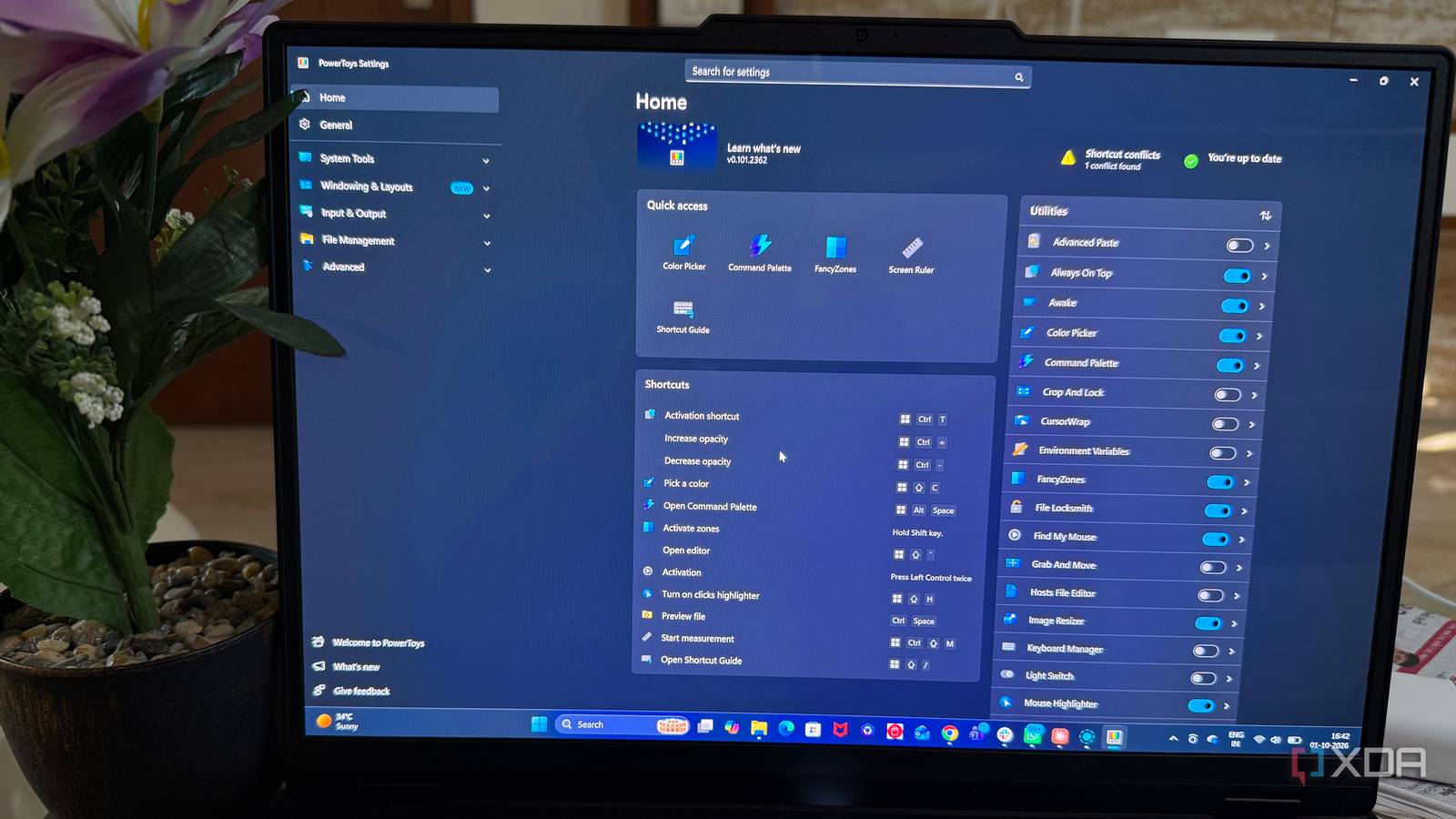
Published Oct 2, 2026, 7:00 PM EDT Beginning his professional journey in the tech industry in 2018, Yash spent over three years as a Software Engineer. After that, he shifted his focus to empowering readers through informative and engaging content on his tech blog – DiGiTAL BiRYANi. He has also published tech articles for MakeTechEasier. He loves to explore new tech gadgets and platforms. When he is not writing, you’ll find him exploring food. He is known as Digital Chef Yash among his readers because of his love for Technology and Food. I never set out to fill my Windows PC with open-source software. It happened gradually as I found tools that fit the way I work better than some of the alternatives I had tried. The surprising part came later when I realized how many of these tools were connected to Microsoft. Some are fully open source, while others have an open-source foundation with Microsoft's own additions. I had been using them for years without really thinking about where they came from. Here are a few that have become regular parts of my Windows setup, and the Microsoft connection surprised me. PowerToys The toolkit that quietly stuck around PowerToys was one of those Microsoft projects I initially installed just to try a few extra Windows features, but it gradually became something I relied on. I kept finding small utilities that solved annoyances I'd learned to live with. FancyZones made it easier to arrange windows the way I wanted, while PowerToys Run let me launch apps and find things faster without digging through menus. I also used tools like PowerRename and Text Extractor whenever I needed them. What I liked most was that PowerToys never felt like a completely separate utility suite. It blended into Windows and added useful features without changing how I worked. I had installed it for a few specific features, but over time, I started treating it as one of those first apps I set up whenever I use a fresh Windows installation. WinGet Installing apps without the usual hassle WinGet became one of those Windows tools I started using without thinking much about it. Before that, installing apps usually meant searching for the right website, downloading an installer, and clicking through the setup process. With WinGet, I could search for an app and install it directly from the terminal. It made setting up a new Windows installation noticeably less tedious. I liked having a simple way to check for updates across the apps I had installed. Instead of opening several apps individually and looking for their update options, I could use WinGet to see what needed attention and update supported apps from one place. It has become part of my regular Windows workflow, and I now prefer using it whenever an app is available through the package manager. VS Code The robust open-source foundation VS Code has been on my PC for years, and I still use it regularly even though I no longer spend all my time coding. What surprised me was learning that the VS Code I use isn't completely open source. Microsoft develops Code - OSS, the open-source project behind it, but the official VS Code release includes Microsoft's own additions and customizations. That distinction didn't change how I use the editor, but it made me look at it differently. I have used VS Code for coding, editing Markdown files, working with text, and handling projects where I needed more control than a basic editor could offer. Its flexibility is what keeps it installed on my PC. I can adapt it to different tasks instead of treating it as an app meant only for developers. So, while VS Code isn't fully open source, its open-source foundation is still a big part of what makes it so useful to me. Windows Terminal The command line, made much easier For a long time, I treated the command line on Windows as something I opened only when a task required it. That changed once I started using Terminal regularly. Having multiple sessions in tabs made it much easier to keep different tasks organized, and I no longer needed separate windows for different shells. I also liked being able to customize profiles, shortcuts, appearance, and other settings to match how I work. The project is open source, and its development happens publicly on GitHub. I can see why Microsoft chose to open it up because Terminal benefits from being highly customizable. I have changed its appearance, profiles, shortcuts, and other settings to make it fit the way I work. It has now become the first terminal I open on Windows. Even though it is a Microsoft-made tool, it doesn't feel like a rigid part of the operating system. Zoomit The underrated tool hiding in Sysinternals I didn't expect a screen-zooming and annotation tool to become something I used regularly, but ZoomIt proved surprisingly useful. I started using it whenever I needed to focus on a specific part of my screen, especially while explaining something or working through a presentation. Being able to zoom in quickly made small details much easier to see without changing the actual display settings. The annotation features were even more useful. I could draw on the screen, highlight something, or add simple markings while explaining what I was doing. It felt much quicker than taking a screenshot and editing it separately. ZoomIt is part of Microsoft's Sysinternals collection, and the tool itself is available as a free utility for Windows. I still keep it around because it solves a very specific problem without getting in my way. It is a small tool, but after using it for a while, I found myself reaching for it whenever I needed to point something out on screen. Microsoft was hiding in plain sight What surprised me most was that I never set out to build a Microsoft-focused open-source setup. These tools simply earned their place because they worked well for me. That also changed how I look at Microsoft's approach to open source. I still choose software based on what it offers, but knowing that some of my everyday tools are developed openly was an unexpected bonus.
5 open-source apps have quietly taken over my Windows PC, and Microsoft wrote half of them
Full Article
Original Source
Read the full article at Xda-developers →KhanList aggregates and links to publicly available news content. We do not host full articles from third-party sources. Always verify important information with original sources.