
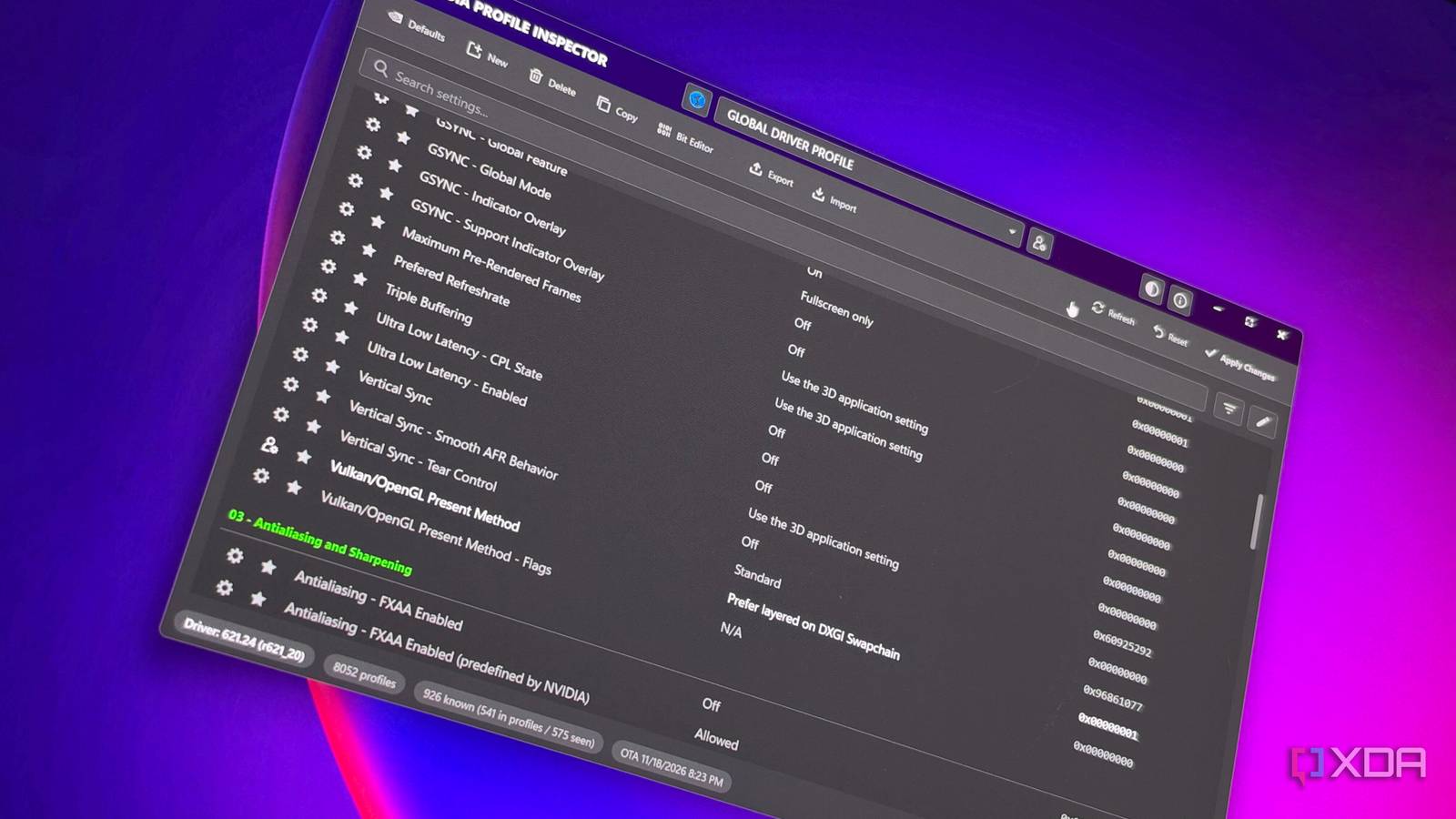
Published Nov 25, 2026, 12:00 PM EST His love of PCs and their components was born out of trying to squeeze every ounce of performance out of the family computer. Tinkering with his own build at age 10 turned into building PCs for friends and family, fostering a passion that would ultimately take shape as a career path. Besides being the first call for tech support for those close to him, Ty is a computer science student, with his focus being cloud computing and networking. He also competed in semi-pro Counter-Strike for 8 years, making him intimately familiar with everything to do with peripherals. If you have an Nvidia GPU inside your gaming PC, every time you launch a game, Nvidia's driver uses what are called profiles to store settings for specific games and applications. A lot of these settings will be very familiar—V-Sync, anisotropic filtering, and power profiles, but many of them are also hidden flags Nvidia uses to make individual games behave themselves. The Nvidia App only shows you a handful of these, usually the ones that don't have an outsized effect on stability, but with the Nvidia Profile Inspector, you can have unfeathered access to all of them. The Nvidia Profile Inspector is a well-known free, open-source Windows utility that, thanks to its ability to interface with the driver through Nvidia's own Driver Settings API, can read and edit every profile and every setting the driver knows about, including ones Nvidia never documented. These are the five settings I change in it that the Nvidia app doesn't show you. Forcing DLSS overrides in the games that the Nvidia App doesn't touch DLSS overrides don't exist for every title The Nvidia App does cover DLSS overrides for many titles, and you can even apply these overrides globally across all applications through the app, but the catch is that it only works in games that Nvidia themselves have approved deliberately. Even if a game uses DLSS, if it doesn't find itself on that list, the option doesn't appear for users. Profile Inspector can apply an override to a game that the Nvidia App blocks, and in a lot of cases this can unlock a DLSS profile that would otherwise be inaccessible. In a game that doesn't support a DLSS feature or profile I want to use, I simply enable the DLL override and then choose a forced preset letter. Going outside Nvidia's set of profiles can result in some weird behavior and even break a game's rendering, so your mileage will vary depending on the game and profile you decide to use. This is becoming less and less common in modern titles, especially those that work closely with Nvidia, but it's useful in cases where you want to use the latest models in a game that doesn't support them. Setting an actual texture LOD bias The app doesn't give you this amount of control The App's texture filtering settings include a negative LOD bias option, but it only lets you allow or clamp whatever the game requests. Profile Inspector exposes the number itself, which is becoming more important now that upscalers are basically everywhere. When a game renders below output resolution, it's supposed to shift its mipmap bias negative, so textures stay sharp. Some games skip this step, which can result in textures becoming a lot softer than the rest of the image. Cyberpunk 2077 at launch was probably the well-known case of this happening in a modern AAA release: a bias of -3 set through Profile Inspector sharpened a lot of the muddiness that the final image had. Forcing supersampling into old DX9 games Breathes new life into older titles The App can still force antialiasing modes, but in most older games, doing so will do nothing on its own. The driver needs a per-game compatibility value that tells it where to hook into the renderer, and that field only exists in Profile Inspector. When you use the right bit values and a matching LOD bias, you can force something called sparse grid supersampling (SGSSAA) into DX9-era games, including Unreal Engine 3 titles that never handled MSAA cleanly. There are spreadsheets out there that list known-good bits game by game, and in some cases, the developer will even give you the correct values: Valve's developer wiki walks through the process for Half-Life 2 and other Source engine titles. A modern GPU has plenty of headroom in games that are this old, which takes a lot of the sting out of the performance cost associated with supersampling. Adding ambient occlusion to games that don't have it Works the same way as the supersampling tweak Ambient occlusion is in a similar boat to supersampling, as plenty of games shipped with no AO whatsoever. AO is what gives objects a more realistic look when they're close to other objects. Without it, things just look like they've been pasted in the game world. Profile Inspector has a separate ambient occlusion compatibility field, and with the right value the driver can add its own AO pass to some of those games. Results are pretty inconsistent depending on the game, and the wrong bits can cause visual artifacts or simply do nothing, so I only use values that other players have already verified for a specific game. Unlocking full memory clocks for CUDA work Great for productivity and AI use This one isn't really for the gamers out there. When a CUDA or OpenCL workload runs, Nvidia's driver holds GeForce cards at the P2 performance state, which runs the memory slower than it does in games. Profile Inspector's CUDA - Force P2 State setting defaults to on, and switching it off lifts that cap. If you run local LLMs or lean on CUDA for any kind of productivity, this is worth trying. There are some settings that should probably just be left alone The Nvidia Profile Inspector exposes a lot of settings you're not meant to be able to change, so I treat it with an appropriate amount of respect. I try and make backups of settings before and after I change them, just so I have something to rollback to if anything were to go wrong. A clean driver install with revert everything, but using exported profiles is a much quicker way to set things straight if you make a change that really screws things up. Nvidia Profile Inspector
5 Nvidia Profile Inspector settings I change that the Nvidia App doesn't show
Full Article
Original Source
Read the full article at Xda-developers →KhanList aggregates and links to publicly available news content. We do not host full articles from third-party sources. Always verify important information with original sources.