
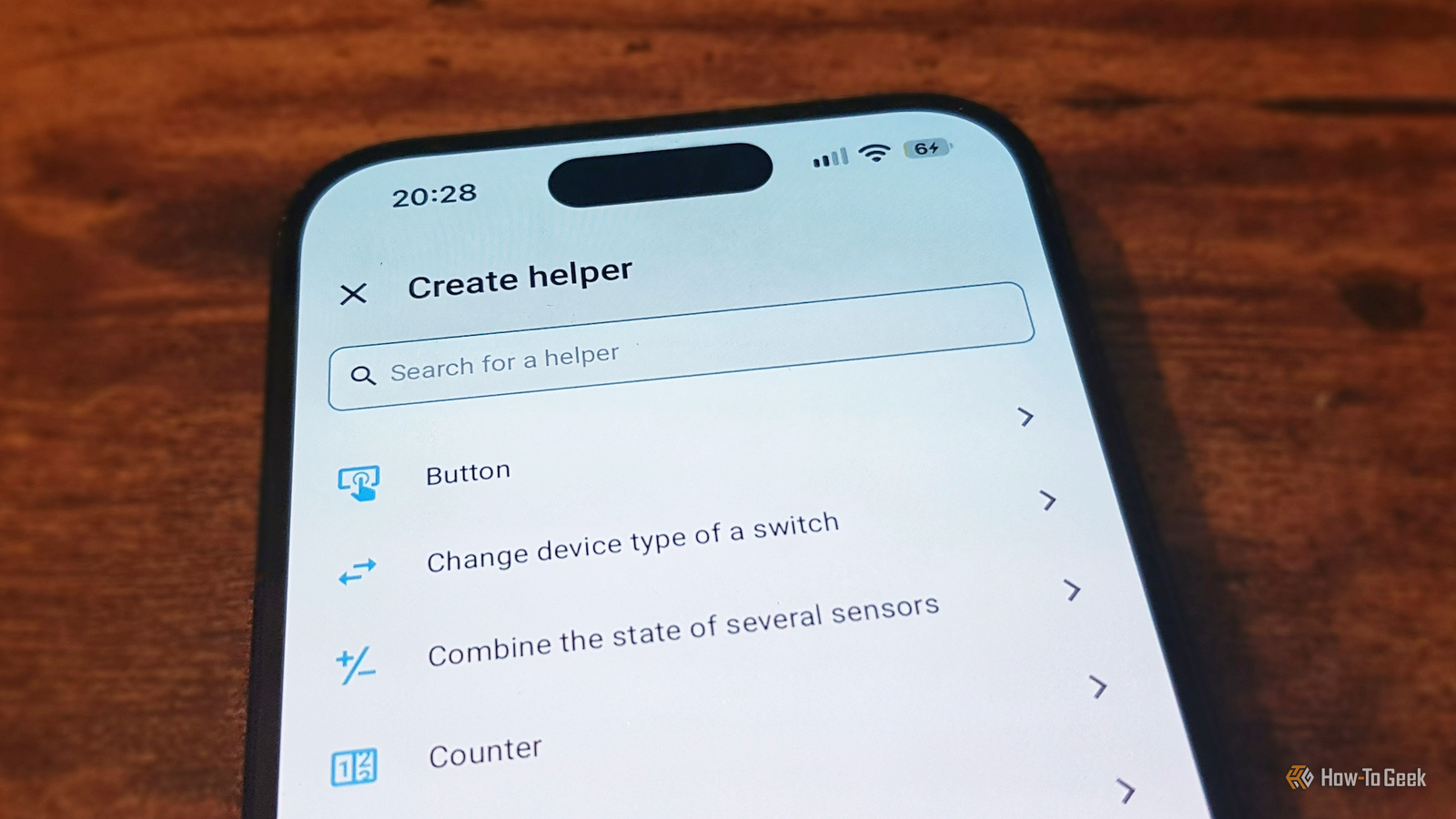
Published Nov 17, 2026, 6:00 AM EST Adam has a degree in Engineering and has a life-long interest in technology. He has been writing for over a decade for various print and online publications, with a focus on consumer tech. He joined How-To Geek in 2024 while working at Pocket-lint. As well as being a long-term fan of Apple products, he also has a strong interest in smart home tech, running a Home Assistant server at home to automate all his smart home devices. He believes that the ideal smart home should work with minimal interaction from the user, with automations running as if by magic rather than requiring you to push buttons on a control panel. You can find more of his work on Muck Rack. It's sometimes the case that I'll spend a long time creating something manually in Home Assistant, only to find that there's already a feature that can do it all for me. Helpers are one such example; there are plenty of incredibly useful helpers that go beyond simple toggle switches. Here are some of the useful helpers you may not be currently using. The Group helper Monitor multiple sensors as a single entity Home Assistant can already automatically group together devices. If you add multiple smart bulbs to the same room, for example, the Areas view in Home Assistant allows you to tap a single light bulb icon for that room to turn off every light. The Group helper can do much more than just group devices together for more convenient control. You can also use it to do things such as monitor a group of sensors. The clever part is that the state of the Group helper can be set by any of the sensors in that group. For example, if you have multiple window sensors set up, you may want to be sure that they're all closed before you leave the house. Instead of having an automation that checks each individual sensor, you can combine them all into a single entity using the Group helper. If any one of the windows is open, the Group helper state can reflect this, even if the other windows are shut. If you add more window sensors, all you need to do is add them to the group. There are multiple types of Group helpers available, including button groups, media player groups, and more. There's also an "all entities" option, which will only change the state if every member of the group has that state. The Dropdown helper Give yourself options Life isn't always black and white or on and off. Sometimes, you need a few more options, and that's where the Dropdown helper can come in handy. Unlike a simple toggle, a Dropdown helper stores one value from a list of options. For example, you could use a Dropdown helper to set the mode for your smart home. You can create options such as Home, Away, Vacation, Guest, and more. You can then have your smart home behave in different ways depending on which option the Dropdown sensor is set to. Selecting Vacation, for example, might make your smart home devices act as if you were at home, to deter potential intruders. The benefit of a Dropdown helper over multiple individual toggles is that you can't accidentally have two options selected. Having your home set to both Home and Vacation modes is going to cause all sorts of problems, but that's not possible if you use a Dropdown helper. The History Stats helper Find out how long something was happening for History in Home Assistant can be really useful. Knowing the state of a device or entity now is helpful but knowing how that state has changed over time gives you even more to work with. You can access that data through the Home Assistant History page, but a History Stats helper allows you to examine that information much more easily. For example, you could use a History Stats helper to measure how long the heating was running for over the course of a day so that you could compare those values over the course of a week. You can also use the History Stats helper in automations. For example, you could set up an automation to send you a notification if a particular device, such as a dehumidifier, has been running more than usual during the day, indicating that there may be an underlying issue. The History Stats helper is limited by how much historical data your Home Assistant setup retains. If your Recorder is only set to a day or two, you won't be able to track your heating usage for an entire week. The Utility Meter helper Track power or water consumption over set time periods If you do want to track how much energy your heating uses over a week, the Utility Meter helper is a better option. This helper can calculate your energy or water consumption over a set period of time, such as a week, month, or even a year. While you can have sensors that show the total accumulated consumption, the Utility Meter helper can start a new measurement period without changing the accumulated total. For example, if you have an energy-monitoring smart plug, you can set up a Utility Meter helper to track how much energy the device connected to that smart plug uses over the course of a month. You can then compare this to the whole house consumption over the same period and see what proportion of the energy usage came from that single device. The helper requires accumulated totals. A sensor that reports current power draw needs to be converted to an accumulated usage sensor before it can be tracked in a Utility Meter helper. The Template helper Make your own sensors if they don't already exist The Template helper is arguably the most useful helper of all. While there is an impressive selection of helpers to choose from, they can't meet every single use case. With a Template helper, however, you can build your own. There are multiple Template helper options to choose from, including sensors, switches, lights, device trackers, and more. For example, my home suffers from high humidity, so I wanted to build an automation that would tell me when opening the windows would reduce the indoor humidity and when it would make it worse. The problem is that relative humidity is dependent on temperature, so it's not as simple as comparing the humidity indoors and outdoors. What I needed to compare was the indoor and outdoor dew point, and while a weather integration could tell me the outdoor dew point, I didn't have a direct way to get the indoor dew point. So, using the Template helper, I made my own sensor that calculates the indoor dew point from the indoor temperature and humidity. This means I now have a single sensor that shows the indoor dew point, even though no device inside my home measures that exact thing. You build sensors using the Jinja2 templating language, which isn't unbearable for fairly simple sensors. If you need help, an AI chatbot should be able to generate the template for you. Helpers can help There are plenty of ways to achieve things in Home Assistant, and you may not have used any of these helpers in your own automations. However, they can make life much easier, so it's definitely worth exploring what they have to offer.
5 more Home Assistant helpers you're not using (but should be)
Full Article
Original Source
Read the full article at Howtogeek →KhanList aggregates and links to publicly available news content. We do not host full articles from third-party sources. Always verify important information with original sources.