
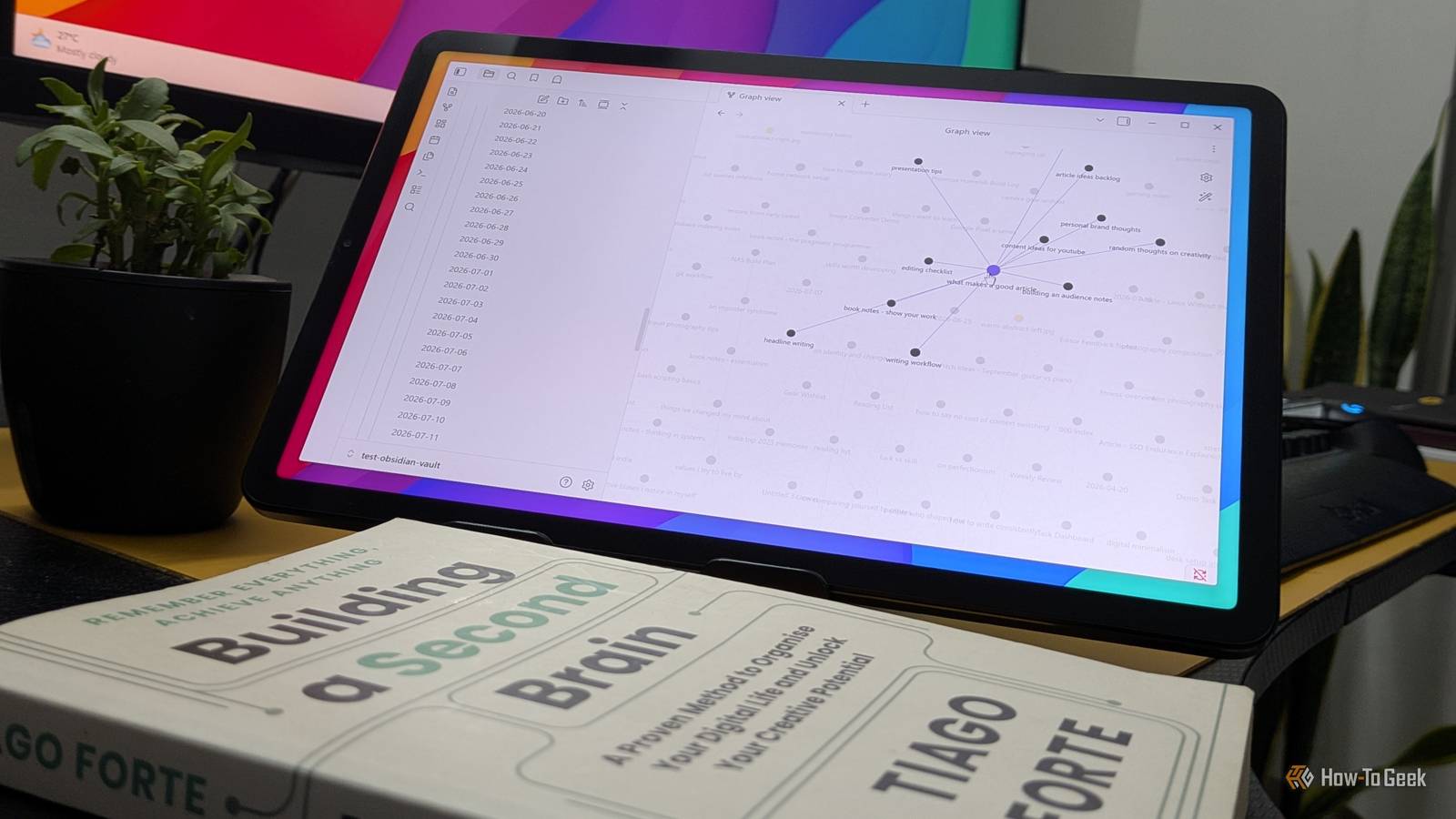
Published Sep 5, 2026, 10:30 AM EDT Dibakar Ghosh is a tech journalist at How-To Geek, where he focuses on Linux, Windows, and productivity tools. His goal is simple—help readers at every skill level get more done with the tech they use every day. He began his writing career in 2016 with WordPress tutorials, later moving into digital marketing, where he spent years reviewing complex tools for marketers. His work has also appeared on Authority Hacker, where he’s shared in-depth guides on digital workflows and online productivity. That experience now shapes his journalism, blending analytical depth with practical, real-world advice. When he’s not writing or testing software, Dibakar is usually watching movies or playing video games. He’s a huge Christopher Nolan fan and a strong proponent of the theater experience. In gaming, he has sunk hundreds of hours into Insomniac’s Spider-Man series, Returnal, Prototype, Darksiders, and Final Fantasy titles. If you’ve tried to build a second brain — one place to store all your ideas and retrieve them when necessary — you probably already know that it’s easier said than done. I’ve made multiple attempts at building a second brain myself, but ultimately failed because of all the effort required to maintain it. What finally made it stick was Obsidian, its Daily Notes feature, and a handful of free community plugins. To use Obsidian plugins, go to Settings -> Community Plugins, and click "Exit Restricted Mode." Next, click "Browse" and you'll be able to see all available community plugins. Ideally, you shouldn't install just any community plugins because they can potentially execute harmful code and compromise your Obsidian vault. That said, the plugins mentioned here are all very popular and used by millions of users, including me, and are generally considered safe and reliable. Daily Notes The foundation of the whole setup To build a second brain in Obsidian around daily notes, the first plugin you’ll need is — wait for it — Daily Notes. It’s actually a core plugin from the Obsidian team. You can enable it by going to Settings -> Core Plugins -> Daily Notes. Once enabled, you’ll see a new calendar-like icon in the left-hand toolbar. Click it, and today’s daily note will open. You can now populate it with any thoughts you have or ideas you come across. Fundamentally, it’s a tool designed for journaling, but I’ve repurposed it as the core of my note-taking system. The idea is to stop worrying about where to save your notes or what to name them. Just open Obsidian, tap the daily note icon, and save whatever you have to save. If an idea feels like it could grow into something bigger, drop a placeholder [[link]] around it. Later, in Graph View, all those placeholder notes show up as unfilled nodes, and you can populate them whenever you have the time and energy. You can also add tags for another layer of organizational convenience. I’ve written about this whole process of using daily notes to quickly build a second brain in a separate article if you want the full breakdown. Omnisearch Storage means nothing if retrieval is a chore With Daily Notes, we simplified idea capture — but what about retrieving those ideas when you need them? That’s where the Omnisearch plugin comes in. Granted, Obsidian’s default search is good, but it works more like a filter than an actual search engine. Yes, it will show you every note containing your search term, but in no particular order. Furthermore, the search term needs to be an exact match — if you misspell something, you won’t see it in the search results. Omnisearch lets you circumvent all these problems. First, it uses the BM25 ranking algorithm — a popular information retrieval algorithm that doesn’t simply list all matching results, but also ranks them based on relevance. It also supports fuzzy matching and typo tolerance. As a result, even if you only vaguely recall what you’re looking for, Omnisearch can help you find it. This is crucial if you have a second brain that’s thousands of daily notes deep. I should also mention that you can pair Omnisearch with the Text Extractor plugin. This lets you index the contents of images and PDFs you’ve saved in your Obsidian vault and find them using simple text-based search. This isn’t possible with the default search feature, which only looks at your Markdown notes because it can’t read the contents of images or PDFs. Calendar Jump to any day in your vault without scrolling to find it Calendar is a must-have if you have a lot of daily notes. Once enabled, it adds a simple month-view calendar to the right sidebar. Clicking any date on the calendar allows you to jump straight to that day’s daily note. This makes navigating your daily notes a lot more intuitive. Without the plugin, your daily notes just sit in a folder — wherever you’ve configured them to be saved — as a long list of dates. Even when I know roughly which day I’m looking for, scrolling through that list can feel like a cumbersome and disorienting experience. With Calendar, I can just flip to the right month, click the date, and I’m in the corresponding daily note. Tag Wrangler Keep your tags from turning into noise Tags are one of the main ways to add structure to daily notes — you tag an entry with a topic (or topics) so you can pull up everything related to it later when you need it. However, the problem, at least in my experience, is that tags tend to multiply and drift over time. For example, one week I’d write about heavy rain and tag it #weather. Two weeks later, I’d write about a hot, sunny day and tag it #climate. Now I have two tags pointing to the same concept, and searching for either one only shows me half the picture. Tag Wrangler is the housekeeping tool that keeps this in check. It lets you look at your entire tag list, rename tags, merge redundant ones, or delete the ones you no longer need. Every so often, I go through my tags and just collapse duplicate and redundant entries. It keeps the whole tagging system much more streamlined and efficient. Tasks Let your second brain tell you what you have to do next As you’re writing daily notes, you’re inevitably also writing down things you want to do — goals, wish lists, plans, etc. With the Tasks plugin, you can basically turn these desires into actual goals and easily keep track of them. Once installed, any checkbox you create inside Obsidian turns into a proper task, with the option to attach due dates, priority levels, and even dependencies. The best part is that you don’t necessarily need to capture these tasks in a specific “task note.” You can just casually create a checkbox and type out a to-do as it comes to you while writing one of your daily notes. Later, you can surface all of these tasks in any note by simply adding a code block with the Tasks query syntax. That block renders every checkbox from across your entire vault in one place, and you can add filters to hone in on specific projects, due dates, or tags. ```Tasks ``` This is what turns your second brain from passive knowledge storage into something actionable. You’re gathering all this knowledge because you presumably want to do something with it. The Tasks plugin allows you to seamlessly capture all these desires and aspirations during your journaling sessions and then surface them at will — no need to maintain a separate to-do app or a dedicated task note. There's a reason Obsidian is synonymous with “second brain” If you’ve spent any amount of time in second brain circles, you’ve probably noticed how most of those conversations point to Obsidian — and by now, you probably understand why. The app itself makes note retrieval super easy with its nested note structure and Graph View. And then you have these plugins that streamline everything else, from idea capture and navigation to upkeep. Together, you get a system that eliminates the tremendous amount of administrative work associated with building a second brain while delivering the same benefits.
5 free Obsidian plugins that turn daily notes into a low-effort second brain
Full Article
Original Source
Read the full article at Howtogeek →KhanList aggregates and links to publicly available news content. We do not host full articles from third-party sources. Always verify important information with original sources.