
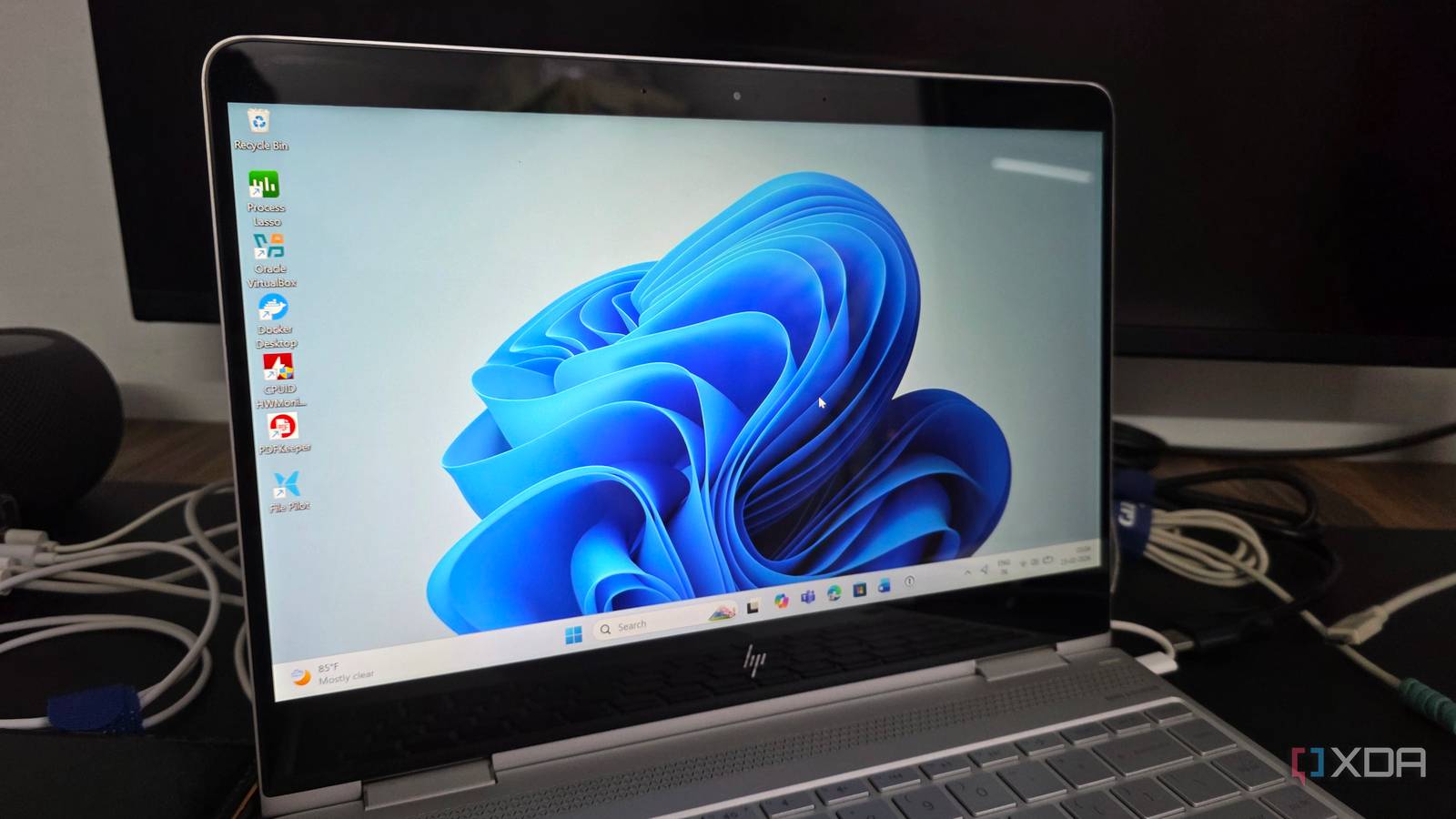
Published Aug 13, 2026, 4:00 PM EDT Parth, a seasoned tech writer, wields the keyboard (or pen) with finesse to unravel the intricacies of both Windows and Mac operating systems. He has covered evergreen content on mobile devices and computers for multiple publications over the last six years. You can find his work on AndroidPolice, GuidingTech and TechWiser. Whether it’s demystifying system updates, deciphering error codes, or exploring hidden features, Parth’s prose guides readers through the binary maze. When not immersed in tech jargon, you’ll find him sipping chai, pondering the next software review, and occasionally indulging in a friendly debate about mechanical keyboards. My HP Spectre x360 has been with me since 2016, which makes it ancient by modern laptop standards. With just 8GB of RAM and a 256GB SSD, it obviously can’t compete with the latest machines that pack faster processors, more memory, and faster storage. Yet the hardware itself still works perfectly well, and I couldn’t justify replacing an otherwise functional laptop. I started looking for ways to make the most of what I already had. A few carefully chosen free apps ended up making a much bigger difference than I expected. Wintoys I gave Windows a cleanup Wintoys was one of the first utilities I installed on my aging HP Spectre x360, simply because it puts so many useful Windows controls under one roof. Instead of jumping between Task Manager, Settings, Control Panel, Storage settings, and different troubleshooting menus, I can handle most routine maintenance from a single app. The apps section is one of my favorites. My Spectre has been around since 2016, so it has accumulated plenty of programs over the years that I either forgot about or barely use anymore. Then there are the Boost and Health sections. I can manage startup apps, clean unnecessary files, free up space on my 256GB SSD, and access Windows repair tools without memorizing commands. There is even a Tweaks section where I can adjust File Explorer, desktop, privacy, telemetry, Start Menu, and other Windows behaviors. That is what makes Wintoys such a good match for an old laptop. Wintoys Wintoys is an all-in-one lightweight utility on Windows. Flow Launcher I stopped digging through Windows Windows Search has never been one of my favorite parts of the operating system, and on an aging laptop, it feels even worse. On my old Spectre, it can be painfully slow, sometimes throws up irrelevant web results, and often feels far more resource-hungry than something as basic as finding an app or file should be. At this point, I barely use it. Flow Launcher has effectively replaced Windows Search for me, and the difference in day-to-day use is huge. I can press Alt + Space from anywhere and immediately start searching for an app, file, folder, Windows setting, or even a browser bookmark. Flow Launcher can also handle calculations, web searches, system commands, and PowerShell commands from the same little box. Flow Launcher Flow Launcher is a capable Windows Search alternative. One tiny app replaced several ShareX became one of my favorite additions to this aging laptop for a very simple reason: Windows’ Snipping Tool often takes longer to launch than I want. When I just need to grab a quick screenshot, waiting for the app to appear feels sluggish. ShareX is lightweight and feels much more immediate. I can assign my own keyboard shortcuts and capture the full screen, a specific window, or a custom region without first opening a bulky interface. It also goes far beyond basic screenshots. I can annotate captures, blur sensitive information, add arrows and text, and even automate what happens after every capture. For example, I can have ShareX copy an image to the clipboard, save it to a specific folder, or open it directly in the built-in editor. ShareX gives all of this without feeling like another heavyweight application running on my Spectre. Instead of installing separate tools for screenshots, annotations, screen recording, OCR, and quick editing, I can handle almost everything with a single utility. ShareX is a handy screenshot and video recording tool for Windows. LocalSend My old laptop finally got AirDrop LocalSend solved one of those insignificant problems that always made my old Spectre feel more dated than it actually was: moving files between devices. Windows has improved in this area over the years, but I still find cross-platform transfers awkward. LocalSend gives me a much simpler solution. As long as my devices are on the same local network, I can open LocalSend, pick a nearby device, and send photos, videos, documents, or pretty much any other file without uploading anything to the cloud first. It works across all major operating systems, so I am not tied to a single ecosystem. Everything happens directly over the local network. That simplicity matters a lot on an aging laptop. I don’t need to keep another cloud service running in the background just because I occasionally want to move a few files. LocalSend LocalSend is a cross-platform file sharing service. QuickLook Opening files became unnecessary QuickLook fixes one of the biggest annoyances on my old laptop: opening a full app just to check a file. I particularly hate opening a photo in the Windows Photos app when all I want is a quick glance. Photos feels much heavier than it needs to be, and on aging hardware, even that small delay becomes noticeable. QuickLook instead gives Windows a macOS-style preview system. I can select a file in File Explorer, press the spacebar, and immediately preview it without launching the associated app. It works with images, PDFs, text files, videos, and several other common formats, so I can quickly inspect a file and move on. It reduces unnecessary app launches and makes File Explorer feel much more responsive. QuickLook QuickLook offers a quick preview of popular file types on Windows. Giving tired hardware a second life None of these apps magically turned my 2016 HP Spectre x360 into a modern powerhouse. What they did instead was remove many of the little frustrations that constantly reminded me I was using an old laptop. Put together, these small utilities made the entire experience feel cleaner, faster, and more modern. My Spectre is still old, but I no longer feel like I need to replace it every time I open the lid.
5 free apps that made my aging laptop feel brand new again
Full Article
Original Source
Read the full article at Xda-developers →KhanList aggregates and links to publicly available news content. We do not host full articles from third-party sources. Always verify important information with original sources.