
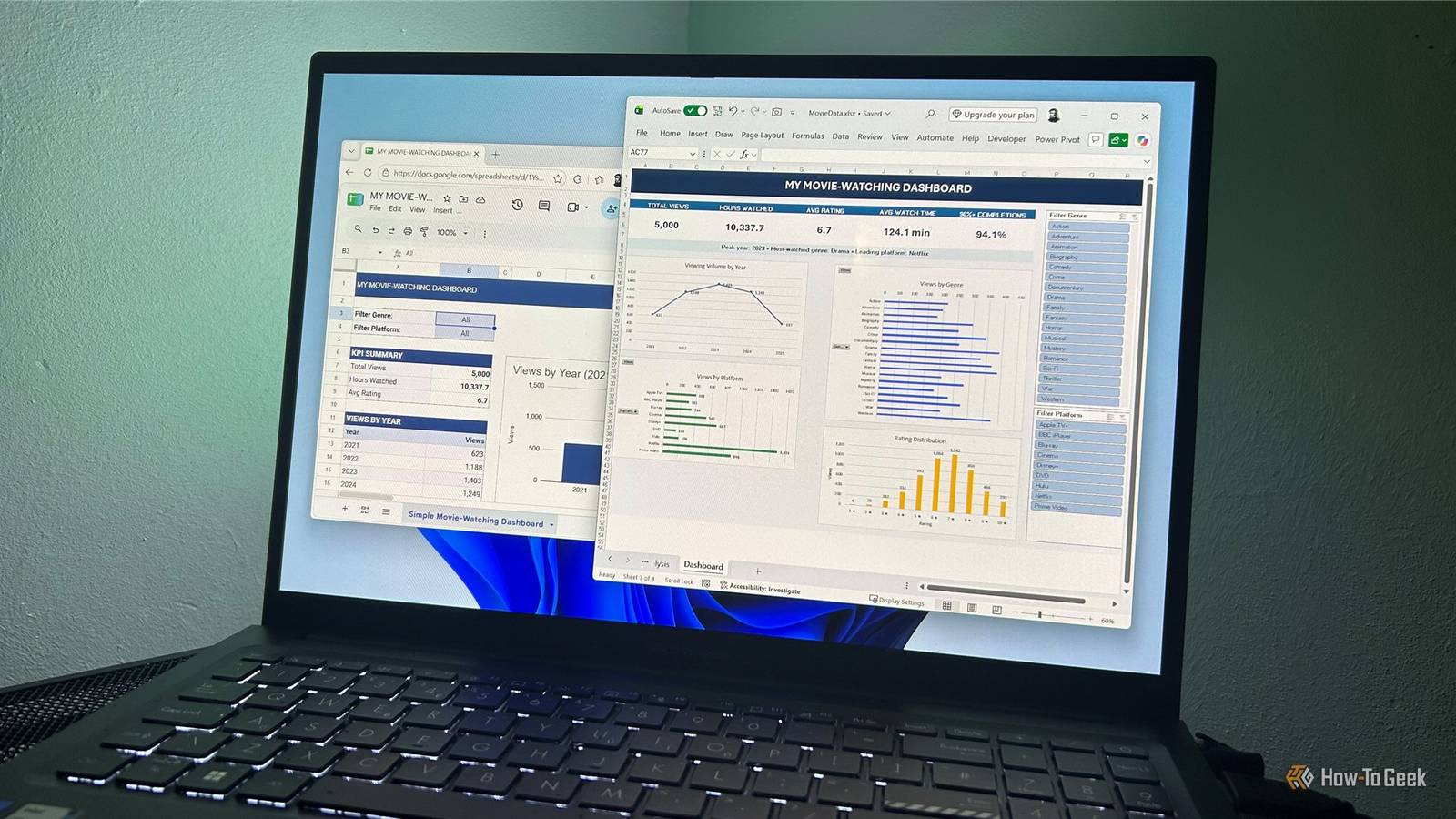
Published Nov 26, 2026, 7:00 AM EST Tony Phillips is a senior author at How-To Geek with over a decade of experience working with documents, data, and digital productivity tools. Holding a dual-honors degree in Linguistics and Hispanic Studies, he combines technical expertise with a passion for making complex topics easy to understand. Before joining How-To Geek in 2024, Tony worked as a document producer, data manager, legal document specialist, and content creator. He has also proofread and edited more than 3 million words of academic and professional writing. While Tony specializes in Microsoft 365, particularly Excel, his interests extend far beyond Office. He enjoys testing software, exploring open-source projects, discovering useful companion apps, and finding ways to customize and optimize Windows. Whether he's building spreadsheets, evaluating new tools, or uncovering hidden features, Tony enjoys helping readers get more from their technology. Outside of tech, he enjoys spending time with his dog, watching football, astrophotography, gardening, and golf. Every now and then, I decide it's time to give Google Sheets another go. It's become an excellent spreadsheet app, and for sharing files, collaborating with other people, and handling everyday spreadsheet tasks, it often does everything I need. But whenever I try moving more of my work across, I run into the same problem: there are a handful of Excel features I've become too attached to. Sometimes it's Power Query. Sometimes it's VBA. Other times it's some obscure feature I forgot existed until I needed it. Either way, I usually end up back in Excel sooner than expected. Power Query The feature that makes messy data manageable If I could bring just one Excel feature to Google Sheets, it would probably be Power Query. I've lost count of the times I've received a CSV export, PDF report, or other dataset that needed cleaning before I could do anything useful with it. Those sorts of jobs are exactly why Power Query has become one of my most-used Excel tools. Google Sheets has QUERY, Apps Script, Connected Sheets, and various add-ons that can solve many of the same problems. What I haven't found is anything quite like Power Query's visual, step-by-step approach. I can remove columns, split text, change data types, reshape tables, and combine data sources without building increasingly complicated formulas. The real magic is that Power Query remembers every transformation. When an updated version of the same report arrives, I can simply refresh the query rather than repeat the whole process. I also use it regularly to combine files and extract data from reports that would otherwise take far longer to process manually. Whenever somebody sends me a particularly messy dataset, my first instinct is still to open Excel. Power Pivot When one table isn't enough Most spreadsheets don't need Power Pivot. But when I'm working with multiple related datasets, Excel's Data Model makes life much easier. Imagine having separate tables for customers, orders, and products. You could pull everything together with lookup formulas and one giant table, but maintaining that setup can become cumbersome as a workbook grows. Excel's Data Model lets me create relationships between those tables instead. I can then build PivotTables that analyze all the data without flattening everything into a single dataset first. There's also DAX, Excel's formula language for working with data models, which adds another layer of analytical power when you need it. Google Sheets has PivotTables and works well with external analytical tools, but it doesn't offer the same ability to build relationships and analyze everything inside a single workbook. Whenever I need to connect several related datasets, I miss Power Pivot almost immediately. VBA When a spreadsheet becomes an app Google Apps Script is a powerful automation platform, especially for people who spend most of their time in Google Workspace. But VBA's integration with desktop Excel and the rest of Windows still gives it a unique advantage. With VBA, I can process files in folders, generate Word documents, build UserForms, and automate repetitive tasks across multiple Office apps. A spreadsheet doesn't have to remain a grid of cells. With a little VBA, it can become a tool that performs an entire workflow. That's also VBA's biggest limitation. Its strength comes from its connection to desktop Excel, which means it doesn't translate neatly to every platform or workflow. Still, when I need a workbook to interact directly with files and apps on my PC, VBA remains one of the features I miss most. My favorite way to explore possibilities Some spreadsheet questions are easier to answer with a dedicated tool than another formula. That's where Excel's what-if and analysis tools come in. Goal Seek can work backward from a desired result to find the input needed to produce it. Solver takes things further by optimizing outcomes while respecting constraints. Scenario Manager lets me compare different assumptions, and the Analysis ToolPak adds a range of statistical tools. Google Sheets offers plenty of analytical functions and can be extended with add-ons, but I prefer having these tools available within Excel rather than installing extensions or turning to other tools whenever I want to explore a different scenario. I don't use every one of these tools every day, but they're useful whenever I need to test assumptions, compare alternatives, or answer questions that would be awkward to solve with formulas alone. My favorite weird Excel feature The Camera tool is probably the least famous feature on this list, but it's also one of my favorites. It creates a live picture of a cell range that you can place anywhere else in your workbook. Unlike a screenshot, the image updates automatically whenever the source cells change. That might sound niche, but it's surprisingly useful when building dashboards and reports. Instead of restructuring worksheets to accommodate different table sizes and column widths, I can create linked snapshots and arrange them however I want. The result is a cleaner reporting layout without compromising the underlying worksheet design. Google Sheets offers plenty of ways to build reports and dashboards, but I've never found anything quite like the Camera tool. It's one of those small utility features that doesn't sound particularly impressive until the moment you need it. Then you realize how much easier it makes a task you perform regularly. Why I still end up back in Excel Google Sheets is a very capable spreadsheet app, and for many people it does everything they need. But whenever I try to make it my primary spreadsheet tool, I eventually find myself missing the tools I've become so used to using in Excel. Whether it's Power Query, Power Pivot, VBA, Excel's what-if and analysis tools, or even the Camera tool, these are the features I notice missing most. Google Sheets keeps getting better, but these are usually the reasons I end up back in Excel.
5 Excel features I miss every time I try switching to Google Sheets
Full Article
Original Source
Read the full article at Howtogeek →KhanList aggregates and links to publicly available news content. We do not host full articles from third-party sources. Always verify important information with original sources.