
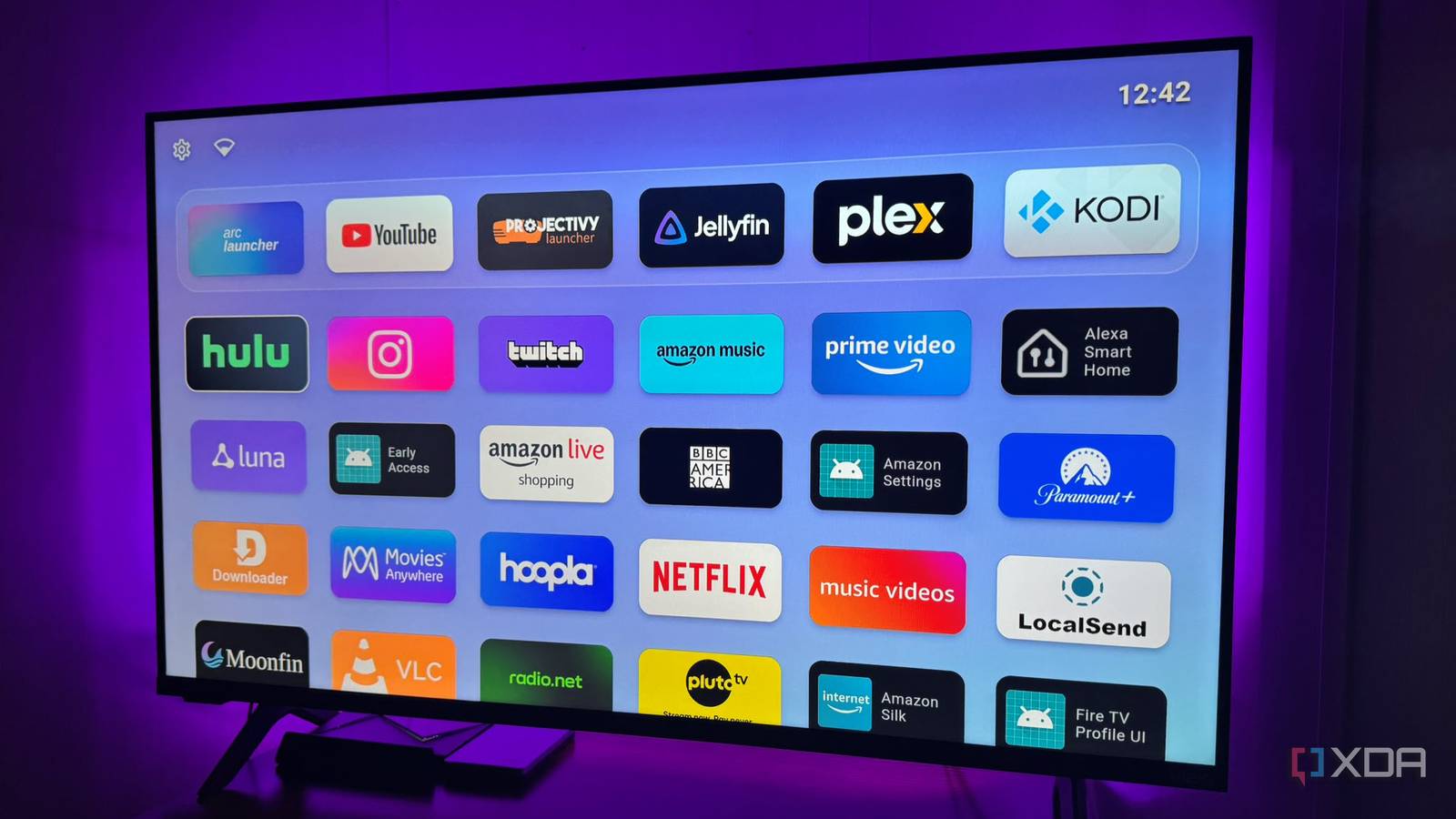
Published Sep 8, 2026, 3:00 PM EDT Based in rural Minnesota, Brian Burgess worked in IT for 10 years before finding his passion for writing about consumer technology. Brian earned his degree in computer and network technology in 2000. He held various IT positions, including help desk support, router installations for IBM, database administration, and other associate network administration roles. He's been a personal technology journalist for 18 years and has written thousands of articles about Microsoft products and services, Android, iOS, streaming, and more. He has written for notable tech sites including XDA, InformationWeek, How-To Geek, Byte, groovyPost, and others. When he is away from the keyboard, you will hear him playing guitar, working outdoors, and watching Star Trek. Anyone who owns or has used a Fire TV device knows the home screen is a cluttered, ugly mess. Apps, channels, content recommendations, and ads are strewn across the TV screen seemingly at random. Many of the tiles are advertising something you probably don't want to watch or an app you don't need. Luckily, there are ways to bring order to the chaos. Unlike on Roku devices, you have more leeway to change the home screen. Whether you have a Fire TV set, a Fire TV Stick with Fire OS, or the very locked-down Vega OS, I'll cover helpful tips for bringing order to your device's home screen — including options that replace it entirely or remove ads. Reduce personalized advertising Stop interest-based ads You can't completely remove ads unless you use a third-party launcher (which I cover below), but you can control what types of ads are displayed. You can prevent your Fire TV from recommending content based on your viewing and app usage history. On your Fire TV device, open Settings > Preferences > Privacy Settings, and turn off Interest-Based Ads. This helps by preventing Fire TV from showing me ads based on what it thinks my Fire TV advertising ID is telling it. It provides a less cluttered look, so I can more easily overlook most of the ad tiles. I don't get stuck looking at something that I might be interested in. In the Privacy Settings section, I review other settings I want turned off for a modicum of privacy while using the device. Manually declutter the app mess Prioritize and remove unused apps Since which apps aren't useful varies from user to user, a good place to start is to declutter the home screen by deleting or hiding apps you'll never use. Highlight an app you want to remove, press and hold the Menu Button, and select the Uninstall option from the menu that appears at the lower-left of the screen. If you can't uninstall an app, check for the option to hide it from your list. Once you've removed or hidden most of what you want, I recommend moving the apps you use most to the front. Highlight an app, press and hold the menu button, select the Move option, and use the D-pad to place the app near the front. You can also select Move To Front and organize them from there. I usually have 10 apps I use most anyway. Keep repeating these steps until the most-used apps are easier to access. Stop audio previews too One of the major annoyances with the Fire TV home screen is the large banner ad that automatically plays at the top, complete with blaring sound for a show or product. It takes up nearly 75 percent of the screen. It's particularly irksome when I'm trying not to scroll so high on the menu that it displays. While you can't remove it, you can tone it down. On your Fire TV device, open Settings > Preferences > Featured Content, and from there, toggle off the Allow Video Autoplay and Allow Audio Autoplay toggle switches. The large banner will still appear when you scroll to the top; however, it will be a static image and void of any startling audio. It makes the home screen feel less cluttered than it really is. Use an alternative launcher on Fire OS Sideload your way to freedom Once I set up and configure a new Fire TV device, the first thing I do after removing the apps I don't want and installing the ones I do is enable developer options and install an alternative launcher. To install launchers that ditch ads and simplify the home screen, you need to sideload APKs on devices running Fire OS. However, keep in mind that sideloading apps isn't possible on new Fire TV sticks running Vega OS — Amazon's proprietary, locked-down Linux-based OS. You can sideload several alternative launchers on Fire TV, like Arc Launcher, HALauncher, and more. Arc is basic and offers an Apple TV-like experience. My favorite is Projectivy because it is feature-rich and offers plenty of customization options. It can also work alongside other apps, like Aerial Views for a polished screensaver. It brings you closer to a more elegant ad-free Android TV-style home screen experience. The core launcher is free and offers a lot, but you have to pay to unlock deeper personalization and family-control features. But I will try almost any launcher if it gets rid of the messy, ad-saturated home screen with the press of a button. It's also nice to have a choice depending on my mood. Sometimes I want lots of settings and customization; other times I want something simple and basic, like what Arc or HALauncher provides. If you decide to make one permanent, you can set a default by installing Launch on Boot and selecting the one you like. Projectivy Launcher Making the messy Fire TV home screen manageable Fire TVs and Sticks are cheap for a reason. They can farm out mediocre hardware and subsidize it with Amazon's in-house advertising. This practice doesn't lead to the most elegant home screen you would see on Apple TV or arguably Android/Google TV. Still, taking a bit of time to configure the screen manually, or blowing it out with an alternative launcher, will give me a more favorable experience.
4 ways I cleaned up my Fire TV's cluttered home screen
Full Article
Original Source
Read the full article at Xda-developers →KhanList aggregates and links to publicly available news content. We do not host full articles from third-party sources. Always verify important information with original sources.