
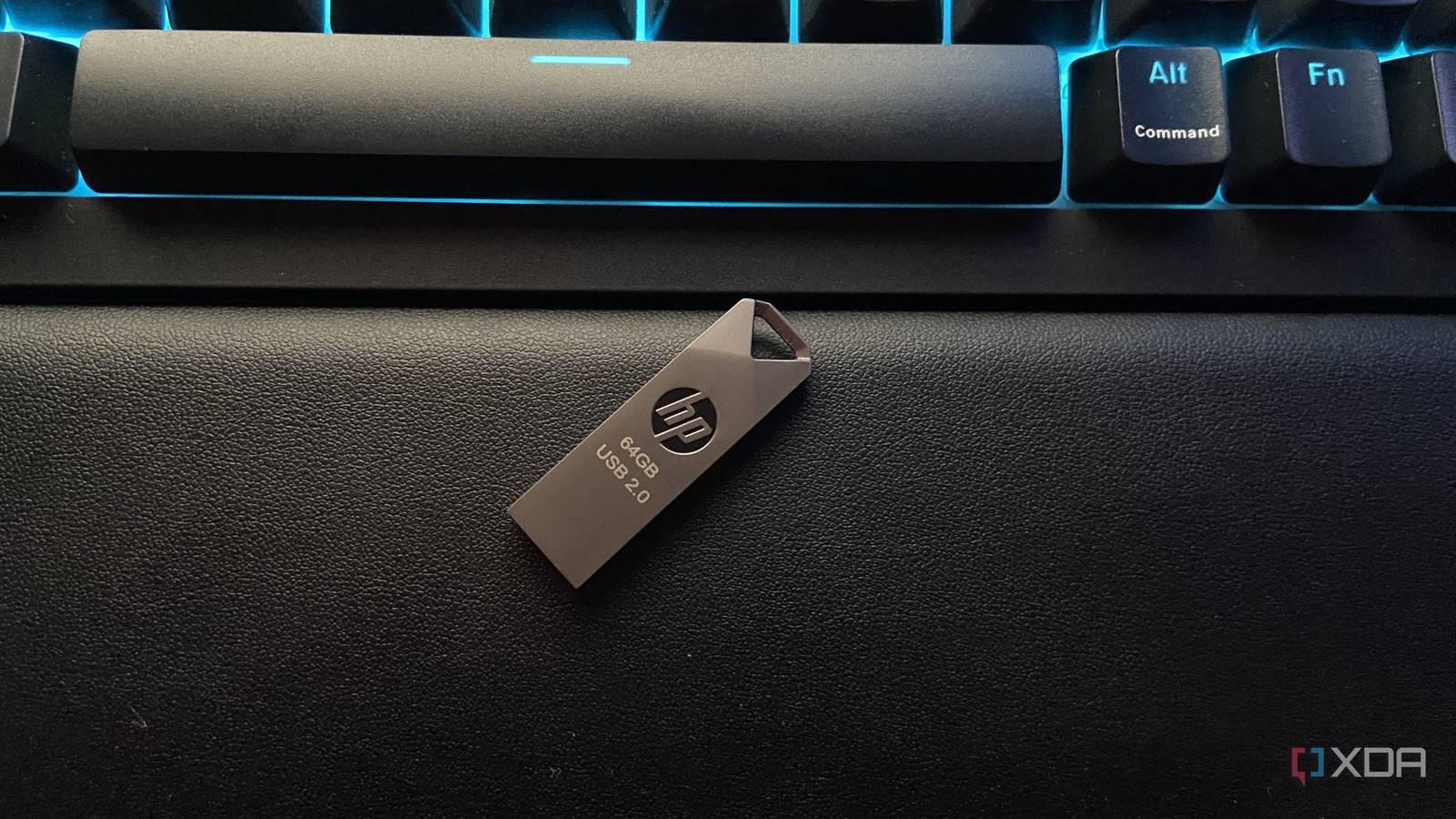
Published Sep 17, 2026, 9:30 AM EDT Sumukh has a knack for simplifying tech for the masses and helping consumers pick the right gadgets with his in-depth insights and reviews. He decided to hide his engineering degree in the closet to pursue his passion for writing. Over the past 7 years, he has written guides, reviews, and detailed opinions for notable publications like TechPP and XDA-Developers – and even donned the hat of a Lead Editor at Guiding Tech Media. USB sticks or flash drives aren't as popular as they used to be. With cloud storage and wireless data transfers now becoming popular, USB thumb drives have almost vanished. However, I still have a couple of them lying around that I wanted to put to good use. Since their storage capacity is too low, I explored alternative use cases for these USB drives. That's when it struck me that I could convert these USB sticks into a portable repository of apps and programs for troubleshooting issues with my computers, routers, and servers. Essentially, a USB drive that has all the important tools in one place. I started converting a USB stick into a Windows bootable drive using Rufus, downloading portable versions of various apps and software I use regularly on all my computers. I included both Windows and Mac versions, as I alternate between the two platforms. With one more spare drive, I downloaded some network tools to help me troubleshoot my networking stack. Since I self-host several services and maintain a home lab with multiple connected devices, ensuring my network operates smoothly is a top priority for me. If your setup is also similar to mine, here are all the tools I added to my USB stick — to help you create your own version. Wireshark Portable Analyze data packets If you've ever delved into the world of networking, you obviously know the importance and popularity of Wireshark. It helps you capture and analyze data packets on a network, which can be extremely important in identifying what sort of data your devices are sending and receiving. In simple terms, Wireshark is a program that keeps a constant eye on your network activity. The simplest yet most effective use case of Wireshark is to detect network clogs that may be causing your internet connection to slow down. You can determine if a device or app is sending too much data and then decide to disconnect the device or kill the process. It's also useful for determining suspicious activities on your network via apps or devices you don't recognize. It's also portable, so it doesn't require any installation. Wireshark Nmap Find devices and open ports Whenever a smart plug, appliance, or any IoT device, for that matter, isn't functioning as intended, I like to double-check if they're connected to my network or not. A simple way to do this is by using Nmap. It's a user-friendly network scanning app that lists all devices connected to your network, their open ports, and the corresponding services running on them. There are a few ways you can use this data to your advantage. Apart from using it to verify connections, I also use it to check for any open ports. This way, I can tackle vulnerabilities beforehand. It can also be used to check if a remote server is reachable or not. If you're running a home lab, this is certainly helpful. Nmap also houses a service called Netcat that you can even use to transfer files wirelessly on your local network. These handy additions make it a must-have for anyone dealing with wireless networks. Nmap Individual pricing Free Platforms Windows, macOS, Linux DNS Jumper Switch between different DNS servers Switching to a different DNS server is a common practice, especially if you want to speed up your internet connection, test out which one works best for you, or even bypass certain restrictions, like blocked websites or apps. Instead of manually alternating between several servers, DNS Jumper makes the process a lot more seamless. It lets you quickly test and switch between multiple DNS servers like Cloudflare's 1.1.1.1, Google DNS, etc., to see which one works best for your use case. This way, you can also troubleshoot DNS issues that cause loading problems when visiting certain websites. I like to use DNS Jumper to switch to a reliable DNS for important tasks that I can't afford downtime on. DNS Jumper NetResView View all network resources in one place The simplest way to view all your computers, printers, IoT devices, and shared files and folders over your local network is to use NetResView. If you have a ton of devices, you may even forget about a certain device running on your network. If it's not relevant or you don't use it anymore, you can decide to remove it once you identify it via NetResView. In an environment where there are multiple computers with shared resources, you can use NetResView to check which computers have access to what resources. If you're unable to access a shared printer on your network, use the app to quickly check the connection and permission status. NetResView Don't throw away your USB drives Having spare USB drives is never a bad thing, since you can create several personalized tools like this to help you troubleshoot or fix issues. In fact, you can create a collection of USB drives that can end up being helpful in various respects, like installing basic apps as soon as you set up a new computer, creating configuration files for popular services, or even installing drivers for commonly used devices. Since these USB drives are tiny and occupy such little space, you can dedicate a small compartment in your backpack to them. This way, they're always with you —even if things go wrong when you're traveling.
4 small network tools I keep on a USB stick for quick troubleshooting and fixes
Full Article
Original Source
Read the full article at Xda-developers →KhanList aggregates and links to publicly available news content. We do not host full articles from third-party sources. Always verify important information with original sources.