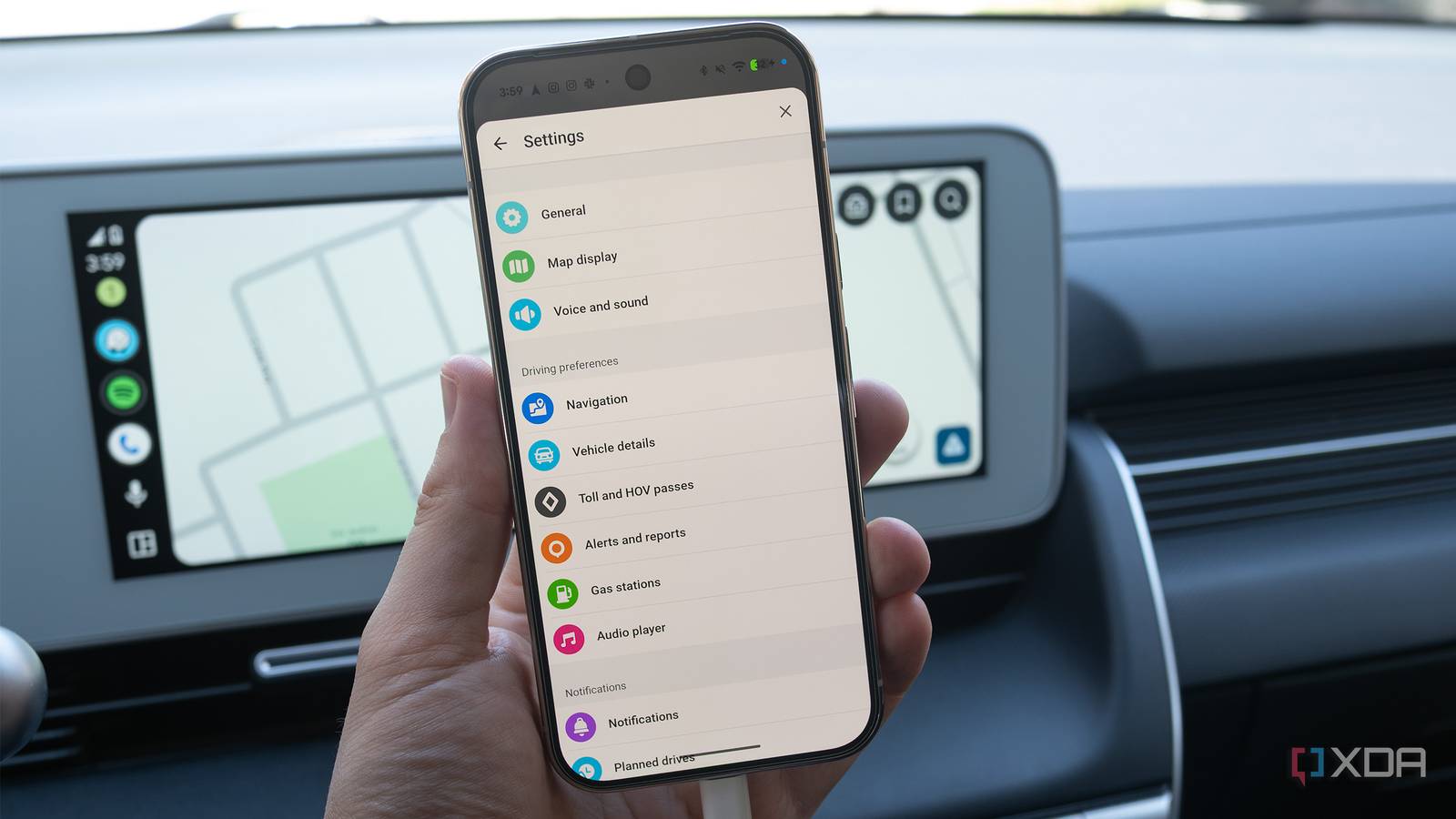
Published Jul 30, 2026, 10:30 AM EDT Patrick O'Rourke is XDA's News Editor and Entertainment Segment Lead. Previously, he was Pocket-lint's Editor-in-Chief, the Editor-in-Chief of Canadian tech publication MobileSyrup, and earlier in his career, he worked as the technology editor at the Financial Post and Postmedia. He's based in Toronto. Over the past 15 years, he's written thousands of articles. Patrick has also interviewed dozens of tech industry executives and covered GDC, E3, Gamescom, WWDC, Apple keynotes, Samsung Unpacked events and more. Patrick has a BA in journalism from Toronto Metropolitan University. Whenever I'm driving one of my family's cars, I pretty much always use Waze. I have an awful sense of direction, so when I'm behind the wheel and headed somewhere new (and in some cases, even to places I've already been), Google's crowdsourced map app has been a lifeline for me from pretty much its launch on Android Auto in 2017 — especially now that I own a vehicle that doesn't offer a built-in navigation option. However, the in-car Waze experience isn't perfect by default. So over the years, I've uncovered several straightforward tweaks that solve Google Maps' issues and suit my taste better, including making navigation more personal, faster routes, and cleaning up its often cluttered UI. Get more accurate directions based on your navigation habits Turn on personalized ETAs and routes One of the first things I often do in Waze is turn on the app's Personalized navigation features, which enables Personalized ETAs and routes. With this feature, I get calculated arrival times based on my past drives combined with data pulled from the community. This means that if there's a location I often visit at a specific time of the day, I get a more accurate estimate of how long it'll take me to get there, which is key when I need to make it to an appointment on time. Additionally, turning on Personalized Routes shows me navigation based on my past drives and route selection. Personalizing Waze's navigation makes the app feel like it's paying attention to how I navigate my city and, in turn, gives me the most efficient way to get to wherever I'm going, especially locations I visit frequently. To find this feature, open Waze and tap the three-line button in the top-right corner. Now, head to Settings > Navigation > Personalization > Personalization Navigation > and turn on Get Personalized ETAs and Get Personalized Routes. If you don't mind using toll roads, this one is for you Toll roads can often get you where you need to go far more quickly When I first started using Waze with Android Auto, I just couldn't understand why the app never pointed me to my local toll highway. Embarrassingly, I didn't realize that I had Avoid Toll Roads turned on for months, forcing Waze to automatically avoid anything related to Toll and HOV passes. If you live in an area where there's a more complicated system of transponders and toll road subscriptions, you can add specific passes to Waze, allowing the app to offer routes using only the HOV passes you have while avoiding those you don't (I've found this particularly useful). To access Waze's toll-related features, head to the app and tap the three-line button in the top-right corner. Now select Settings > Navigation and turn off Avoid Toll Roads. Next, tap on Toll and HOV Passes and add whatever transponders or subscriptions you have for paid highways and bridges (the list isn't perfect, but it seems to be accurate for most locations). I tweak the settings to make sure the on-screen map shows up exactly how I want I like Waze's map to look a specific way in my car As far as the way I want Waze to look in my vehicle, I'm pretty stuck in my ways at this point, and there are several settings I change under the app's Map Display options. First, I only ever want Dark Mode to appear at night, so I set it to Only at Night, and I prefer the Map View to flip from 3D to 2D automatically, so I set it to Auto. I also want Waze to zoom in when it needs to, particularly if I'm driving in a busy area like in the downtown core of a city, so I make sure Auto Zoom is on. I also prefer my vehicle to be represented on-screen by a Warthog from Halo, so I change that setting, too (this is obviously very important). Lastly, I turn on Show Traffic Flow and Show Wazers so that I can see other Waze users on the road. To find Map Display options, open Waze, tap on the three-line button, and select Map Display. You'll then see all of the above visual options I mentioned as you scroll down. I always add a little fun to my Waze experience with a unique voice The Master Chief is my go-to choice Several years ago, Waze used to make a big deal out of the various voices it offers, but I haven't heard much about them lately, and I'm pretty sure most users have forgotten they even exist — I definitely haven't, though. While I typically select the Master Chief from Halo (you're probably noticing a theme here), there are other amusing options, like an Alien, a Slime Blob, a Dolphin, Sonic, a 2000s Pop Star, and even Cortana, another Halo series character. Voices obviously don't add anything practical to the driving experience, but they can lighten a tough day just a little bit. Even after all these years, I still chuckle when the Master Chief asks if I "requested backup" because another Waze user has added a police location marker on my route. To find Waze's Voice and Sound option, open the app, then tap the three-line menu button. Go to Settings > Voice and Sound, then select the voice you want by tapping the box at the top. On top of setting a fun custom voice, I also always select the Less Chatty option under Voice and Sound. I've always found that Waze's directions get a little too specific at times and interrupt the music or podcast I'm listening to more than they need to (Waze added this feature somewhat recently).
4 simple Waze settings I always change before using Android Auto
Full Article
Original Source
Read the full article at Xda-developers →KhanList aggregates and links to publicly available news content. We do not host full articles from third-party sources. Always verify important information with original sources.