
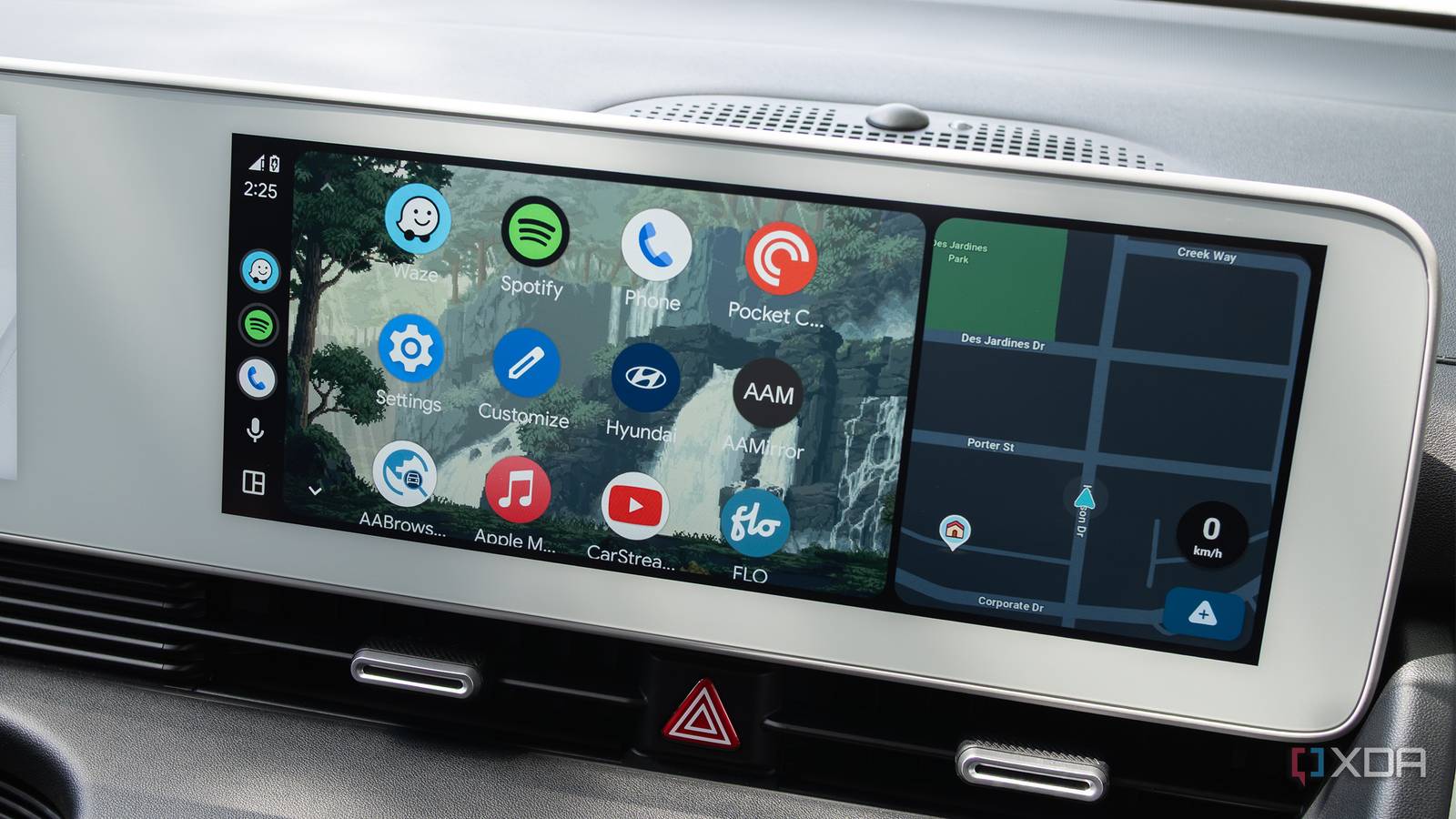
Published Aug 25, 2026, 11:30 AM EDT Patrick O'Rourke is XDA's News Editor and Entertainment Segment Lead. Previously, he was Pocket-lint's Editor-in-Chief, the Editor-in-Chief of Canadian tech publication MobileSyrup, and earlier in his career, he worked as the technology editor at the Financial Post and Postmedia. He's based in Toronto. Over the past 15 years, he's written thousands of articles. Patrick has also interviewed dozens of tech industry executives and covered GDC, E3, Gamescom, WWDC, Apple keynotes, Samsung Unpacked events and more. Patrick has a BA in journalism from Toronto Metropolitan University. Right up there with the Android Auto features I use to stay safer behind the wheel are the settings I change to make sure I'm not tempted to pick up my phone while I'm driving. Whether it's starting Android Auto as soon as I get into my car, so I don't try to get it up and running when I'm already behind for an appointment, starting music automatically so I'm not scrolling Spotify on my phone, or flipping Do Not Disturb on under certain circumstances so I can avoid text messages, over the past several months I've made a few notable changes to my setup to ensure I don't feel the urge to reach for my phone when I'm behind the wheel. Starting Android Auto automatically means I don't have to set anything up Creating a seamless infotainment experience is key Since switching to wireless Android Auto after getting a car that officially supports the feature, I've really appreciated that my phone now connects instantly. However, Android Auto and my car's infotainment system weren't initially set up to do that. During my first week with my Kia K4, I'd get in my car and go through the on-screen process to connect to Android Auto every time. In some cases, this meant that if I were in a hurry, sometimes I'd try to get everything up and running after I had already started driving. This was especially frustrating because my Kia K4 EX doesn't have a built-in navigation system, so I rely on Waze and Google Maps in Android Auto to get around. To get Android Auto to turn on automatically with my Pixel 10 Pro, I navigated to Settings > Connected Devices > Connection Preferences > Android Auto, then tapped Start Android Auto Automatically. I was then given three options: Always, If Used On The Last Drive, and Default (Set By Vehicle). I flipped my setting from If Used on the Last Vehicle to Always. In some cases, depending on your vehicle model, you might also need to configure your car's infotainment system to launch Android Auto immediately (I needed to change this setting). Shifting this setting varies by vehicle model. It turns out music and podcasts starting automatically is actually helpful The more I avoid using that pesky infotainment touchscreen, the better If you follow my work, you'll know that a few months ago I wrote a listicle very similar to this one, where I turned off autoplay because I was tired of being blasted by music every time I got in my car. It turns I'm wrong, and that is, in fact, a very useful feature. It not only gets me on the road quicker because I'm not picking up my phone and trying to find something to listen to, whether it's a song on Spotify or a podcast on Pocket Casts, but it also avoids the frustration of trying to navigate the Android Auto version of both apps, which feature pretty awful user interfaces. With this in mind, I navigated to Settings > Connected Devices > Connection Preferences > Android Auto on my Pixel 10 Pro, and turned Start Music Automatically on. Now, whenever I get in my car, whatever I was last listening to starts playing. Of course, sometimes I still need to reach for my phone to find a specific playlist, but I find that the urge to do that happens far less frequently. Sometimes I really don't need to see text messages in the car I don't use this feature all the time, but Do Not Disturb can come in handy While I typically like text message notifications to pop up on my car's display when I'm using Android Auto because I can easily respond to them with Gemini, sometimes that isn't a great idea, particularly if I'm driving in a busy area and need to concentrate on the road. Gemini can also be frustratingly unreliable at times. This is why I turn on Do Not Disturb in situations like this. It keeps the in-car screen distraction-free so that I can concentrate on the task at hand. To turn Do Not Disturb mode on with my Pixel 10 Pro, I navigate to Settings > Safety & Emergency > Silence Notifications While Driving. If you have a Pixel device like me (this feature is also available on some other phones), you can set Silence Notifications While Driving to automatically turn on when your phone detects a Bluetooth connection to your car and motion (when you tap on Silence Notifications While Driving, a new screen with the option should appear). With this feature on, you don't have to worry about turning off Silence Notifications While Driving manually when you want texts to show up again. I hate interacting with my car's touchscreen, but this feature makes it a little less painful In nearly every situation, I'm not a fan of using my car's touchscreen with Android Auto. App user interfaces are often inconsistent, there's a bit of frustrating delay, and in most situations, it's quicker to just pick up my phone and select the song or podcast I want to listen to, especially if I'm hunting for a specific playlist. Even starting and stopping music can be frustrating when you have to reach the screen's right side. This is why I turned on the Media Closer to Driver setting, which, as you likely already assumed, moves media controls to the driver's side of Android Auto's UI. To do this on my Pixel 10 Pro, I head to Settings > Connected Devices > Connection Preferences > Android Auto > Change Layout > Navigation Closer to Driver. It might seem silly, but this is a simple Android Auto quality-of-life change that makes me rarely want to pick up my phone to start or stop music or select something new to listen to. As a downside, Waze and Google Maps navigation features are pushed to the right side of the display, making them a bit more difficult to use. I usually set my destination on my phone before I actually start driving, so I haven't found this to be that big of an issue.
4 simple Android Auto settings I always change to keep my hands off my phone while driving
Full Article
Original Source
Read the full article at Xda-developers →KhanList aggregates and links to publicly available news content. We do not host full articles from third-party sources. Always verify important information with original sources.