
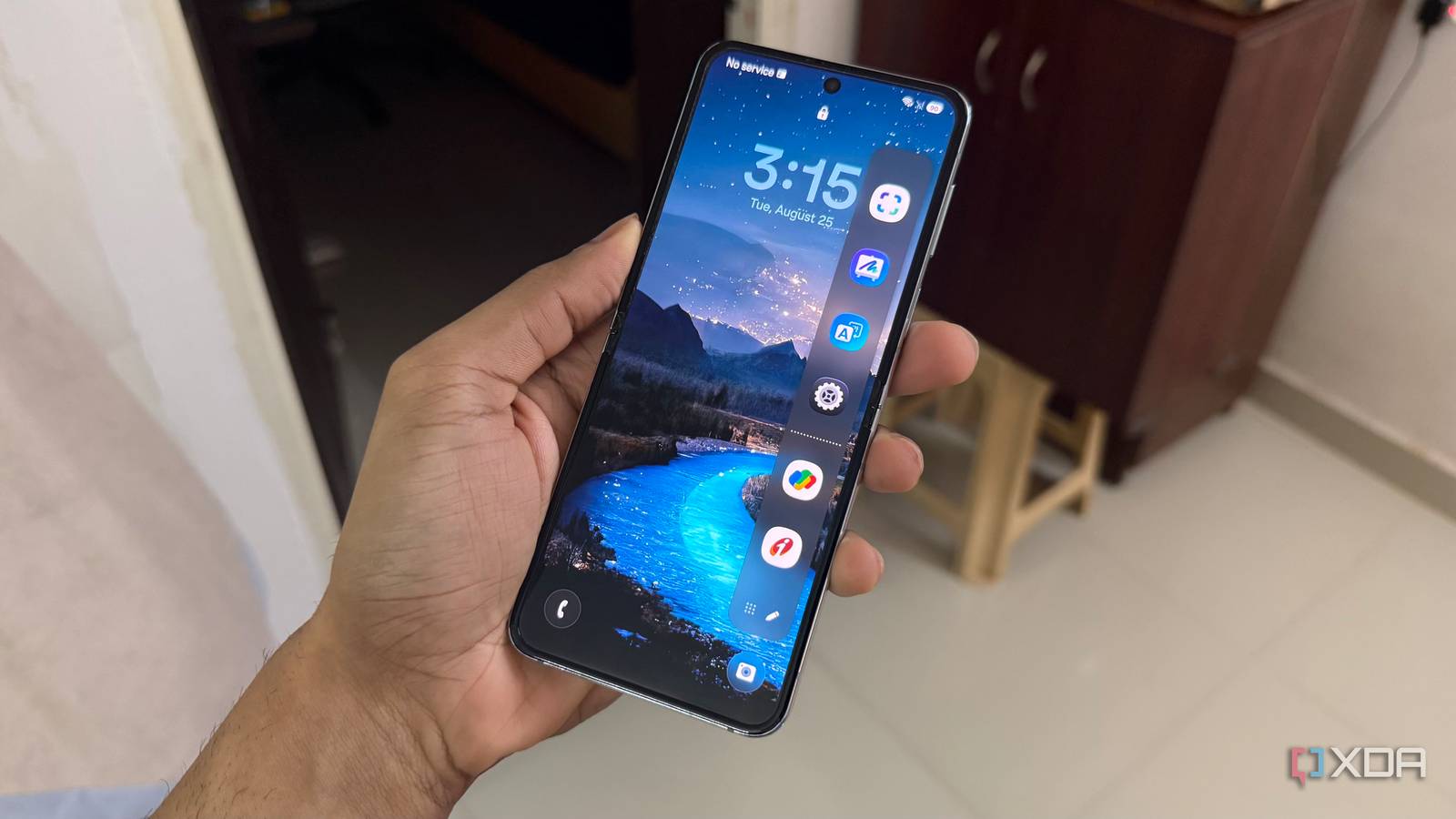
Published Aug 30, 2026, 8:00 AM EDT Hamlin has been in the tech field for over nine years. Since 2017, his work has appeared on MakeUseOf, Android Police, OSXDaily, Beebom, and more. He served as the Senior Editor at Valnet's MakeUseOf for over two years before joining XDA. He uses a high-end gaming rig for desktop use and a MacBook for traveling, but dislikes some of the quirks of macOS. You're more likely to catch him at the gym or on a flight than anywhere else. As someone who's used the Galaxy Z Flip 5 for the last three years, I love how Samsung packs One UI with features you don't always get on other Android phones. But having more features doesn't automatically make a phone better, especially when some of them get in the way or solve one problem only to create another. That's exactly why I've tweaked One UI to better fit how I use my phone day-to-day. Of course, I'm not trying to make it look like stock Android because I do genuinely love Samsung's interface, but there's no point in sticking with the out-of-the-box experience either. Disabling features I barely use has made my phone feel better without taking away anything I actually like about One UI. Edge Panels A Samsung staple that I never got around to using Edge Panels is a feature we've seen on Samsung phones for over a decade now, starting with the Galaxy Note Edge in 2014. You simply swipe inward from the edge of your screen to pull up a customizable panel where you can access your favorite apps or select Galaxy AI features like Drawing Assist and Interpreter. I know many Samsung users who absolutely love this feature, but I've personally never gotten into the habit of using it. I've tried giving it a fair chance, but I just couldn't train myself to reach for Edge panels instead of opening apps the way I normally do. If anything, I found myself accidentally pulling out the panel because its handle sits pretty close to where I swipe. That's why I disabled it by going to Settings -> Display -> Edge panels and toggling it off. I don't see much difference between swiping up to bring up the app drawer and swiping inward to bring up Edge panels, anyway. At least the app drawer shows me way more apps. RAM Plus I rarely run out of RAM in the first place These days, 8GB of RAM isn't much on Android phones, especially when flagships offer 12GB and 16 GB. That's why Samsung offers a feature called RAM Plus, which uses part of your phone's internal storage as virtual memory, similar to the paging file in Windows. This lets your phone keep more apps running in the background, but the catch is that internal storage is much slower than RAM. Ideally, you don't want your phone to rely on internal storage unless it really needs the extra memory, and that's rarely ever the case for me. I'm not a power user, so 8GB is still more than enough when I mostly use my Z Flip 5 to watch YouTube, doomscroll Instagram, and text friends on Discord. That's why I disabled RAM Plus by going to Settings -> Device care -> Memory -> RAM Plus. Doing this means my phone closes some background apps when it's low on RAM instead of falling back to internal storage, which can slow things down. Samsung Keyboard Only because I've used Google's keyboard since my first Android phone My very first smartphone was a Google Nexus One, which my dad bought for me back in 2010. Back then, the stock keyboard wasn't called Gboard, and it was nowhere near as feature-packed as it is today. Still, that's the keyboard I started with, and I continued using it even as I switched between phones like the Samsung Galaxy S4 and LG G5. By the time Google renamed it to Gboard, I had already been using some version of it for several years. So, this isn't really a knock against Samsung Keyboard. I'm simply too used to Gboard at this point to switch to anything else. Using Samsung Keyboard would mean I'd have to readjust all over again if I ever switched to a different brand down the line. Unlike the other features here, you don't really have to "disable" Samsung Keyboard. You can simply go to Settings -> General management -> Keyboard, toggle on Gboard from the list, and then set Default Keyboard to Gboard. Always On Display That's just one more thing using my battery Unlike everything else I've shared so far, Always On Display is something I've always found convenient for checking the time or glancing at notifications when my phone is sitting on my desk. But right now, that convenience comes at the cost of my phone's battery life. Samsung says AOD uses very little power, but it still uses more power than completely disabling it. My Z Flip 5's battery life has always been average, but three years in, it's noticeably worse than it used to be. So I need all the help I can get to make it just a little bit longer, even if it's only a few minutes, as long as it means I don't have to carry a power bank everywhere. Disabling it from Settings -> Lock Screen and AOD -> Always On Display didn't even make it last 20 minutes longer on its own, but with a couple of other battery-saving tweaks, I got pretty close. I don't even miss any of them, but your list might look different You shouldn't just copy my list and disable every feature here just because I did. It all depends on what phone you have and how you use it. For instance, if you have a Samsung phone with 6GB of RAM or you switch between a lot of apps, I'd keep RAM Plus enabled. Or if you've gotten used to the Samsung Keyboard, it's better to stick with it than readjust to Gboard. At the end of the day, One UI gives you so many options that no single setup will work for everyone. So go through the settings yourself and disable the features you can live without. It could be a background process or an unnecessary feature that slows your phone down or drains the battery.
4 Samsung Galaxy features I disabled to make my phone way better
Full Article
Original Source
Read the full article at Xda-developers →KhanList aggregates and links to publicly available news content. We do not host full articles from third-party sources. Always verify important information with original sources.