
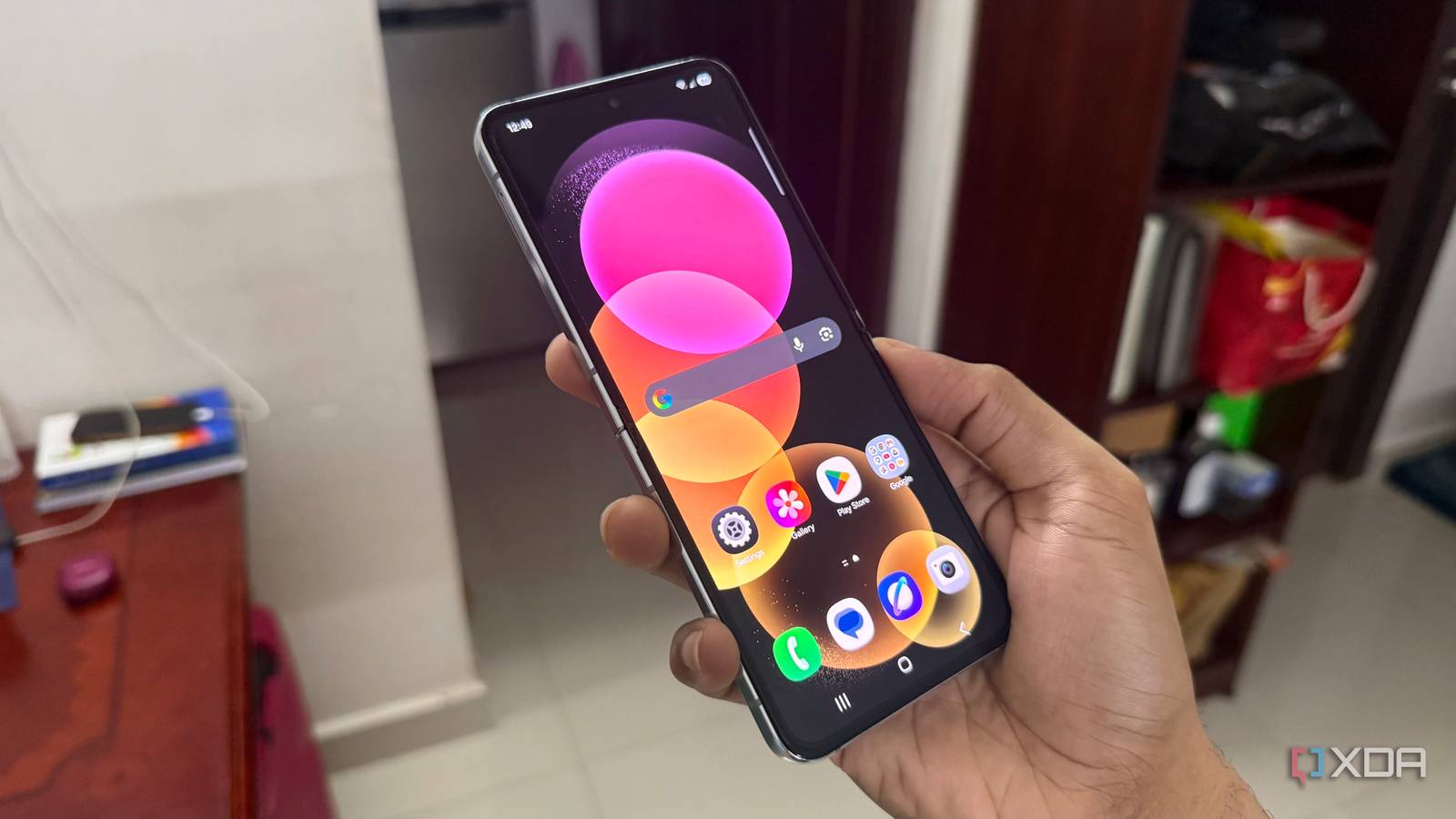
Published Aug 11, 2026, 1:30 PM EDT Hamlin has been in the tech field for over nine years. Since 2017, his work has appeared on MakeUseOf, Android Police, OSXDaily, Beebom, and more. He served as the Senior Editor at Valnet's MakeUseOf for over two years before joining XDA. He uses a high-end gaming rig for desktop use and a MacBook for traveling, but dislikes some of the quirks of macOS. You're more likely to catch him at the gym or on a flight than anywhere else. I still use the Samsung Galaxy Z Flip 5, which I bought about three years ago. While it's not nearly the fastest Samsung phone you can buy today, it's still fast enough that I don't really feel the need to upgrade. That said, One UI can sometimes feel a bit sluggish after extended use, especially once the phone warms up. Sure, you could chalk that up to the phone's age, but I wanted to see if I could make One UI feel a little more responsive. So I started digging through One UI's settings to see which features I could live without. I'll admit, individually, almost all of them barely made a difference. But together, a handful of them made my Z Flip 5 feel noticeably more responsive without taking away any features I actually rely on. So if your Galaxy phone doesn't feel quite as snappy as it used to, these are the settings I'd check and disable first. RAM Plus I already have enough RAM for the way I use my phone RAM Plus is a feature that uses a small portion of your Galaxy device's storage space to act as virtual memory. Think of it as Samsung's equivalent of the paging file on Windows. When your phone starts running low on RAM, One UI can use its storage space to keep more apps open in the background instead of closing them. This feature is useful if you constantly juggle several apps, but I barely use my Z Flip 5 for anything beyond Instagram, Slack, YouTube, and Discord. More importantly, I already have 8GB of RAM on my phone, which may not seem like much by today's standards, but I've never found it limiting for the way I use my phone. Regardless, I'd rather have my phone close the occasional background app than rely on slower storage as a fallback. That's why disabling this was a no-brainer. You can toggle it off from Settings -> Device care -> Memory -> RAM Plus. You'll have to restart your phone for the change to take effect. Animations The one feature that instantly makes your phone feel faster Unlike the other settings on this list, this is the one I noticed right away. There's no doubt that One UI's animations are polished, and they actually make navigating around the OS feel more fluid. The problem is that they also add a small delay to almost every interaction. Opening apps, returning to the home screen, and switching between recent apps all take just a split second longer than they need to, even on flagship phones. That's why I decided to set every animation scale to 0x in Developer options. Of course, you'll need to enable Android's Developer options first. But once you do, it's as simple as going to Settings -> Developer options and scrolling down to the Drawing section, where you'll see Window animation scale, Transition animation scale, and Animator duration scale. By default, they're all set to 1x, but you can turn them off completely or even settle for 0.5x if you still want some animations. Wi-Fi and Bluetooth scanning Toggling off Wi-Fi and Bluetooth doesn't stop background scanning Even if you've disabled Wi-Fi and Bluetooth from the Quick Settings panel, that doesn't necessarily stop your Samsung phone from scanning for nearby Wi-Fi networks and Bluetooth devices. Samsung does this to allow apps and services to use those radios to improve location accuracy. This helps if you're navigating a shopping mall, an airport, or anywhere else where GPS signals are weak. But I haven't needed that level of location accuracy at any point in my last three years of using this phone. So I figured there was no point leaving those scans running in the background for a feature I'd rarely benefit from. You can turn them off by going to Settings -> Location -> Location services. Additionally, you can consider disabling Nearby device scanning from Settings -> Connections -> More connection settings if you don't use features like Quick Share or SmartThings. You can still use those features, but automatic discovery of nearby compatible devices may not be as seamless. Customization Service Personalized recommendations aren't worth another background process Samsung's Customization Service is a feature that collects information from your Galaxy device and Samsung account to personalize recommendations and show you more relevant ads. Personally, I haven't found any of those recommendations useful enough to justify leaving another background process running. If anything, this feature benefits Samsung more than it benefits me, especially since most of the apps I use aren't Samsung's apps anyway. That's why I've turned it off by going to Settings -> Samsung account -> Security and privacy -> Customization Service. Disabling this alone won't make your device suddenly faster, but if there's anything I've learned from using smartphones for the past decade and a half, it's that background processes can add up over time. If cutting down on them can help keep my phone running smoothly during extended use, I'm all for it. Less really is more with One UI Samsung loves to pack One UI with features, and while many of them are useful, disabling the ones you don't use can make a noticeable difference in how snappy your device feels. Disabling animations had the biggest impact by far, whereas the others worked together to reduce background activity. At least now, I don't really feel like I'm using a three-year-old phone, which I see as a win. And I didn't lose any features I actually relied on in the process. All in all, I think One UI works better when it's only running the features I actually use.
4 One UI features I turned off to make my Galaxy device feel faster
Full Article
Original Source
Read the full article at Xda-developers →KhanList aggregates and links to publicly available news content. We do not host full articles from third-party sources. Always verify important information with original sources.