
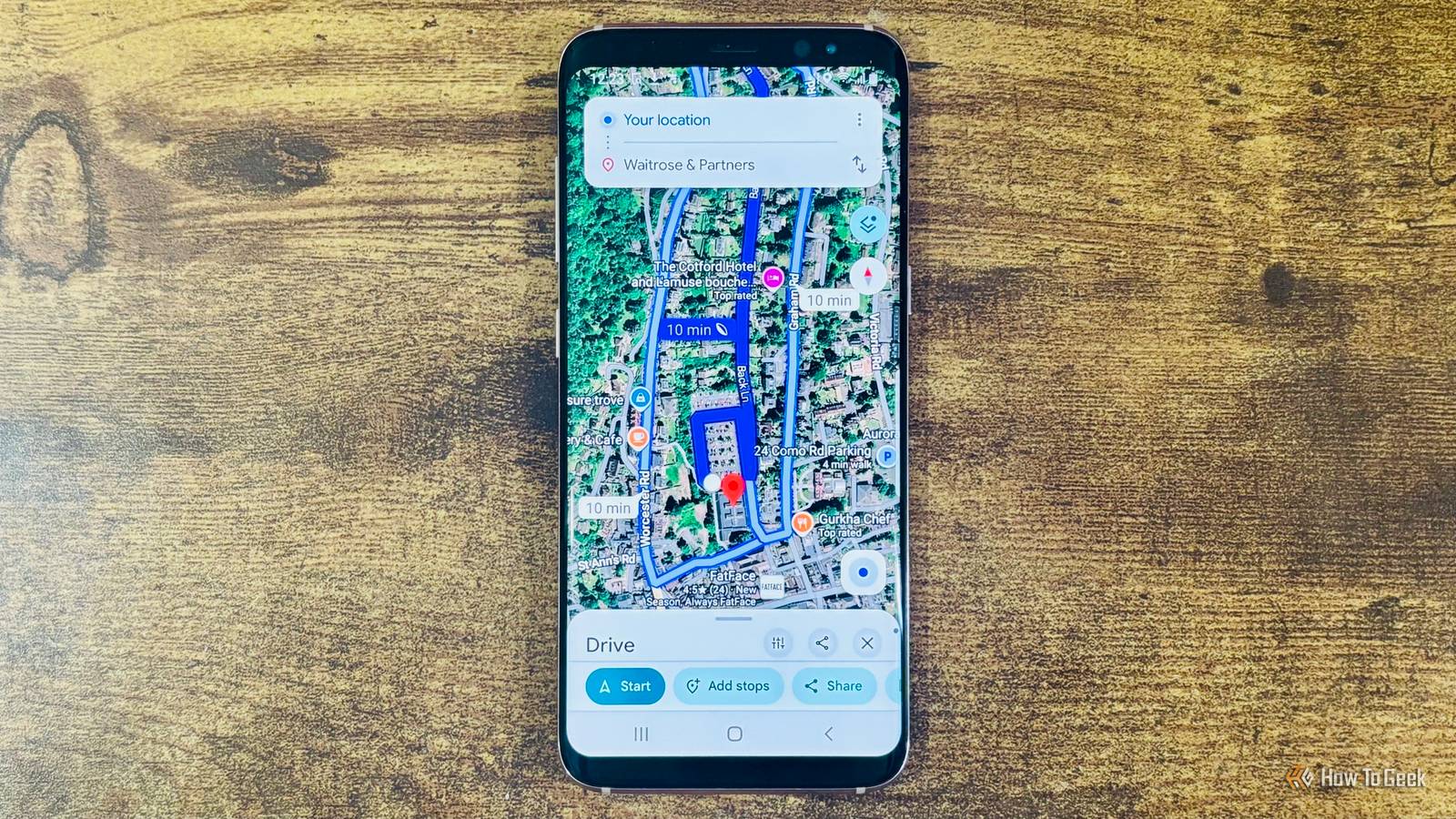
Published Oct 7, 2026, 3:00 PM EDT A Computer Engineer turned tech-savvy. Sanya is part of the How to Geek team, and she covers Android, Samsung, Google, apps, and everyday technology, combining hands-on experience with thorough research. She helps readers understand technology without getting lost in technical jargon. I’ve had Google Maps on my phone for years, and I’ve probably used it more times than I can count. Still, my relationship with it has always been pretty basic: type in a destination, check the ETA, complain about the traffic, and follow the blue line. Even when I’m early for an appointment and have a few minutes to spare, it never occurs to me to see what else the app can do. Then I realized I’d been treating the map like a static picture. I was tapping buttons and pinching in and out, while completely ignoring the fact that I could interact with the map in other ways. A few random swipes and taps later, I had found a few tricks that made exploring a route much less clunky. 3D view Two fingers unlock a better view When I’m driving somewhere unfamiliar, I sometimes want more than a blue line telling me where to turn. A top-down map can make a busy area look deceptively simple, especially when several roads, buildings, and turns are packed together. I ran into this while checking a route before heading out and realized I could get a better look at the area without changing any settings. Place two fingers on the map and swipe upward. The map tilts and gives you a 3D-like perspective, so you can see the roads and surrounding area from an angle. Swipe down with two fingers to return to the usual overhead view. You can also move around the map while it’s tilted to explore the surrounding area. I like this because it gives me a better mental picture of the route. I don’t stare at a flat screen and guess what the road will look like. Navigation controls Search along route in Maps I usually don’t think much about the bottom part of Google Maps once navigation starts. I have my route, ETA, and the next turn right there, so I leave it alone and focus on driving. But that little panel is a treasure box. Yesterday, I was heading to the grocery store and wanted to find a coffee shop without changing my destination. Instead of tapping around the screen, I swiped up on the navigation information card at the bottom. That opened more options I hadn’t noticed before. I found tools such as Search along route, which was exactly what I needed. You can also access options such as sharing your trip progress. I like that I don’t have to abandon my current route just to find these controls. One swipe, and suddenly, coffee was back on the route. Location arrow Your location has a shortcut I’ve always treated the blue arrow in Google Maps as something that simply tells me where I am and which way I’m going. Then, while I was checking directions before heading out, I tapped it and found a little surprise: I could change the boring blue arrow into a car or another vehicle. When you’re actively navigating, tap the blue arrow or vehicle icon, then swipe through the available driving avatars. You can also choose a vehicle color before tapping Done. It’s obviously not going to get me to my destination any faster, but who doesn’t love a little personalization? I’d rather see a tiny car that reminded me of my Mini than the same blue arrow I’ve been looking at forever. And yes, I spent longer than I’d like to admit deciding which one looked best. One-handed zoom Skip the two-finger pinch I use this one when I’m checking an address and only have one hand free. Maybe I’m sitting in the car before leaving and want to zoom in on a tiny street, or I’m looking at a shopping complex and trying to figure out which entrance I need. Normally, I’d pinch the screen with two fingers, but there’s an easier way. Double-tap the map, keep your finger down after the second tap, and drag down to zoom in or up to zoom out. That’s it. You don’t need to awkwardly stretch two fingers across the screen or keep repositioning your hand to zoom. I especially like this because I always hold my phone in one hand, so it's easy to check something quickly. It feels a little strange the first couple of times, but once you get the movement right, zooming in and out becomes surprisingly easy. Google Maps, you could’ve told me The best part is that none of these require you to memorize a complicated process. A couple of fingers here, a swipe there, and suddenly the map feels a lot more useful. I’ll probably forget half the things I learned about Maps eventually, but these are simple enough that I can actually see myself using them on my next drive. If you haven’t tried them before, open Maps when you’re parked and play around with them for a minute. You might find a gesture that makes you wonder how you missed it for so long.
4 new Google Maps gestures every driver should know
Full Article
Original Source
Read the full article at Howtogeek →KhanList aggregates and links to publicly available news content. We do not host full articles from third-party sources. Always verify important information with original sources.