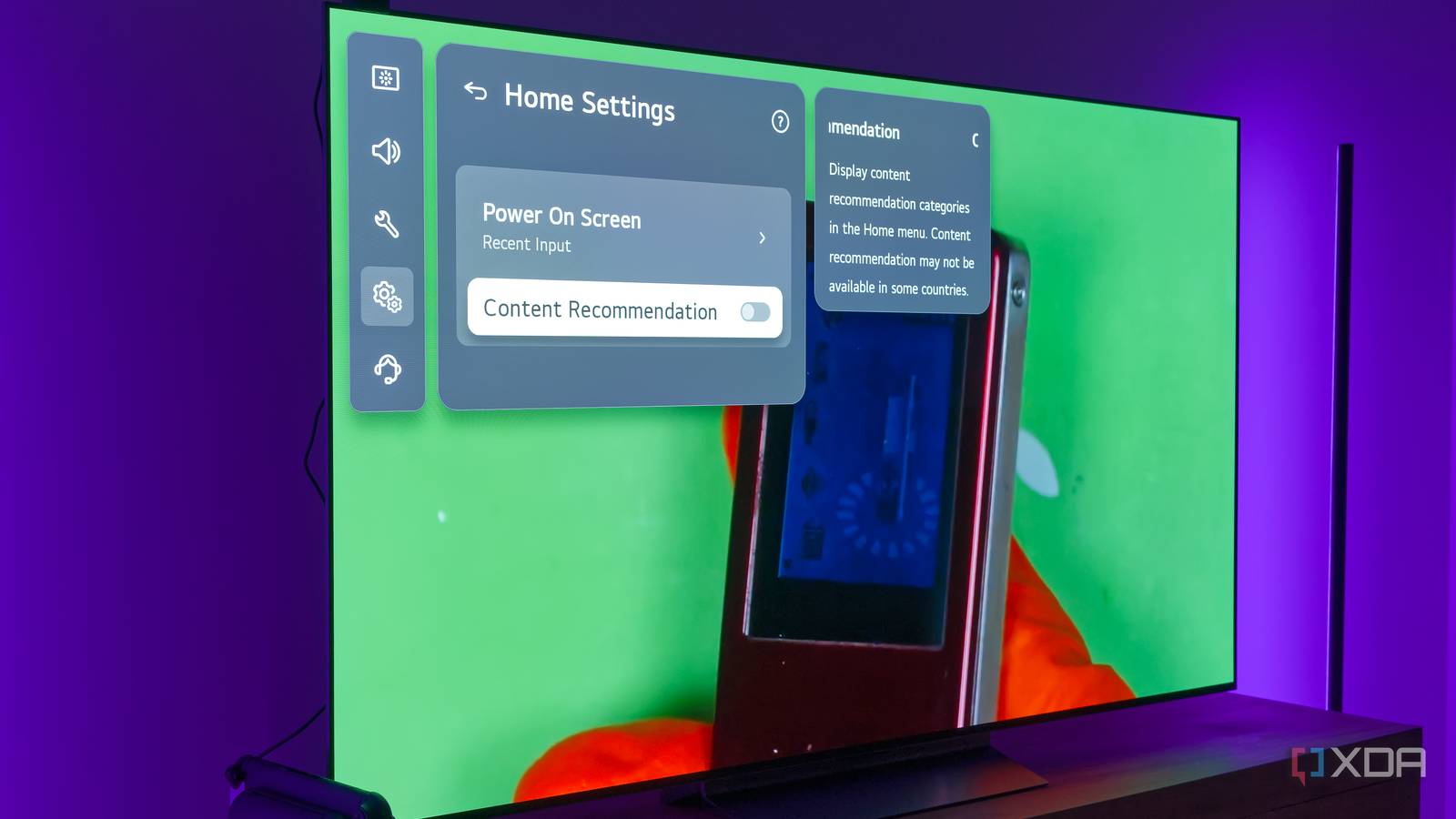
Published Aug 11, 2026, 3:00 PM EDT João has been covering the tech world for over 7 years, with a heavy focus on laptops and the Windows ecosystem. I also love all things tech and videogames, especially Nintendo, which he's always happy to talk about. Prior to joining XDA in 2021, he worked at Neowin: https://www.neowin.net/news/poster/jo%C3%A3o-carrasqueira/ Getting a new TV is always exciting, but in this day and age, you have to be wary of some of the settings that come enabled out of the box. Ads and useless features can be shoved in your face without giving you a clear option to say no. I recently got a new LG OLED C6 TV for testing, and while there are a few settings you can tweak during the initial setup, I had to go digging for even more options. Here are some of the settings I changed to make the TV feel truly mine, on top of making it feel more snappy. Home and screen saver "recommendations" I don't need more ads in my life The first thing you'll probably want to turn off if you're getting an LG TV are the so-called "recommendations" that are shown on the home screen and the screen saver on LG TVs. Realistically, these are more so ads, which may not only be intrusive, but they can also be a privacy risk and even cause the experience to feel a little slower. On a modern LG webOS TV, you can find these options by doing the following: Press the Settings button on your controller Choose the Settings icon in the top right corner to see all settings. Alternatively, pressing and holding the Settings button on the controller can immediately open the full settings menu. Select the System category on the left, then choose Additional settings towards the end of the list. Here, you'll want to go into Home Settings and turn off the Content Recommendation toggle. Some TVs may also have a Home Promotion setting you'll need to turn off. Press Back on the remote and head into Screen Saver Settings to turn off Screen Saver Promotion. With this done, your home screen and screen saver should look cleaner and stop showing you unwanted ads. It may be a placebo effect, but my TV even feels a little faster to load the home screen now. Live Plus It just spies on you Another invasive feature of LG TVs is Live Plus, a capability that isn't really explained to you properly in the TV's settings. Essentially, Live Plus allows LG to analyze the contents of your screen at any given time, and potentially use that information to provide an "enhanced viewing experience." Even LG doesn't mention any actual benefits of doing this, so it's best to turn it off. The steps are fairly similar: Press and hold the Settings button on your remote to access all settings. Select the System category, then choose Additional settings. Scroll down the list until you see Live Plus and switch the toggle to Off. That's all it takes, but it's frustrating that this is never mentioned anywhere else during the tutorial, or that you have to hunt it down to turn it off in the first place. There's no clear benefit, but it allows LG to look into any of the activities on your screen, and that's kind of ridiculous, in my opinion. Turn off AI features No one asked for this The tech industry's obsession with AI has affected pretty much every product it possibly could, and TVs are no exception. LG does provide some options during the initial setup related to features it knows it can advertise in a positive light, like "AI Sound Pro". But some others can still be enabled without you knowing, so I went looking and turned a few extra options off. Here's how: Press and hold the Settings button on your remote. Select the General category. Select the AI Service option near the bottom of the list. (Optional) You may want to make sure that all features are turned off in this list, though they should already be if you disabled them during setup. Select LG AI Settings. Select the AI Recommendations option and disable the primary toggle. Go back and select the AI Search option, and set it to Do not use. The AI Voice service may be useful if you're using accessibility features to speak commands, and if you aren't, it should already be off, so there's no need to touch it. But disabling the other two should remove some extra ads LG may try to deliver, plus disable useless features like Microsoft Copilot that may be built into the TV. (Optional) Skip the home page I don't need it Finally, this one may depend on your setup, but I still recommend taking a look. As with any smart TV, this LG model has its own operating system with a home screen, where you can launch apps or select specific inputs. This isn't entirely useless if you do use smart TV apps, but there's a good chance that when you turn on your TV, you want it on the same source it was last, whether that's a set-top box or a console. And if you do have a streaming box or stick with Android TV or Roku, you're likely to get a far better software experience there, anyway. My recommendation is to skip this entirely and save yourself some time. It's fairly easy: Press and hold the Settings button on your remote. Select the System category, then go to Additional settings. Select Home Settings. Choose Power On Screen. Select Recent input instead of Home. This ensures my TV always boots to content that's actually likely to be useful, and when I do want to use smart apps, my Chromecast with Google TV still offers a better experience than webOS. Plus, this lets me avoid using an LG account at all, which I prefer. My TV feels mine now As much as I love getting a shiny new OLED TV, LG has packed its software with a lot of unnecessary fluff (and I'm sure other companies aren't too different), so making these tweaks truly helped me use this TV as... a TV. If you have a webOS TV, I highly recommend disabling these features, too.
4 hidden LG TV settings I changed immediately to make my new TV look even better
Full Article
Original Source
Read the full article at Xda-developers →KhanList aggregates and links to publicly available news content. We do not host full articles from third-party sources. Always verify important information with original sources.