
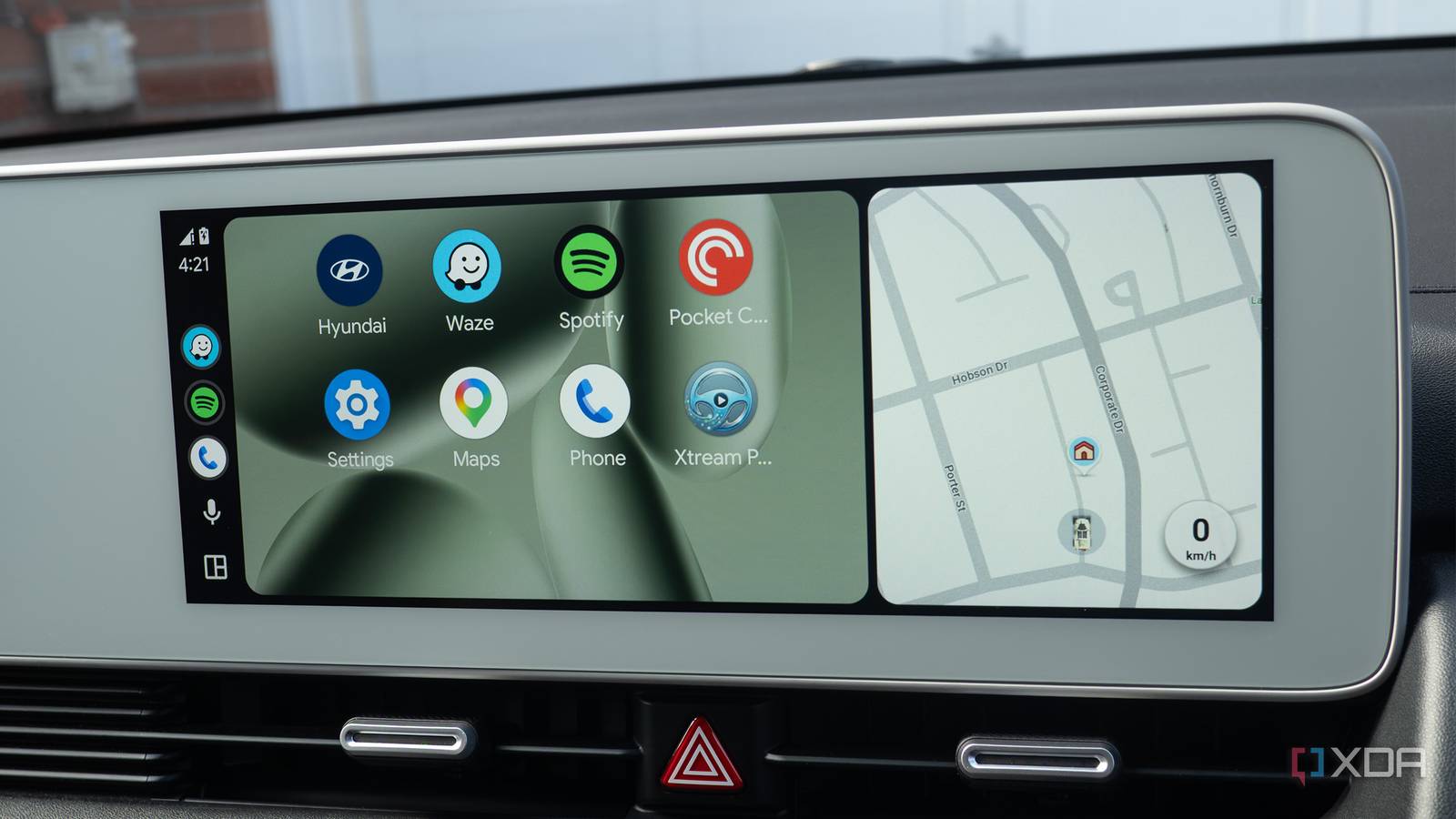
Published Aug 24, 2026, 8:30 AM EDT Patrick O'Rourke is XDA's News Editor and Entertainment Segment Lead. Previously, he was Pocket-lint's Editor-in-Chief, the Editor-in-Chief of Canadian tech publication MobileSyrup, and earlier in his career, he worked as the technology editor at the Financial Post and Postmedia. He's based in Toronto. Over the past 15 years, he's written thousands of articles. Patrick has also interviewed dozens of tech industry executives and covered GDC, E3, Gamescom, WWDC, Apple keynotes, Samsung Unpacked events and more. Patrick has a BA in journalism from Toronto Metropolitan University. I've never felt very confident behind the wheel of a car, and that feeling is exacerbated by unnecessary distractions showing up everywhere — driving has just never really been my thing. Of course, I can't control the world outside my vehicle and, to an extent, whatever my very active one-year-old son is doing in the back seat, but what I can change is my Android Auto experience, both in an effort to reduce distractions and offer up valuable information that keeps me safer and more informed on the road. With that in mind, there are several settings and features I use to avoid distractions while driving and stay as safe as possible behind the wheel. Gemini voice commands keep my mind on the road The less I have to touch my car's screen, the better Whether it's Google Assistant or, more recently, Gemini, I try to use voice commands when driving whenever I can, including asking Android Auto to navigate to my destination with Waze, or to play a specific song or playlist through Spotify. Of course, Gemini isn't perfect and occasionally messes up even these very simple tasks, but in most cases it works reasonably well (I really miss Google Assistant sometimes). Additionally, while it's rare that I'll get a text message I need to respond to while driving, Gemini in Android Auto can read texts aloud and allow me to respond with just my voice. This prevents me from being tempted to reach for my phone (which you should never do while driving) and helps ensure my mind is locked on the road ahead of me and nothing else. I'm hoping that at some point more complex routines will work with Android Auto, because right now they're still pretty hit-or-miss. Waze helps me always make sure I know where I'm going Sometimes I'll use Google Maps for shorter trips, but I usually prefer Waze Along with not being great at driving, I also have pretty poor navigation skills (I'm truly the complete package), especially when I'm in an unfamiliar location or a busy downtown area of a major city. This is why I almost always rely on Waze and its very useful crowdsourced features like traffic, police locations, hazards, and more. I use a combination of voice commands and the navigation app's simple on-screen map to make sure I always know where I'm headed. One thing I've noticed lately is that Waze tends to offer a few too many voice directions, which can be distracting when driving. To fix this, I navigate to Waze Settings > Sound Preference > Less Chatty. With this recently released feature, Waze only tells me the directions I actually need out loud. I could, of course, just turn off the app's voice directions, but I find a mix of voice directions and occasional glances at the screen far more helpful and safer than relying on a single navigation option since it means I'm not constantly glancing at my car's infotainment screen so I know where to go next. On a side note, I sometimes use Google Maps for shorter trips since it's often easier to find locations with the app, but these situations don't happen very often. I change several settings to make text messages less distracting I really don't need to see the first line of a text message when I'm driving When it comes to receiving text messages while I'm driving, I always make sure to adjust a few key settings. First off, while I still want message notifications to appear on my car's display when using Android Auto, I typically don't need group conversations to show up, the distracting message chime, or the first line of messages to appear on the screen — just knowing who contacted me is typically all that's necessary. To change this setting, I navigated to Connected Devices > Connection Preferences > Android Auto > then scrolled down to Messaging on my Pixel 10 Pro. Under Messaging, there are several options that let you tweak how messages appear in Android Auto, including Show First Line of Messages, Play Message Chime, and Show Group Conversations. In my case, I turn all of these features off because I find them distracting, though I leave Notifications with Assistant on so that Gemini can read my messages aloud. Now, whenever a text message notification pops up on my screen, and it's from an important contact, I just turn to Gemini to read that text out loud so I can stay concentrated on driving. Organizing the Android Auto Launcher's icons is key The apps I use the most always need to be easy to reach This might seem obvious to some people, but one of the key changes that really makes my Android Auto experience feel more streamlined and, in the process, keeps my eyes on the road more, is shifting around the key apps I use on the in-car platform. To do this, I head to Android Auto's launcher customization options by navigating to Settings > Connected Devices > Connection Preferences > Android Auto > Customize Launcher on my Pixel 10 Pro. In this menu, I can remove apps from Android Auto's launcher and rearrange their positions to make them easier to access on my car's infotainment screen. Getting rid of apps you don't use is a great idea because they just clutter up the launcher. In my case, I have Waze, Spotify, Pocket Casts, Settings, Maps, and Phone set to appear at the top of Android Auto's Launcher. That way, I know exactly where they are and can easily launch them when I need to. I never need to scroll through multiple app pages in the Android Auto Launcher because everything I need is right in the left-hand section.
4 Android Auto features I rely on to stay safer behind the wheel
Full Article
Original Source
Read the full article at Xda-developers →KhanList aggregates and links to publicly available news content. We do not host full articles from third-party sources. Always verify important information with original sources.