
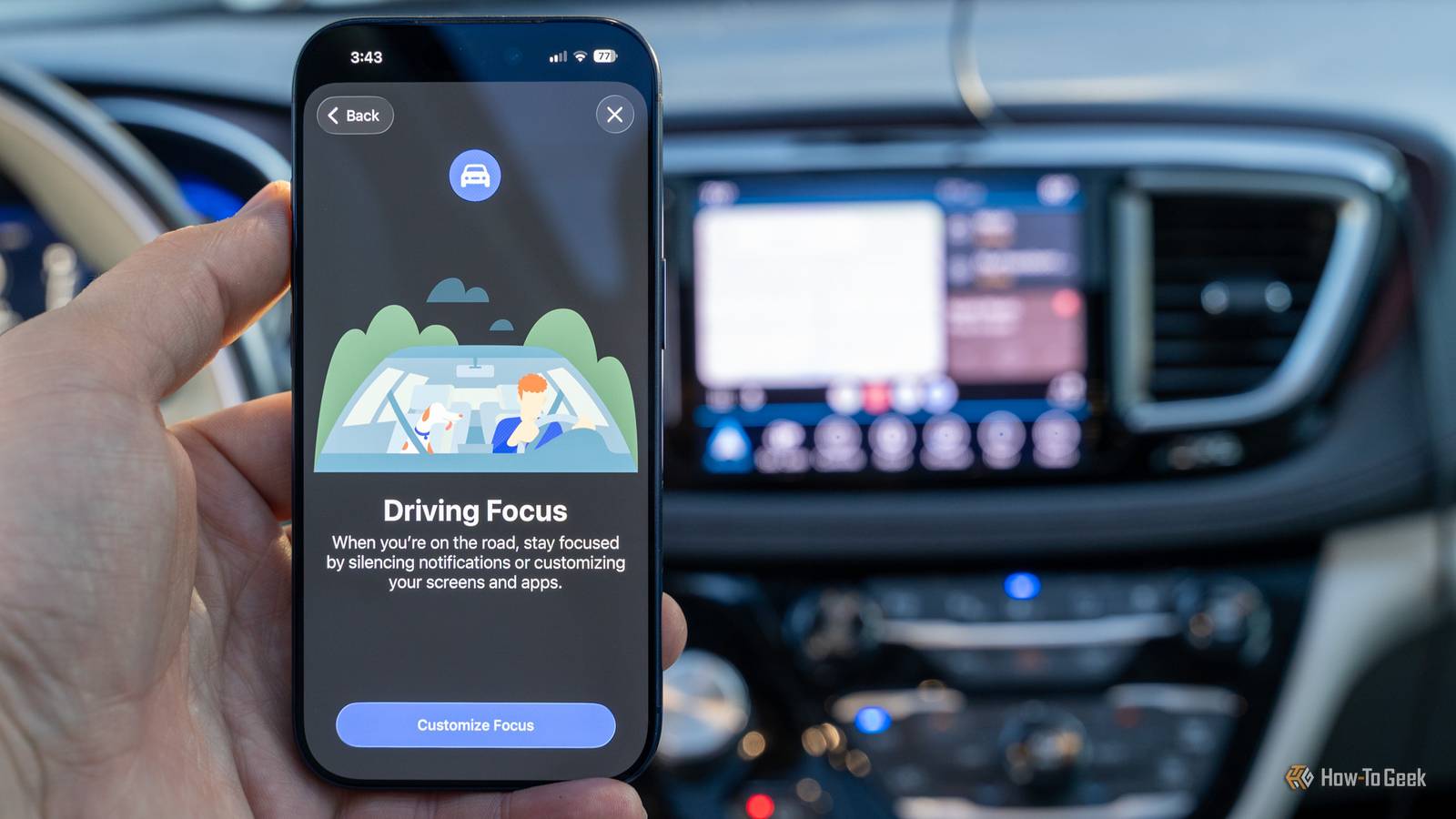
Published Sep 4, 2026, 6:00 AM EDT A Computer Engineer turned tech-savvy. Sanya is part of the How to Geek team with experience in writing tech-related blogs. She transforms complex topics into simple, accessible guides. Her forte is in iOS, macOS, and Windows software. Writing is something she truly adores, and she seeks knowledge in everything she encounters. Keeping your eyes on the road sounds simple, but it isn’t. Notifications, checking directions, incoming calls, and daydreaming can turn into a distraction at the worst possible moment. That's the reason I turned to Android Auto's automations, which make it easier to access the things I need while driving, whether I’m making a call, controlling my music, or following directions. The real convenience isn’t just having these features within reach—it’s not having to reach for them at all. Android Auto starts itself My dashboard is ready when I am Credit: Sanya Shah / How-To Geek Before automating Android Auto, every time I'd get into my car I'd have to take care of a few tedious tasks before I hit the road. I’d plug in my phone, play my welcome song, check traffic, and occasionally check my notifications. I’m not saying these tasks are distracting, but repeating the same steps every time I drove was frustrating. After making a few changes to my Android Auto settings, I automated the experience. Now, by the time I adjust my mirrors, check on my baby in the back seat, and fasten my seat belt, the interface is already waiting for me with Google Maps, Spotify, and my recently used apps. To set this up, I opened Android Auto settings on my phone and enabled Start Android Auto automatically and Start Android Auto while locked toggles. It may save me only a few seconds each time, but those small changes add up. Now, I just get in, start the car, and go. Wireless Android Auto requires a compatible car and phone. If your car doesn't support wireless Android Auto, you can connect your phone via a USB cable. My Assistant handles my driving routine I don’t have to ask twice Once my dashboard is ready, it's time to use another feature that's hiding in plain sight. My Assistant lets me automate a chain of actions with a single tap or command, turning my basic car setup into a smart, personalized driving routine. Basic voice commands like “Hey Google, navigate me to the nearest supermarket” are fine, but they handle one thing at a time. Routines, on the other hand, act like mini scripts on your Android phone, letting you trigger multiple tasks with a single command. You can also create different Routines for different situations. For example, I created a Routine called “Errands Run.” It starts navigation to my go-to supermarket, plays an upbeat playlist that puts me in the mood to get things done, and helps me access my grocery list from Google Keep, so I know exactly what I need to buy. I just have to say one phrase, and everything is ready. That’s the power of Assistant Routines. They save me time and make me feel more productive. Driving mode keeps my eyes on the road My notifications can wait Credit: Sanya Shah / How-To Geek I sometimes miss the days when I could forget about my phone once I was behind the wheel. These days, it’s hard to ignore notifications throughout the day. It could be a work email that needs my attention or a message reminding me about the groceries I need to pick up on my way home. I know these notifications can wait, but that buzzing sound tempts me to reach for my phone constantly. That’s why I use Driving mode. It automatically silences all those unnecessary distractions that could turn a quick glance into a dangerous moment. I have Driving mode set to activate automatically when I connect my phone to my car’s Bluetooth system. Once it kicks in, it turns on Do Not Disturb, which can silence notifications, calls, and even messages based on the exceptions I’ve set. I can choose which people, conversations, or apps can interrupt me, while everything else can wait until I park my car. You can also choose Use motion and Bluetooth instead of Use Bluetooth by tapping Set Up Driving at the bottom of the screen if you want Driving mode to activate when your phone detects that you’re in a moving vehicle. I never forget where I parked my car Google Maps has my back Credit: Lucas Gouveia/How-To Geek I have to be honest here. I learned about this feature from my dad, who often forgets where he parked his car in those jam-packed parking lots. And I can’t blame him. It becomes a mini treasure hunt after walking through rows of identical cars across different floors and sections. He told me Google Maps can actually help me save my parking location. Once I’ve parked, I tap on Save parking and Google Maps remembers where I left my car. When it’s time to head back, I can open Maps and find my parking spot instead of wandering around the parking lot making random guesses. Isn’t that smart? Now, I don’t have to rely on my poor memory. I chose to go beyond the default I don’t babysit my phone when driving now that I’ve gotten used to these Android Auto automations. Why settle for the default when we’re living in 2026? My Android Auto automation handles the boring work while I focus on the road. Honestly, that’s exactly how I like my technology: smart enough to help, but quiet enough to stay out of my way.
4 Android Auto automations that help me keep my eyes on the road
Full Article
Original Source
Read the full article at Howtogeek →KhanList aggregates and links to publicly available news content. We do not host full articles from third-party sources. Always verify important information with original sources.