
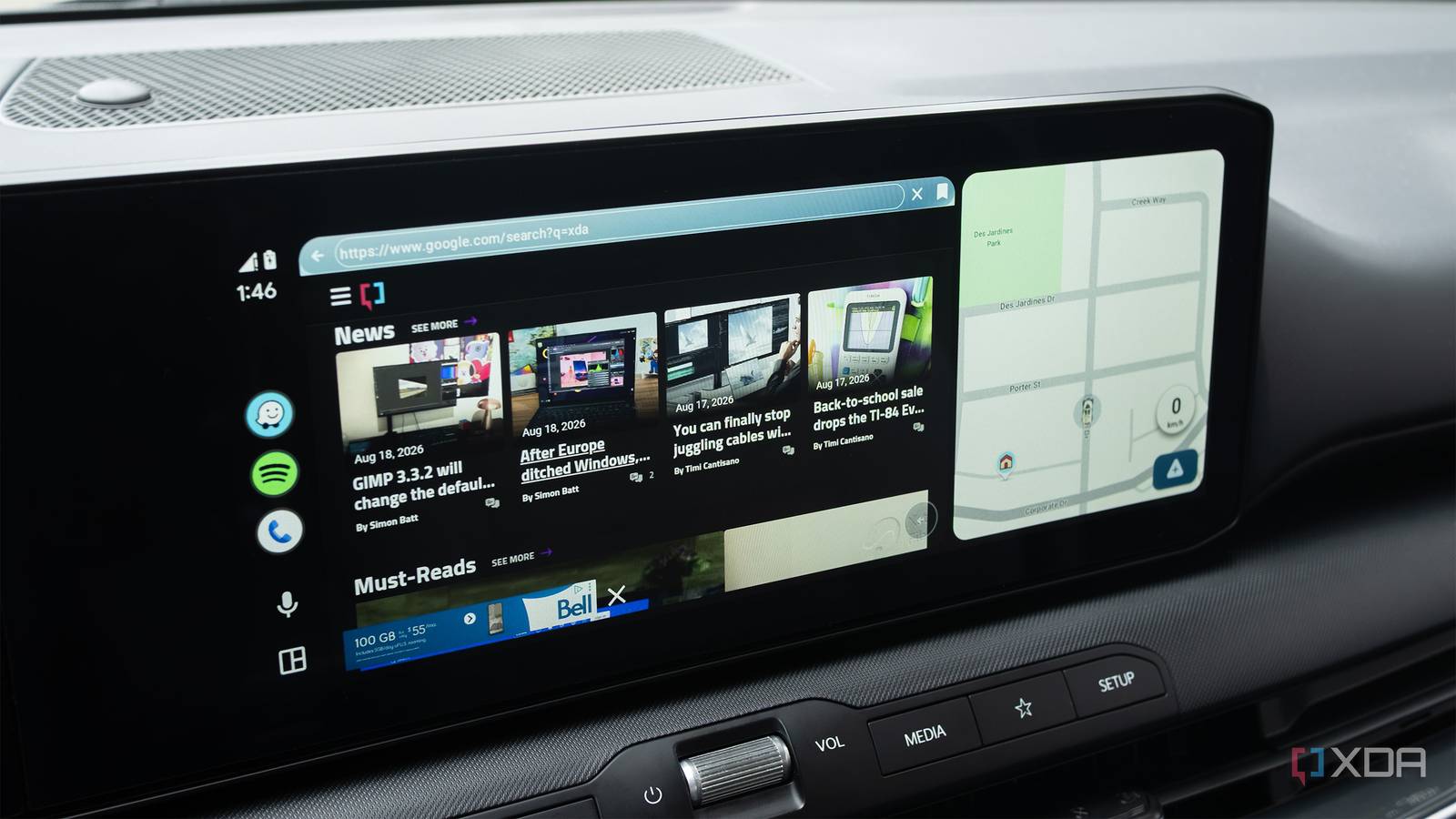
Published Nov 18, 2026, 11:30 AM EST Patrick O'Rourke is XDA's News Editor and Entertainment Segment Lead. Previously, he was Pocket-lint's Editor-in-Chief, the Editor-in-Chief of Canadian tech publication MobileSyrup, and earlier in his career, he worked as the technology editor at the Financial Post and Postmedia. He's based in Toronto. Over the past 15 years, he's written thousands of articles. Patrick has also interviewed dozens of tech industry executives and covered GDC, E3, Gamescom, WWDC, Apple keynotes, Samsung Unpacked events and more. Patrick has a BA in journalism from Toronto Metropolitan University. Despite how open the Android ecosystem is, Android Auto is far more restrictive in comparison. It makes sense given the operating system is designed to run in a vehicle. Who would want to run a glitchy app that sometimes crashes in their car? Well, if you're willing to change several settings and sideload apps downloaded from GitHub, you can add features to your Android Auto setup that Google doesn't currently allow, including Android device mirroring, a full-fledged web browser, and even YouTube integration. Don't use any of these apps while driving. Always make sure your car is parked before booting up distracting sideloaded Android Auto apps like the ones included in this list. To get these sideloaded apps to show up in Android Auto, you'll need to enable Android's Developer Settings and Android Auto's Developer Mode, as well as enable Unknown Sources (steps are at the end of this story). In some cases, you also need to use AAEnabler and Android Auto Apps Downloader (AAAD), depending on the app. Screen2Auto adds screen-mirroring to Android Auto The app isn't very reliable and crashes frequently First up on this list is screen-mirroring app Screen2Auto. After following several steps below to enable Android's Developer Settings and Android Auto's Developer Mode, you'll need to move through a series of intimidating permissions (it's up to you if you're cool with giving a sideloaded app this level of access to your device). The most important one is allowing Display Over Other Apps: go to Apps > Screen2Auto > Allow Display Over Other Apps. You'll also likely need to turn on Allow Restricted Settings by going to Settings > Apps > Screen2Auto, Three Dots > Allow Restricted Settings. The option to enable these permissions should then appear when you launch the app again (if it doesn't, try restarting your phone and unplugging/plugging back into Android Auto). After that, whenever you launch Screen2Auto on your infotainment screen, you'll see what you have open on your Android phone's display, whether it's a game, a web browser, or just a random app. Screen2Auto isn't very reliable and crashes frequently, but when it works, it's impressive and adds a lot of functionality to Android Auto. You can also install Screen2Auto through AAAD, a sideloaded Android Auto app storefront. AABrowser brings a web browser to your car's infotainment screen Use your car's big screen to its full potential AABrowser is pretty reliable for a sideloaded Android Auto app. It features a full URL bar, forward/back buttons, favorites, and more. Basically, nearly everything you can do with a standard Android web browser, you can also do with AAbrowser, including, of course, browsing XDA. There's a bit of lag when navigating your vehicle's touchscreen, but beyond that, AABrowser works once it's installed in Android Auto. If you're looking to add a simple browser to your Android Auto setup, AABrowser is a solid, very straightforward option. While AABrowser is available on GitHub, you can also install it through AAAD, like some of the other sideloaded Android Auto apps on this list. CarStream brings YouTube integration to Android Auto Open up the YouTube video floodgates Like AABrowser, CarStream is a simple, straightforward app that adds YouTube to Android Auto. It works pretty well, but in my experience, videos can sometimes get stuck buffering. I also couldn't sign in to my own YouTube account to access my subscriptions and watch history (every time I tried to log in, I got an error or the screen locked up). With CarStream, there doesn't seem to be a working version on GitHub right now, so the only installation option is to use AAAD to download and install it on Android Auto. Xtream Player is the best all-in-one sideloaded solution The app features a browser, the ability to connect to self-hosted platforms, and even internet radio Xtream Player is by far my favorite app on this list because it's the most reliable. On top of that, it has the least lag I've encountered when using my vehicle's touchscreen with a sideloaded Android Auto app. Navigating YouTube and browsing the web works with Xtream Player. You can even sign in to your YouTube account to access your subscriptions, recommendations, viewing history, and more. To get Xtream Player to work, you'll need to enable the same permissions as Screen2Auto. Head to Settings > Apps > Xtream Player > Three Dots > Allow Restricted Settings. This option sometimes appears on your phone when you're running Xtream Player in Android Auto, but not always. I ran into an issue where YouTube wouldn't play because a pop-up kept appearing saying the app detected my vehicle wasn't parked when it clearly was (this problem may have been fixed in subsequent updates). While I respect the developer behind Xtream Player for implementing this feature because no one should be watching YouTube behind the wheel, I couldn't get any YouTube video to actually play. To turn this feature off, I navigated to Settings > Media > Video Settings > Video In Motion. The best part of Xtream Player is its very clean UI. On top of that, its developer is very active on Reddit and frequently releases updates with interesting new features for the sideloaded Android Auto app. Xtream Player You need to enable Android and Android Auto's developer features to install sideloaded Android Auto apps This only takes a few quick steps To get these sideloaded Android Auto apps to work on your in-car headunit, you'll need to follow several steps, including enabling Android's Developer Mode and Android Auto's Developer Mode. Below are the steps you need to take to enable Android's Developer Settings: Open the Settings app on your Android device. Tap About Phone. Open Software Information (with my Pixel 10 Pro, this option is on the main About Phone screen). Find your phone's Build Number, and tap it seven times in a row. If you've done this correctly, you'll see a message stating Developer Mode Enabled (you'll see a notification that you have only three taps left when you're close). Next, it's time to turn on Android Auto's Developer Mode: Open the Settings app on your Android phone. Navigate to Connected Devices (it's the second option). Tap on Android Auto (with my Pixel 11 Pro, I also need to tap Connection Preferences first). Scroll down and tap Version until Developer Settings are enabled (you'll see a notification that you have only three taps left when you're close). Next up, you'll need to install AAEnabler (Xtream Player) and AAAD (Screen2Auto, AABrowser, CarStream) to get the apps to appear in your Android Auto Launcher. You can also take the Unknown Sources route, which I've had success with for some of the sideloaded apps on this list that have GitHub repositories available. To find the Unknown Sources Android Auto developer setting, follow these steps: Connected Devices > Connection Preferences > Android Auto > Three-dot Menu > Developer Settings > Unknown Sources.
4 Android Auto apps I sideloaded that Google would never approve for the Play Store
Full Article
Original Source
Read the full article at Xda-developers →KhanList aggregates and links to publicly available news content. We do not host full articles from third-party sources. Always verify important information with original sources.