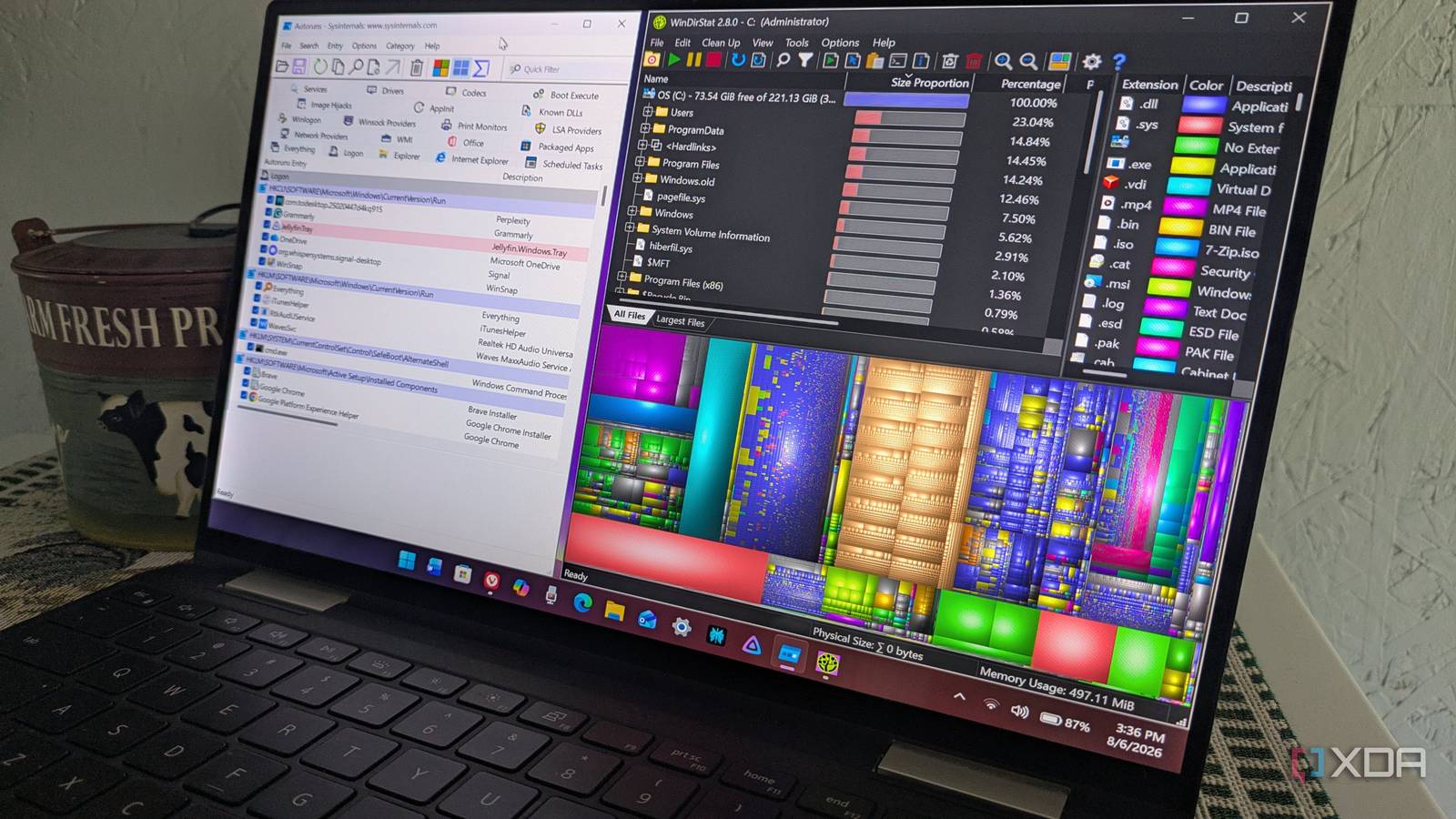
Published Aug 17, 2026, 8:00 AM EDT Based in rural Minnesota, Brian Burgess worked in IT for 10 years before finding his passion for writing about consumer technology. Brian earned his degree in computer and network technology in 2000. He held various IT positions, including help desk support, router installations for IBM, database administration, and other associate network administration roles. He's been a personal technology journalist for 18 years and has written thousands of articles about Microsoft products and services, Android, iOS, streaming, and more. He has written for notable tech sites including XDA, InformationWeek, How-To Geek, Byte, groovyPost, and others. When he is away from the keyboard, you will hear him playing guitar, working outdoors, and watching Star Trek. Microsoft does a great job of adding new features to Windows 11. However, most of them, users don't want or need. Copilot is the low-hanging fruit of needless junk that has invaded virtually all aspects of Windows 11. Then there are things the OS can't do that users want. Luckily, there are 20-year-old tools to fill the gap. Many old-school utilities do a marvelous job of helping me maintain my system or support a productive workflow. I wish engineers at the company would learn from what developers have created and implement similar functionality into the Windows experience. Autoruns Control what Windows doesn't Task Manager on Windows allows me to close system-hogging apps and do basic startup app management. However, Autoruns lists every startup location and provides far more details than Windows 11 can. I can see every autostart location Windows checks during boot and logon. I can see registry keys, scheduled tasks, Windows background services, codecs, DLLs, Explorer extensions, Office add-ons, and much more. There is a lot more happening in the background during startup than you think, and Autoruns shows it. From there, I can manage which apps and Windows services run during boot and login. It sees startup items across registry run keys, services, drivers, and shell extensions that Task Manager's startup tab never lists. I found a few apps that were only halfway uninstalled and was able to remove them to improve Windows performance. WinDirStat Storage management visualized WinDirStat has been around since the early 2000s and provides a more detailed view of your drive's content than any native Windows tool. It can scan any connected drive on your Windows 11 system, analyze it, and provide a cool visualization of what files are taking up space. Windows only shows a generalized, broad view of files. WinDirStat lets me drill down into folders and find the exact file that is hogging space. I like to use it when I can't figure out where large files live on my drive or what they are. It's also helpful for finding several smaller files that are taking up room I don't need. The visualization is neat, but so is the folder tree that shows the path to files I need to manage. It also finds duplicate files, monitors the folder for file changes over time, and gives me a CSV report on how storage is evolving. Ditto An improved Clipboard History Microsoft improved the Clipboard in Windows 11 with Clipboard History, which can also sync between machines. However, it is limited; it only provides room for 25 entries and limits each item to 4MB. Also, unless you pin an item, Windows will automatically remove items to make room for new ones. Adding Ditto improves the history functionality in some progressive ways. Ditto (available in the Microsoft Store) is another utility that's been around since the early 2000s and lets you keep everything you save so you can organize, search, and edit items in the clipboard archive. By default, it allows up to 500 saved items, but you can raise the limit. Unlike Windows Clipboard, Ditto can save copied items indefinitely. It creates a local database of all copied items unless I set it to delete them after a certain time period. This lets me search through items, which helps if I need to find text, images, or files I copied a week or month ago. I can also configure it to save items larger than 4MB; however, if you get carried away, the Ditto database can grow out of hand. Still, it makes the Windows Clipboard feel obsolete. VLC Play media that Windows 11 won't Media Player on Windows 11 gained FLAC support a few years back, but it still lacks valuable playback features. Namely, it doesn't play DVDs or Blu-ray and struggles with rare media formats. VLC has been the gold standard for playing virtually any media you throw at it for 25 years and fills the gap for Windows. Windows 11 Media Player plays audio discs and common file types like MP3, AAC, and M4A. However, rarer media file types like OGG require a codec extension. VLC plays DVDs, Blu-ray, and rare file extensions you probably don't know exist. In an age where most PCs don't ship with an optical drive, I still need physical media playback capabilities on my Windows 11 PC. Microsoft has left most optical media support behind, but VLC does the job and more. Making Windows do what it can't After more than 40 years of development, there is a lot that Windows still can't do or do well. Luckily, there are 20-year-old (or older) apps I can use to accomplish tasks. Also, each of these apps is lightweight, free, and doesn't require extensive system resources, which is always helpful on an already bloated OS. What are some of your favorite old utilities for getting more out of your Windows 11 PC?
4 20-year-old Windows utilities that still do things Windows 11 can't
Full Article
Original Source
Read the full article at Xda-developers →KhanList aggregates and links to publicly available news content. We do not host full articles from third-party sources. Always verify important information with original sources.