
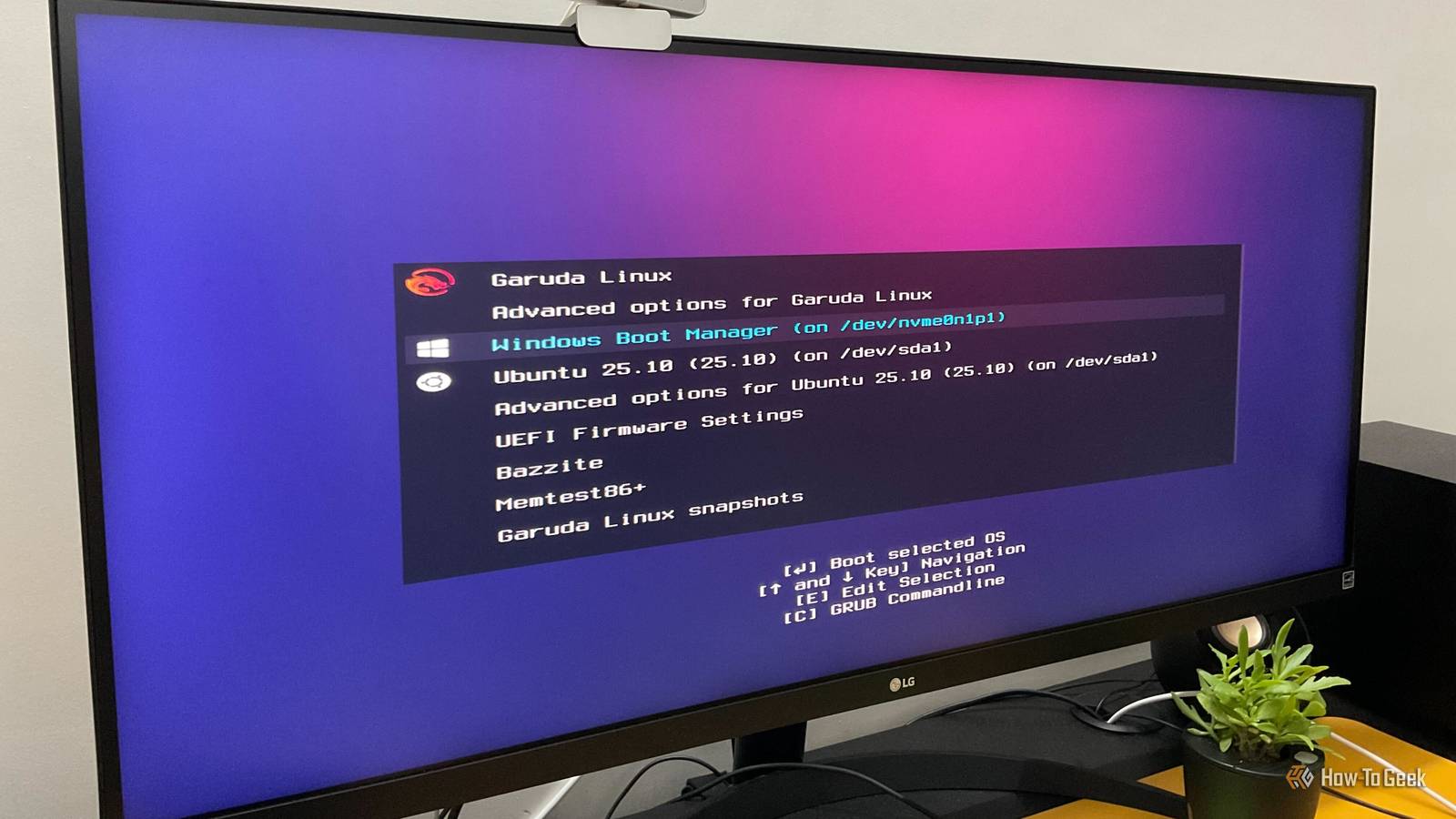
Published Oct 27, 2026, 1:30 PM EDT Dibakar Ghosh is a tech journalist at How-To Geek with over a decade of experience using and writing about open-source software, Linux, Android, AI, and personal productivity. He writes about software, operating systems, and tools that help people get more from the technology they already use. I’ve been dual-booting Linux and Windows for more than 10 years, and my current machine runs four different operating systems side by side. Over the years, I’ve made plenty of mistakes and seen newcomers and enthusiasts make many of the same ones. As such, to help you avoid these common pitfalls, here are three of the most common mistakes people make when setting up a Linux-Windows dual-boot PC. You installed both Linux and Windows on the same drive Just because you can doesn’t mean you should Technically, you can dual-boot Windows and Linux by splitting a single drive into two (or more) partitions and installing each operating system on a separate partition. And while this setup can work almost flawlessly at first, it can eventually lead to a few technical headaches. One of the most common issues is a Windows update changing the UEFI boot order. Ideally, you want to use GRUB — the most common Linux bootloader — since it can generally detect and display both Linux and Windows boot entries. However, a Windows update can sometimes set Windows Boot Manager as the default boot option. When that happens, your PC can boot straight into Windows instead of displaying GRUB — thereby preventing you from choosing which OS you want to boot into. Depending on what went wrong, you may need to head into the UEFI settings to change the boot order, or use a Linux live USB to repair GRUB. There’s also the ongoing risk of accidentally deleting or modifying the wrong partition when managing your drives. Now, the simplest way to reduce these risks is to give each operating system its own physical drive. That way, each OS gets its own boot partition on its own drive and neither one’s installer touches the other. This also makes partition management easier and reduces the chances of accidentally modifying the wrong operating system's partitions. Ideally, you want to install Windows first and Linux second. Windows generally won't configure your Linux bootloader for you, whereas many Linux installers can detect an existing Windows installation and offer to add it to the boot menu. Once both operating systems are installed, you can open your UEFI settings and set your Linux bootloader as the default boot option. This way, when you turn on your PC, GRUB should appear and let you choose between Linux and Windows. You disabled Secure Boot — and left it disabled The step that quietly gets skipped after the install is done Credit: Goran Damnjanovic / How-To Geek Almost all dual-booting guides online will tell you that you need to disable Secure Boot before you install Linux. And while that might’ve been true in the past, most modern distros like Ubuntu, Linux Mint, and Fedora ship with shim — a small bootloader already signed by Microsoft, so that these distros won’t be blocked by Secure Boot during installation. However, some distros, especially Arch-based ones, still require you to turn off Secure Boot. So, if you’re planning to install the recently viral Omarchy or CachyOS, you’ll need to disable Secure Boot before proceeding. That said, once the distro is installed, you can manually create your own Secure Boot keys, load them into the firmware, and sign your bootloader and kernel so they work with Secure Boot. In fact, this is typically a recommended process, but most beginners just turn off Secure Boot, install Linux, and never bother turning it back on. You can use the sbctl command-line tool to set up Secure Boot on your Linux machine. You see, Secure Boot is not Windows specific and is beneficial for both Linux and Windows. It’s essentially a firmware feature that blocks any bootloader or OS from starting if it’s not signed by a trusted source. It’s an effective defense against bootkits — malware designed to run during the boot process, even before the OS loads, which makes them incredibly hard to detect and remove. And with Secure Boot disabled, both your Linux and Windows systems are now susceptible to bootkit attacks. You left Fast Startup still running Fast for Windows, frustrating for Linux As with Secure Boot, most dual-booting guides will also tell you to disable Fast Startup. However, I’ve seen a lot of beginners completely skip this setup, especially since it isn’t technically necessary for dual-booting to work. However, the problem is that if you leave it enabled, it can create a lot of issues down the line. Fast Startup is a Windows feature designed to help speed up Windows boot times. You see, when you hit Shut Down with the feature turned on, Windows doesn’t shut down fully. Instead, it enters a state of partial hibernation and saves the core of the system to a file on the drive. This way, when you turn on the system again, it doesn’t have to boot from scratch and can simply reload the saved state. It’s a clever trick that can significantly boost your startup times, especially if you’ve installed Windows on an HDD. However, if you’ve installed Windows on an SSD — which is likely the case for most of you reading this — the speed gains are very small. For this reason, I recommend keeping the feature disabled, as the inconvenience you’ll face far outweighs any minor speed boost. When Fast Startup is enabled, and you shut down Windows to boot into Linux, the Windows partition is marked as hibernating. As a result, inside Linux, you’ll find that the Windows partition refuses to mount or only mounts in read-only mode — thus preventing you from accessing your Windows files while on Linux. Sure, you could technically force Linux to mount the Windows partition with write access, but that risks corrupting the files on it. Also, are you sure you need to dual boot Linux and Windows? Dual-booting adds some technical complexity to your setup, not to mention it’s quite expensive in terms of storage. You’re setting aside a big chunk of a drive for a second operating system, and if you don’t use it much, that space is simply wasted. With SSD prices as inflated as they are right now, that’s hard to justify. As such, if you’re thinking about dual-booting because you want to experiment with different distros, I’d urge you to try virtual machines first. Likewise, if you want to dual-boot to access some Linux-specific CLI tools, you can try WSL (Windows Subsystem for Linux). The only good reason to try dual-booting today is to have a separate, isolated space for a specific kind of work. And I don’t mean isolating software from the rest of your system — I mean isolating yourself. For instance, if your games, office work, personal stuff, and coding projects all live in one OS, it’s very easy to get distracted. A multi-boot setup is one of the cleanest ways to fix that. For reference, I run a multi-boot system with four operating systems: Garuda as my main OS, Ubuntu for experimenting with Linux stuff, Windows because work demands it, and Bazzite for gaming. Each one has its own job, and switching between them also switches my head into whatever I’m supposed to be doing.
3 dual-booting mistakes that can ruin your Linux and Windows PC
Full Article
Original Source
Read the full article at Howtogeek →KhanList aggregates and links to publicly available news content. We do not host full articles from third-party sources. Always verify important information with original sources.