
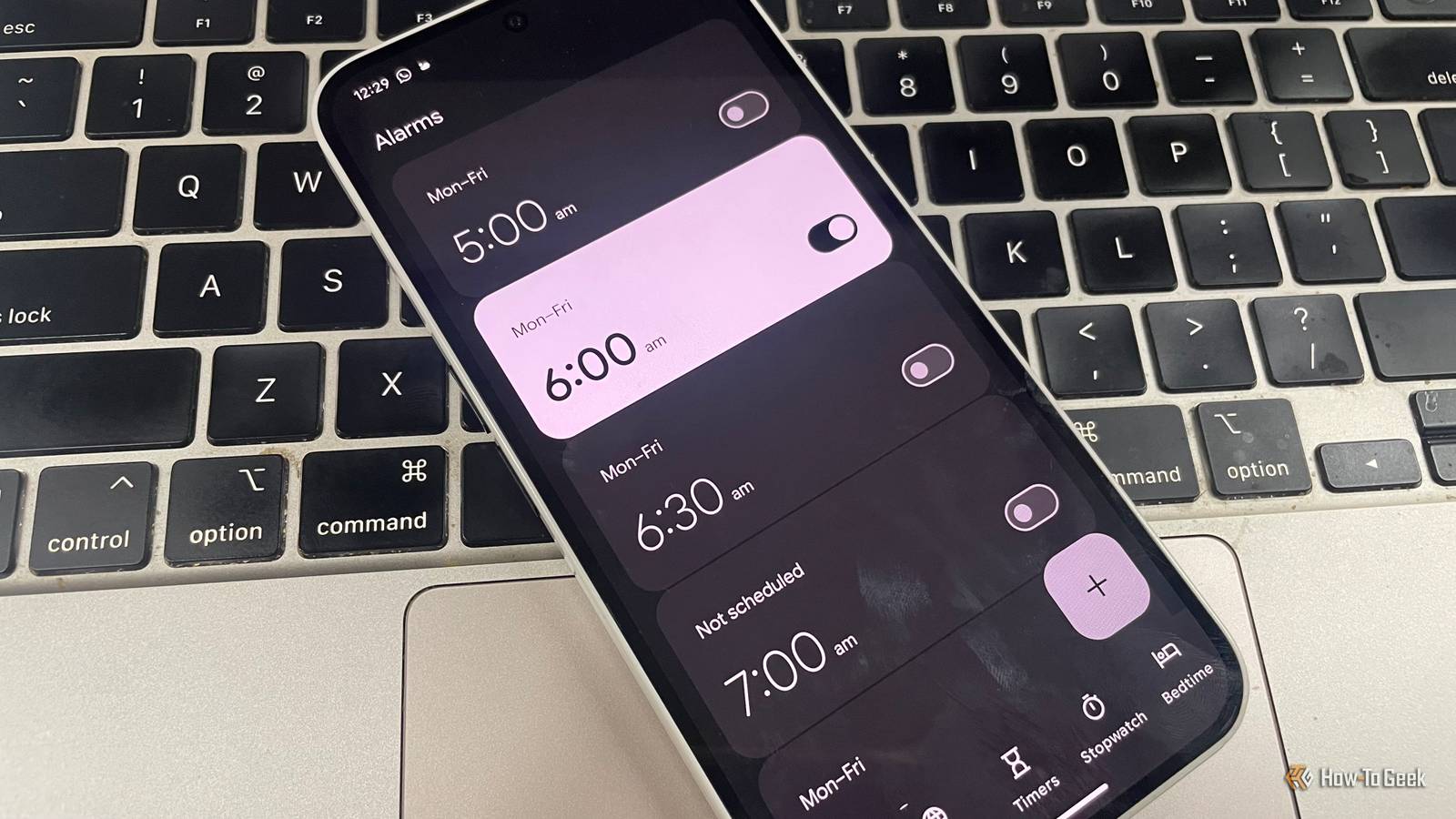
Published Nov 23, 2026, 3:00 PM EST T.M. Amrita is a writer and tech enthusiast with experience as a news reporter covering technology, artificial intelligence, and gadgets. A journalist at heart, she found a soft spot for technology reporting during her tenure as a reporter at The Hindu Businessline, where she covered topics like the economy, data, and personal finance. She has published more than 250 news stories, tech guides, and opinion articles. Outside of technology, she is a passionate poet and brings her interest in learning new things to her work as a writer. Amrita is also a student of design and interface development, and likes to take on passion projects in her free time. Setting an alarm is one of those things you don’t think about twice, but what if you had to control your alarms on different devices? That question led to one of the best clock appsAndroid users have seen. Timely Alarm Clock, a blast from the past, had an answer more than a decade ago: let your devices share their alarms. Years after its discontinuation, many users still miss it. Here's all you need to know about this app, and what you could do if you're missing it. Timely made alarms work across your devices Some of the app's standout features Timely was an intuitive clock app that launched in 2013 with colorful themes, customizable clock designs, and a different way to set an alarm. You could swipe from the edge of the screen and drag a bar to choose the time, giving a seemingly ordinary utility app some color (literally) and personality. The functional part that many users found to be a winner, however, was its cloud integration. Timely let you manage alarms across phones and tablets, back them up, and snooze and dismiss alarms across devices. Setting the same wake-up time on two devices is easy enough, but having to silence both separately can be super annoying. Timely treated them as connected devices rather than leaving you to manage each alarm independently. If you kept a tablet beside your bed and your phone elsewhere, for instance, you could basically control the alarms from one device without getting up to shut off both. It also included challenges to complete before dismissing an alarm, a flip-to-snooze gesture, and a super useful feature that lowered the alarm’s volume when you picked up your phone. Basically, Timely just made setting and shutting off your daily alarm a Google now offers alarm syncing between a Pixel phone and Pixel Watch. That’s useful for that particular pairing, but it serves a different setup from Timely’s phone-and-tablet approach. What happened after Google bought it? You can still have some of the app's features (on a condition) Google acquired Bitspin in January 2014. At the time, the developer said Timely would continue working for both new and existing users. The acquisition didn’t immediately end the app: it remained available for many more years. Updates eventually stopped, and in 2021, Bitspin announced that Timely’s servers would close and that the app would leave Google Play. Existing installations could still work locally at the time, but cloud syncing depended on the servers. That’s what makes Timely’s disappearance super frustrating for many OG users: a clock app could remain on your phone while losing a unique feature. Some apps you could try today A few alternatives that make your alarms smarter Credit: Pixel-Shot/Shutterstock.com If you miss Timely’s customization or were too late to get the app, AMdroid is an app worth your time. You can create separate alarm profiles, set flexible repeating schedules, and even choose to skip public holidays. It also sets up math and NFC challenges for dismissing alarms, a fun way to make sure you roll out of bed on the worst days. Another smart app to try is Sleep as Android, which offers sleep tracking alongside functional controls like flip-to-snooze, gradually increasing volume, and dismissal challenges. Its optional SleepCloud add-on can also synchronize app settings, including active alarms, across devices. Useful alarm features you can still try on your Android device Set these up for better everyday alarms Timely’s host of convenient features may be lost, but you can still explore some alarm settings with what you have on hand. You can use these features on Google’s Clock app, available from Google Play if it isn’t already installed on your device. Pause your alarms for a break If you’re taking time off from your regular schedule, you can pause a repeating alarm for selected dates instead of deleting it or changing its weekly schedule. Open Clock, tap "Alarm," and expand an enabled, repeating alarm. Use the Pause alarm calendar option to select the dates. This is useful for holidays when you don't want to break your usual schedule without getting woken up during your break. Wake up to your music Google Clock supports alarm audio from services including Spotify and YouTube Music. Install your chosen service’s app, sign in, then open an alarm in Clock and tap its sound. Select the service’s tab and choose your audio. Spotify Premium lets you select a particular song; free accounts can choose playlists and may hear ads. YouTube Music requires a premium account for this integration. You can also use a downloaded sound file through "Add new "under the regular sounds. Make the alarm less abrupt Open Clock’s three-dot menu and select Settings. Under Alarms, tap "Gradually increase volume" so your alarm sound builds up, rather than waking you at full volume. And while you’re there, check the Volume buttons. You can assign them to snooze or dismiss an alarm or control its volume. Choosing Snooze gives you a physical button to press when you’re half asleep. You can also adjust snooze length in the same settings section, too. The alarm sync setting is difficult to come by These alternatives and settings can make individual alarms easier to live with, but Timely’s appeal was managing them across devices, which, unfortunately, has been lost.
12 years later, Android's best alarm clock feature is still dead
Full Article
Original Source
Read the full article at Howtogeek →KhanList aggregates and links to publicly available news content. We do not host full articles from third-party sources. Always verify important information with original sources.