
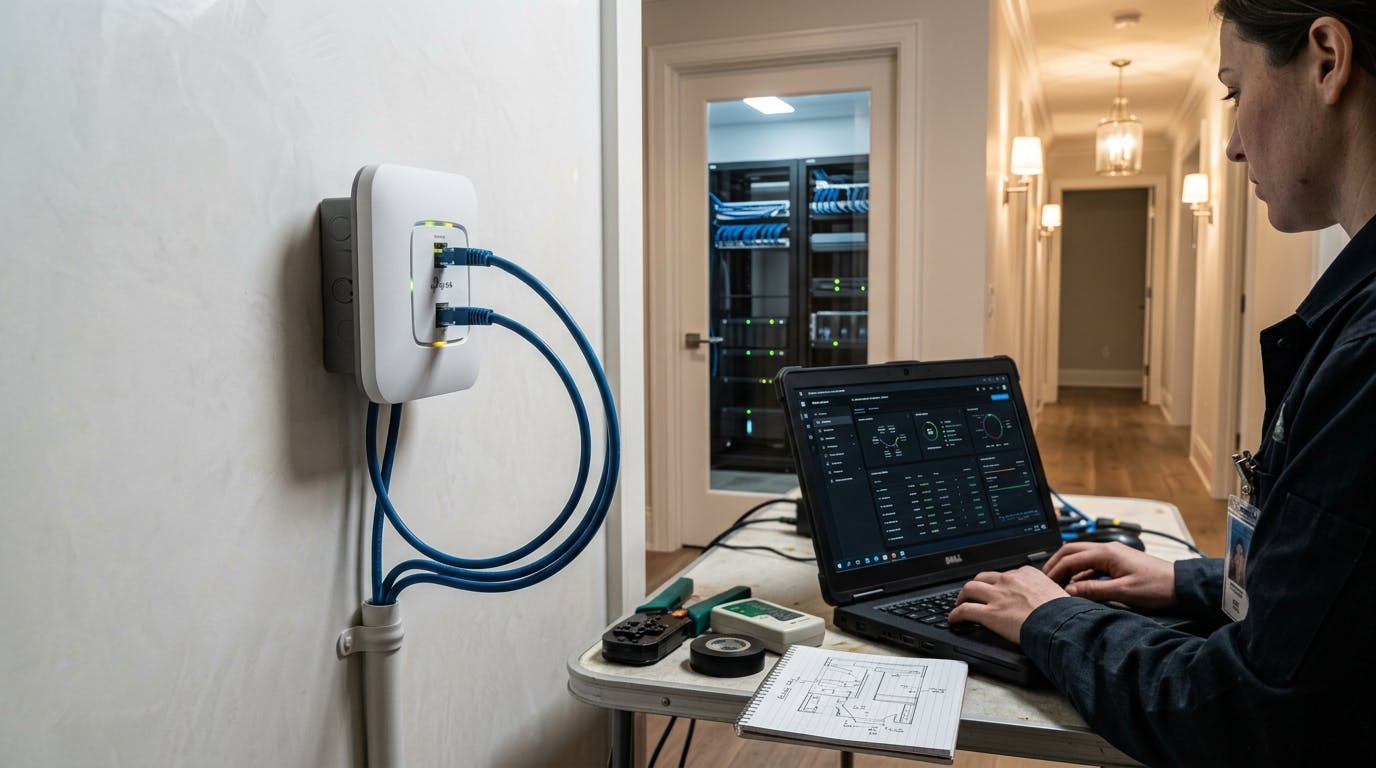
The Disaster Scenario Location: 100-room hotel, Albania Problem: Unstable WiFi + IPTV not working in any room Root cause: The WiFi contractor had installed 100 TP-Link wall APs (TL-WXAP1502GI-PoE) in standalone FAT mode — no Omada controller, no VLANs, no plan. Deadline: 12 hours to fix it, or the hotel would open to guests with no WiFi and no TV. Mission Timeline 08:00 — Initial Diagnosis Arrived on site and found: 100 APs, each individually configured with a different SSID No channel standardization (massive co-channel interference) IPTV supposedly on a separate VLAN, but no AP was actually tagging traffic for it DHCP server active on every single AP (constant IP conflicts) No roaming between rooms — walking down a corridor meant losing the connection TECHNICAL PROBLEMS ├── APs in FAT mode, zero centralized management ├── No VLAN tagging for IPTV (everything flat on one port) ├── DHCP server active on all 100 APs simultaneously └── Overlapping WiFi channels (2.4GHz and 5GHz) 08:30 — Solution Architecture No time to stand up an Omada Controller from scratch and re-provision 100 devices into a managed fabric — that's a project, not a same-day fix. Decision: keep every AP in FAT (standalone) mode, but force strict standardization across all of them so they behave like a managed network even without one. Strategy: Single SSID across the entire hotel, for basic client roaming VLAN 10 for WiFi client data VLAN 20 for IPTV / set-top boxes VLAN 1 dedicated to AP management, kept off both client-facing VLANs Static management IPs on every AP (no DHCP dependency for the infrastructure itself) DHCP disabled on all 100 APs — a single DHCP server on the core handles VLAN 10 client leases Fixed, non-overlapping channels (1/6/11 on 2.4GHz) Client isolation enabled on the WiFi SSID That last point matters and is easy to skip under pressure: without it, every guest on VLAN 10 sits on the same flat broadcast domain and can potentially see other guests' devices on the network. For a hotel, that's not an edge case — it's the default expectation of privacy a guest has when they connect. The one trade-off is that isolation also blocks device casting between a guest's own phone and a Chromecast/AirPlay target in the same room; if your IPTV setup depends on in-room casting rather than a dedicated STB per VLAN 20, isolate at the room level via per-AP settings instead of hotel-wide, not something to disable outright to save time. 09:00 — Configuration Template The template applied identically to all 100 APs: Standard Configuration per AP: Mode: FAT (standalone) WiFi SSID: "Hotel-Albania-Guest" Password: WPA2-PSK (shared) Client isolation: Enabled WiFi VLAN: 10 (untagged on SSID) IPTV VLAN: 20 (tagged, downstream LAN port to STB) Management VLAN: 1 (tagged on uplink trunk) Management IP: 192.168.1.X (X = room number) DHCP: DISABLED 2.4GHz Channel: 1, 6, or 11 (alternating by floor) 5GHz Channel: 36, 40, 44, 48 (alternating; DFS channels avoided) TX Power: 50% (interim value, pending real site survey — see "What I'd do differently") The management IP deliberately lives in VLAN 1, not in the client subnet. Putting infrastructure management addresses inside the same broadcast domain as guest traffic is a common shortcut under time pressure, and it's the wrong one — it means any device that compromises a guest's VLAN has a direct line to your APs' admin interfaces. Keeping it separate costs nothing extra in FAT mode; it's one more field in the same config screen. Switch-Side Configuration (the part that actually makes the VLANs work) Every AP uplink port on the access switch was set as an 802.1Q trunk: Access switch port (per AP): Native VLAN (untagged): 1 → carries AP management traffic Tagged VLAN 10: WiFi client data Tagged VLAN 20: IPTV / STB traffic Without this matching configuration on the switch side, the AP's own VLAN tagging is meaningless — the switch will either drop tagged frames or forward everything untagged into VLAN 1. This is the step that's easy to describe in one sentence and easy to get wrong in practice; it's worth confirming trunk membership port-by-port before moving to the next AP, not at the end. 09:30 to 16:10 — Mass Execution (6h40) Method: AP by AP, systematically, same sequence every time. Step-by-step per AP (average: 4 minutes): Physical reset (hold button 20s) Direct cable connection to LAN port 1 Set laptop IP: 192.168.0.10/24 Access AP admin: http://192.168.0.254 or tplogin.cn Configuration: Wireless → single SSID, password, client isolation on Network → LAN → static management IP (e.g., 192.168.1.101 for room 101) Disable DHCP server Operation Mode → FAT VLAN settings → tag downstream port for VLAN 20 (IPTV), management on VLAN 1 Wireless → fixed channel (not automatic) Save and reboot Confirm the matching switch port is trunked correctly Test WiFi and IPTV from the room Total: 100 APs × 4 minutes = 400 minutes (6h40min) 16:10 — Final Network Diagram ┌───────────────────┐ │ CORE SWITCH │ │ (Managed) │ └─────────┬─────────┘ │ ┌─────────────────────┼─────────────────────┐ │ │ │ ┌──────┴──────┐ ┌───────┴───────┐ ┌───────┴───────┐ │ VLAN 10 │ │ VLAN 20 │ │ VLAN 1 │ │ (WiFi) │ │ (IPTV) │ │ (Mgmt) │ └──────┬──────┘ └───────┬───────┘ └───────┬───────┘ │ │ │ └─────────────────────┼───────────────────────┘ │ ┌─────────┴──────────┐ │ ACCESS SWITCH │ │ (PoE, trunk ports)│ └─────────┬──────────┘ │ ┌─────────────────────┼─────────────────────┐ │ │ │ ┌──────┴──────┐ ┌───────┴───────┐ ┌───────┴───────┐ │ AP Room 101│ │ AP Room 102 │ │ AP Room 103 │ │ Mgmt: .1.101│ │ Mgmt: .1.102 │ │ Mgmt: .1.103 │ │ SSID: Hotel │ │ SSID: Hotel │ │ SSID: Hotel │ │ VLAN 10+20+1│ │ VLAN 10+20+1 │ │ VLAN 10+20+1 │ └─────────────┘ └───────────────┘ └───────────────┘ IPTV FLOW: [IPTV Server] → VLAN 20 (tagged) → Access Switch → AP → Set-top box (room) WIFI FLOW: [Internet] → VLAN 10 → AP → WiFi Client (roaming between APs) MANAGEMENT FLOW: [Admin PC] → VLAN 1 (native, untagged) → Access Switch → AP admin interface 16:40 — Final Optimizations WiFi channels: 2.4GHz: alternating 1-6-11 to avoid overlap 5GHz: 36, 40, 44, 48 — non-DFS only. With just 8 usable non-DFS 5GHz channels across a 100-AP deployment, channel reuse between non-adjacent rooms/floors is unavoidable; this was accepted as a known constraint, not solved on the day. Signal power: reduced to 50% on all APs to limit interference between adjacent rooms — an interim value, not a measured one (see limitations below). Roaming: same SSID, same password, and 2.4GHz/5GHz broadcast under the same SSID name (band steering) across every AP. VLANs: trunk confirmed on every AP uplink port; IPTV traffic isolated and working. 17:40 — Final Testing Checklist: ✅ WiFi connects in all 100 rooms ✅ Roaming works (tested walking a phone through corridors) ✅ IPTV works in 100% of rooms ✅ No IP conflicts (DHCP centralized on the core for VLAN 10 only) ✅ Remote management reachable via static IPs on VLAN 1 ✅ Client isolation confirmed active on VLAN 10 18:40 — Buffer & Troubleshooting Reserved the last stretch of the window for the outliers — a handful of rooms with thicker interior walls, one AP that came back from reset with a firmware quirk, two ports on the access switch that needed the trunk re-applied. This is the part that rarely makes it into "how I fixed it" posts, but it's where a same-day deployment actually lives or dies: budget time for the 5–10% of units that won't behave like the other 90%. 20:00 — Delivery Result: 100 APs configured and verified 0 additional downtime beyond the planned maintenance window IPTV 100% functional Stable WiFi with roaming across the property Guest network isolated and privacy-safe Hotel ready to receive guests Lessons Learned What worked: ✅ FAT mode was the right call — no time for a controller rollout, and standardization made up the difference ✅ Dedicated management VLAN kept infrastructure access off the guest network ✅ VLAN tagging on both AP and switch solved IPTV, but only once both sides were configured consistently ✅ Fixed channels avoided interference from auto-channel flapping ✅ Client isolation closed an easy-to-miss privacy gap ✅ Single SSID enabled basic roaming without any controller-based fast roaming (802.11r wasn't available in FAT mode — acceptable for a hotel, not for a warehouse with real-time voice/data) What I'd do differently: ⚠️ Automation: a Python/Bash script driving the AP's config API (if exposed) instead of clicking through the same UI 100 times ⚠️ Site survey first: the 50% power setting was a reasonable guess under pressure, not a measured value — a proper RF survey (or even a quick heatmap with a laptop and a WiFi analyzer) would have replaced guesswork with data Omada Controller, if there's ever a next time: even a same-day Omada adoption (APs join a controller without losing FAT-mode config) would have turned 100 manual sessions into one bulk push — worth the extra hour upfront next time Useful Commands (Quick Reference) PC IP configuration (Windows): netsh interface ipv4 set address name="Ethernet" source=static addr=192.168.0.10 mask=255.255.255.0 gateway=192.168.0.254 Test connectivity to the AP: ping 192.168.0.254 View devices on the local network: arp -a Conclusion In 12 hours, 100 randomly configured TP-Link APs became a professional, privacy-aware network with: Single SSID for roaming Separate VLANs for WiFi, IPTV, and management Static management addressing with no dependency on DHCP for the infrastructure itself Client isolation protecting guest privacy Optimized, fixed channels for performance Result: hotel operating at 100%, guests connected, IPTV working, no privacy gap left open on the way out the door. Sometimes the solution isn't the most elegant one — an Omada Controller rollout would have been cleaner — but the one that works within the deadline and doesn't cut the corners that matter. FAT mode, manual configuration, strict standardization, and a management VLAN that isn't an afterthought: mission accomplished. Liked it? Follow for more real-world deployment stories.
12 Hours, 100 Rooms, 1 Hotel in Albania: How I Fixed WiFi and IPTV Chaos Without a Controller
Full Article
Original Source
Read the full article at Hackernoon →KhanList aggregates and links to publicly available news content. We do not host full articles from third-party sources. Always verify important information with original sources.