
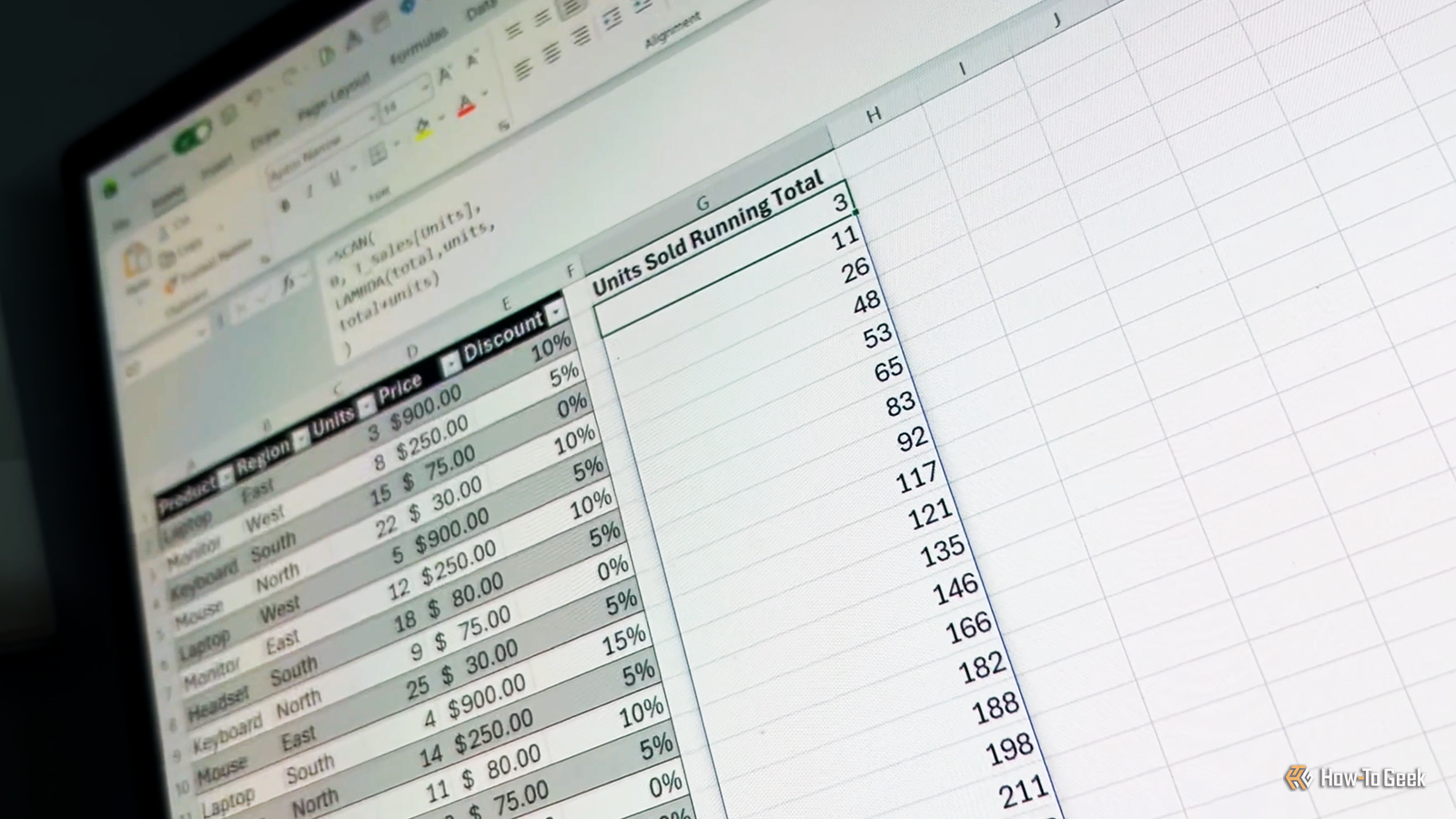
Published Sep 11, 2026, 5:30 PM EDT Tony Phillips is an experienced Microsoft Office user with a dual-honors degree in Linguistics and Hispanic Studies. Prior to starting with How-to Geek in January 2024, he worked as a document producer, data manager, and content creator for over ten years, and loves making spreadsheets and documents in his spare time. Tony is also an academic proofreader, experienced in reading, editing, and formatting over 3 million words of personal statements, resumes, reference letters, research proposals, and dissertations. Before joining How-To Geek, Tony formatted and wrote documents for legal firms, including contracts, Wills, and Powers of Attorney. Tony is obsessed with Microsoft Office! He will find any reason to create a spreadsheet, exploring ways to add complex formulas and discover new ways to make data tick. He also takes pride in producing Word documents that look the part. He has worked as a data manager in a secondary school in the UK and has years of experience in the classroom with Microsoft PowerPoint. He loves to encounter problems in Microsoft Office and use his expertise and legal-level training to find solutions. Outside of the Microsoft world, Tony is a keen dog owner and lover, football fan, astrophotographer, gardener, and golfer. For longer than I care to remember, I've written Excel formulas, dragged them down hundreds of rows, copied calculations across columns, and built running totals one cell at a time. This works, but I always find I'm doing too much work, especially when some of those jobs can be handled by a single formula sitting in a single cell. If you've used Excel functions like FILTER, SORTBY, or UNIQUE, you'll be familiar with the idea of entering one formula and letting Excel return an entire result. The five functions below take a similar approach, but they work slightly differently: they let you define a calculation once and apply it repeatedly to an array, row, column, or sequence of values. MAP applies a calculation to corresponding values Apply the same logic repeatedly MAP takes one or more arrays, passes their corresponding values to a LAMBDA function, and returns the results as a separate array. This is ideal when you want to perform the same calculation across a set of values without repeating the formula on each row. The syntax is: =MAP(array1, [array2,...],LAMBDA(parameter1, [parameter2, ...],calculation)) The first one or more arguments are the arrays you want to work with, and the LAMBDA defines what Excel should do with each set of corresponding values. In my T_Sales table, I want to calculate the discounted sale value for every transaction and then classify each one as either "High" or "Standard" depending on whether the result exceeds $1,000. To do that, in cell G2, I'll write: =MAP(T_Sales[Units], T_Sales[Price], T_Sales[Discount],LAMBDA(u, p, d,LET(value, u*p*(1-d), IF(value>1000, "High", "Standard")))) MAP takes the three columns as separate arrays. Then, for each row, the LAMBDA receives the units, price, and discount, calculates the discounted value, and returns the classification. Yes, I could do this by repeating a formula down a calculated column, but with MAP, I only need to define the multistep logic once. It also means I don't have to worry about accidentally overwriting one of the calculations. BYROW gives the LAMBDA an entire row Process one row at a time BYROW takes an array and passes each row to a LAMBDA function separately. Rather than working with individual values, the LAMBDA receives the entire row, which means you can perform calculations or tests across all the values in that row. Here's the syntax: =BYROW(array,LAMBDA(row,calculation)) The key difference from MAP is that BYROW gives the LAMBDA the whole row, rather than individual values from several arrays. In my student-score dataset, I want to decide whether each student passes based on two conditions: their average score must be at least 80, and none of their individual scores can be below 70. So in G2, I'll enter: =BYROW(T_Scores[[Math]:[History]],LAMBDA(row,IF(AND(AVERAGE(row)>=80, MIN(row)>=70), "Pass", "Review"))) For each row, BYROW passes the four subject scores into the LAMBDA as an array. AVERAGE checks the student's overall score, while MIN makes sure their lowest score is at least 70. The IF then returns either "Pass" or "Review" for each student. Again, I could achieve a similar outcome using a helper column. The difference is that BYROW lets me work with the entire row at once, so I can build one calculation around several values without maintaining a separate formula for every row. BYCOL applies one calculation to every column Process one column at a time BYCOL works much like BYROW, except it passes each column to the LAMBDA instead. This is useful when you want to perform the same calculation or test independently on every column in an array. Here's the function's structure: =BYCOL(array,LAMBDA(column,calculation)) This time, my aim is to calculate the percentage of students who scored at least 80 in each subject. After applying the Percentage number format to cells B13:E13, I'll input this formula into cell B13: =BYCOL(T_Scores[[Math]:[History]],LAMBDA(column,COUNTIF(column, ">=80")/ROWS(column))) BYCOL passes each subject's scores to the LAMBDA. COUNTIF counts how many scores are 80 or higher, while ROWS provides the number of students, so the result returns a percentage for each subject. Keep every step along the way There are several ways to create a running total in Excel, but SCAN is my go-to method nowadays. It applies a calculation sequentially to an array while retaining the result from each step, so it's ideal for calculations where each result depends on the previous one. The basic syntax is: =SCAN([initial_value], array,LAMBDA(accumulator, value,calculation)) initial_value establishes the starting point. The LAMBDA then receives the accumulated result so far and the next value in the array, then calculates the next result. In my T_Sales table, I'm looking to calculate a running total of units sold as I move down the sales records. To do that, in cell G2, I'll write: =SCAN(0, T_Sales[Units],LAMBDA(total, units,total+units)) The accumulator starts at zero. SCAN then adds the first number of units to it, carries that result into the next calculation, and continues down the array. The result is a spilled list of running totals: 3, 11, 26, 48, and so on, ending at 256. Instead of repeating a formula like =SUM($C$2:C2) down the column or adding each row to the previous result, SCAN carries the previous result into the next calculation, returning the entire running total from one formula in one cell. REDUCE keeps only the final result Accumulate values in the background REDUCE is closely related to SCAN, but it returns only the final accumulated result. It repeatedly applies a calculation to an array, carrying the result from one step into the next. Here's how it works: =REDUCE([initial_value], array,LAMBDA(accumulator, value,calculation)) Like SCAN, it starts with an initial value and passes an accumulator and the next value into the LAMBDA. The difference is that REDUCE returns the accumulator after the final value has been processed. Using my T_Inflation data, my aim is to calculate how a product's value changes over six years, starting with its original value and applying each year's inflation rate to the previous year's result. Here's the formula I'll need in cell B2: =REDUCE(B1, T_Inflation[Rate],LAMBDA(balance, inflation,balance*(1+inflation))) This is a situation where REDUCE makes more sense than simply adding the percentages together, because each year's calculation depends on the result of the previous one. Let one formula handle the repetition It's easy to fall back on the Excel methods you've been using for years, especially when you already know they'll get the job done. These LAMBDA helper functions take a little getting used to, but after you've used them a few times, they can save you from writing several formulas or repeating the same calculation across a worksheet. Instead, you can define the logic once and let a single formula handle the repetition for you.
1 cell, 1 formula: 5 Excel functions that replace repetitive calculations
Full Article
Original Source
Read the full article at Howtogeek →KhanList aggregates and links to publicly available news content. We do not host full articles from third-party sources. Always verify important information with original sources.